27

I have a three monitor set up on Windows 7 and I sometimes lose track of where my cursor is. Is there any Windows shortcut to reset the mouse position? I'm guessing there is not, but might there be a way to set up a simple macro I could bind to a key combination to set my cursor to a default location, such as the center of the primary display?


Update 2023: I'm now using the Microsoft PowerToys app. It has a feature under "Mouse Utilities" called "Find My Mouse". Double tapping the left CTRL key causes the screen to gray except around the mouse - very easy and useful!

There are a lot of other great features in PowerToys as well, I highly recommend people check it out: https://learn.microsoft.com/en-us/windows/powertoys/

enter image description here

tehDorf
  • 967
  • 3
  • 11
  • 20
  • 6
    I could write you a program that does this when you click - but you would have to find the mouse cursor and move it to the program icon to click. :-( – Dave Becker Jan 30 '12 at 21:53
  • 1
    @DaveBecker, how about a program that does it on execute? Then you can launch it with a shortcut-key. – Hand-E-Food Jan 30 '12 at 22:05
  • 1
    I personally think everyone should turn on the position cursor to the default button. Everyone always looks for the program window **first**, then thinks about moving the cursor to such. Also I believe everyone should change their cursor scheme to the Extra Large Black cursor, since there is a plague of white/light colored backgrounds. – surfasb Jan 31 '12 at 06:00

10 Answers10

30

Combining a few of the above ideas, I came up with this script. It's tested and working.

CentreCursor.ps1

[System.Reflection.Assembly]::LoadWithPartialName("System.Drawing") | out-null
[System.Reflection.Assembly]::LoadWithPartialName("System.Windows.Forms") | out-null
$bounds = [System.Windows.Forms.Screen]::PrimaryScreen.Bounds
$center = $bounds.Location
$center.X += $bounds.Width / 2
$center.Y += $bounds.Height / 2
[System.Windows.Forms.Cursor]::Position = $center

Save this script in a convenient folder, and create a shortcut in your All Programs menu:

Target: %systemroot%\system32\windowspowershell\v1.0\powershell.exe -ExecutionPolicy RemoteSigned -File "C:\Path To Script\CentreCursor.ps1"

Shortcut key: Ctrl + Alt + Shift + C

Run: Minimized

Now whenever you press Ctrl+Alt+Shift+C, your cursor will return home.

Edit: While it doesn't seem to be a requirement on my computer, I've added Patrick's suggestion to the shortcut.

Hand-E-Food
  • 4,911
  • 1
  • 19
  • 38
  • 3
    PowerShell scripts require the execution policy to be changed, if you haven't done so already. You would need to change it permanently or run PowerShell.exe with the "-ExecutionPolicy RemoteSigned" argument. – Patrick Seymour Jan 31 '12 at 00:28
  • @Hand-E-Food You must have changed the execution policy on your machine or something because I was unable to get your answer to work as written. I had to change the target to **%systemroot%\system32\windowspowershell\v1.0\powershell.exe -ExecutionPolicy RemoteSigned "C:\PathToScript\CentreCursor.ps1"** to get it to work. I re-ordered the arguments, Patrick's command had to come before the file. I've updated your answer to reflect this. – tehDorf Feb 10 '12 at 22:51
  • Oh, yeah. Thank you @Hand-E-Food and everyone else who's answer was combined into this one! – tehDorf Feb 10 '12 at 23:14
  • Glad to help! It taught me something new. (And "centre" is perfectly acceptable spelling outside of the US.) ;-) – Hand-E-Food Feb 11 '12 at 11:03
  • FYI, Windows 10 would not accept a path with spaces, and %systemroot% is not set. I had to run the command in the directory with the file, and run it as C:\Windows\System32\WindowsPowerShell\v1.0\powershell.exe -ExecutionPolicy RemoteSigned .\CenterCursor.ps1 – simpleuser Mar 17 '16 at 18:57
  • @user1663987, to use spaces in the path, put quotes around the command: "C:\My Path\My Command.cmd" – Hand-E-Food Mar 17 '16 at 23:04
  • @Hand-E-Food first thing I tried. Didn't work. Got errors from powershell about missing files because it still split the quoted path into two parts. Reproduced error in a powershell window. – simpleuser Mar 18 '16 at 00:16
  • @Hand-E-Food screen capture at http://i.imgur.com/KNDuFyY.png showing that quotes do not fix the issue – simpleuser Mar 18 '16 at 23:39
  • @user1663987, I see now. You need the -File switch. I've edited my answer to include this. Thanks! – Hand-E-Food Mar 21 '16 at 05:27
  • This is awesome. I came here by searching for "hot key to move mouse pointer to known location". And if you are somewhat visually challenged -- which is likely if you are here -- and this does not work at first attempt note the two different spellings "Cen**tre**Cursor.ps1" and "Cen**ter**Cursor.ps1". – Miserable Variable Jun 17 '16 at 21:05
  • @MiserableVariable Thanks for pointing that out - I've reverted the file name for the first snippit back to the author's original naming so they both match now. – tehDorf Sep 22 '16 at 17:08
  • Before anyone says, "this does not work" you first have to understand **"C:\Path To Script\CentreCursor.ps1"** is just an example. If your path to the script, contains spaces, you must handle it correctly otherwise it won't work. – Ramhound Jan 16 '19 at 20:48
13

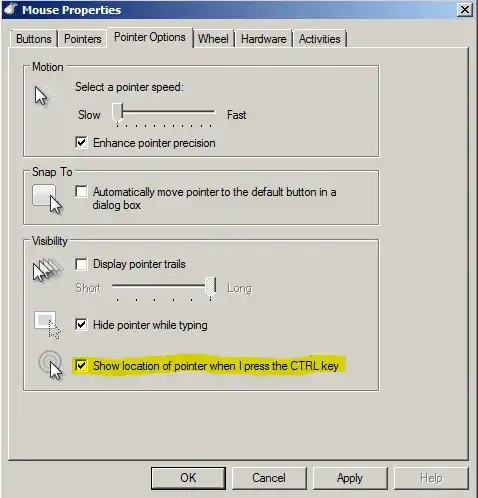
Turning on "Show location of pointer when I press the CTRL key" is one option. This is especially useful if it is currently changed to some custom mouse pointer by an application, like a paint brush, that is harder to see.

enter image description here

Brian
  • 8,896
  • 23
  • 37
8

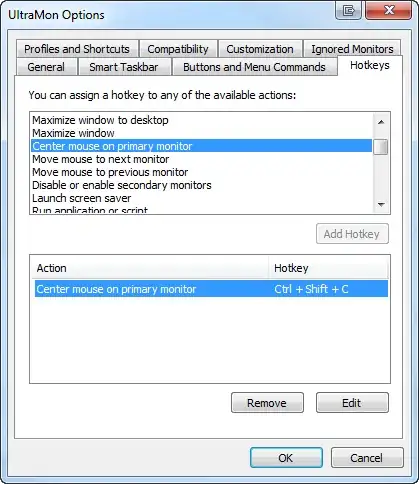
You can do this fairly easily with a software program called UltraMon.

In the options section there is a place to specify HotKeys. You can see screenshot where I've setup a hot key for Crtl + Shift + C

enter image description here

quickcel
  • 4,779
  • 2
  • 24
  • 25
7

The following AutoHotkey command sequence will instantly move the mouse to the center of the primary display:

CoordMode, Mouse, Screen
MouseMove, A_ScreenWidth/2, A_ScreenHeight/2, 0

For example, compile the following script:

CoordMode, Mouse, Screen
MouseMove, A_ScreenWidth/2, A_ScreenHeight/2, 0
ExitApp

You can then create a shortcut (.lnk) to it with a shortcut key of your choice. :)

Michael Kohne
  • 3,968
  • 2
  • 22
  • 34
iglvzx
  • 23,459
  • 13
  • 85
  • 122
3

Here's an AutoIt script to do it. AutoIt can compile its scripts to .exe, which you could then assign a hotkey.

Dim Const $SPI_GETWORKAREA = 0x0030

$rect = DllStructCreate("long left;long top;long right;long bottom")

DllCall("user32.dll", "BOOL", "SystemParametersInfo", "UINT", $SPI_GETWORKAREA, "UINT", 0, "ptr", DllStructGetPtr($rect), "UINT", 0)

Dim $left = DllStructGetData($rect, 1)
Dim $top = DllStructGetData($rect, 2)
Dim $right = DllStructGetData($rect, 3)
Dim $bottom = DllStructGetData($rect, 4)

MouseMove($left + (($right - $left) / 2), $top + (($bottom - $top) / 2))
Patrick Seymour
  • 8,392
  • 31
  • 33
1

Using WMIC and Powershell (both of which should already be installed under Windows 7) this should be doable.

Using WMIC, you can get the screen width and height:

C:\>wmic desktopmonitor get screenheight, screenwidth
ScreenHeight  ScreenWidth
900           1440

and Powershell can set the mouse position (replacing <X> and <Y> with the actual coordinates):

PS C:\>[system.Reflection.Assembly]::LoadWithPartialName("System.Windows.Forms") | out-null
PS C:\>[System.Windows.Forms.Cursor]::Position = New-Object System.Drawing.Point(<X>,<Y>)

So, a little trial and error (and basic math) ought to give you a script which, when run, centers the mouse pointer.

Andrew Lambert
  • 7,635
  • 3
  • 30
  • 47
  • 1
    PowerShell scripts require the execution policy to be changed, if you haven't done so already. You would need to change it permanently or run PowerShell.exe with the "-ExecutionPolicy RemoteSigned" argument. – Patrick Seymour Jan 31 '12 at 00:28
0

Nircmd by Nir Sofer has the following option..

nircmd setcursor x y

You can create a shortcut to this command line and assign any hotkey to it. There are a lot of other options for mouse cursor as detailed in the nircmd.chm file.

user38660
  • 11
  • 1
  • This is a good method except it seems to be slow(takes about 3 seconds for windows to run it). But doesn't require much else. I had to use elevate shortcut to prevent the windows security popup. –  Aug 05 '17 at 06:31
0

Microsoft PowerToys has a feature under "Mouse Utilities" called "Find My Mouse" - the default behavior is that two taps on the left CTRL key sweeps a circle onto your mouse (and follows your mouse around). Very useful, and there are a lot of other great features in PowerToys as well! I highly recommend it!

Here is a link to all the features in the app: https://learn.microsoft.com/en-us/windows/powertoys/

enter image description here

tehDorf
  • 967
  • 3
  • 11
  • 20
0

Another AutoIt3 program:

<!--  --!>
;;; Define variables according to you
$speed  = 1        ; 0=instantly, 1=fastest, 100=slowest
$delay  = 100      ; milliseconds
$hotkey = "^+!c"   ; ^=Ctrl, +=Shift, !=Alt

;;; Hotkey function
Func GetMyMouse()
    MouseMove(@DesktopWidth / 2, @DesktopHeight / 2, $speed)
EndFunc

;;; Register hotkey
HotKeySet($hotkey, "GetMyMouse")

;;; Program body (busy wait)
While True
    Sleep($delay)
WEnd
mmdemirbas
  • 419
  • 2
  • 6
  • 18
-1

uhh...I dont think so

but on the issue of finding your mouse you CAN turn on "pointer sonar" so your pointer will be honed into when you press the control key. (currently on a mac but I will try and get screen shots in a moment and edit it in)

regarding macro idea. I guess its plausible...but I dont know of any app that has this already programed, or how to program this myself

mjrider
  • 549
  • 1
  • 6
  • 21