199

Windows XP SP2 and Windows Vista have this deal where zone information is preserved in downloaded files to NTFS partitions, such that it blocks certain files in certain applications until you "unblock" the files.

So for example if you download a zip file of source code to try something out, every file will display this in the security settings of the file properties

"This file came from another computer and might be blocked to help protect this computer"

Along with an "Unblock" button. Some programs don't care, but Visual Studio will refuse to load projects in solutions until they've been unblocked.

While it's not terribly difficult to go to every project file and unblock it individually, it's a pain. And it does not appear you can unblock multiple selected files simultaneously.

Is there any way to unblock all files in a directory without having to go to them all individually?

I know you can turn this off globally for all new files but let's say I don't want to do that

Tom Kidd
  • 1,627
  • 7
  • 24
  • 26
  • 30
    How does one turn this off globally? Link please? :) Thanks – underskor Oct 05 '09 at 01:46
  • 19
    Yes, worst Windows "feature" ever... – Brian Knoblauch Oct 29 '09 at 11:41
  • 16
    Second worst. The first worst is auto-run on newfound media, which is what started this mess. – kmarsh Oct 29 '09 at 11:47
  • 6
    @Thomas As one of the answers points out, you can do this by setting the registry key HKEY_CURRENT_USER\Software\Microsoft\Windows\CurrentVersion\Policies\Attachments\SaveZoneInformation = 1. More info: http://support.microsoft.com/kb/883260 – jamiebarrow Jan 10 '13 at 22:28
  • @jamiebarrow: I cant the key on Windows 8.1. Any alternate solution for globally turning off the thing? – tumchaaditya Jan 13 '14 at 06:20
  • Schnapple - Perhaps this question should be tagged with [tag:Internet-Explorer], as up until recently (as far as I am aware) this is the only browser that tags it's downloaded files in this manner. ALL - On the page http://support.microsoft.com/kb/883260 that [jamiebarrow](http://superuser.com/users/69108) provided [above](http://superuser.com/questions/38476/#comment643530_38476), the relevant section is titled "Do not preserve zone information in file attachments" (Annoying that MS doesn't use uniquely ID'd elements, to make # referencing easier). @tumchaaditya..Try creating all missing keys – user66001 May 11 '14 at 20:28
  • 3
    My downloads in Google Chrome get tagged and I have to unblock them. @jamiebarrow has the right information for disabling this globally via the registry, or you can use the Local Group Policy Editor (gpedit.msc) and change the setting in User Configuration > Administrative Templates > Windows Components > Attachment Manager > Do not preserve zone information in file attachments > Enabled. – Baodad Jul 22 '14 at 16:20
  • The solution is obtaining a EV (extra validation) Code Signing Certificate and signing your executable. For example: https://www.digicert.com/code-signing/ev-code-signing.htm – Michael Haephrati May 18 '15 at 09:41
  • Third worst windows feature. The worst is focus grabbing by applications, taking the input you intended for another program and acting upon it before you know. – foo Aug 08 '19 at 20:52

15 Answers15

205

If you download a .ZIP and unzip it, the individual files will be marked as the same zone as the .ZIP. Almost every time I have a folder full of "blocked" files, this is how I got them.

Before unzipping, click the Unblock button on the .ZIP.

antzshrek
  • 560
  • 1
  • 5
  • 19
Jay Bazuzi
  • 4,160
  • 6
  • 32
  • 41
  • 1
    This one's definitely the easiest - you win – Tom Kidd Sep 09 '09 at 16:03
  • +1 same conclusion I came to - an easy way to package files in a non-NTFS manner - found this by searching Google for these terms: unblock all files in a directory xp. – Will Bickford Sep 09 '09 at 18:19
  • 3
    Actually, no. I download zip-files to use the content and I let my browser open the zip file automatically. From there I invoke "Extract all files". There is no option to unblock from these location, and hunting down the zip file in the download folder or even worse, the temp folder, is *very* tedious. – Thomas Eyde Sep 16 '10 at 11:29
  • I wish I could upvote this more than once. – dave thieben Jun 01 '11 at 19:57
  • This solution only works if you haven't modified the files that came out of the ZIP file. – Charlie Sep 04 '13 at 19:11
  • @ThomasEyde - I wonder if the below [answer](http://superuser.com/questions/38476/#570913) may be halfway towards a way to get Explorer to run the `streams` program against the ZIP, before launching the Explorer unzipper ¿DLL? – user66001 May 11 '14 at 20:56
  • @Charlie you can still zip up the modified files, unblock and then unzip – seanjacob Aug 22 '14 at 14:34
  • Is there anyway to reset this zone information once the file is unblocked? Once I unblock the file I don't see anything in file properties with the help of which I can undo this action? – RBT Sep 13 '16 at 05:15
  • If the .zip is marked as Read-Only, clicking the "Unblock" button WILL NOT WORK! To fix it: Uncheck the "Read Only" attribute, Unblock it, then re-check the "Read Only" attribute box again. – Gabriel Staples Sep 29 '17 at 14:35
  • `and hunting down the zip file in the download folder or even worse, the temp folder, is very tedious` ; more tedious than unblocking the extracted files one by one? I think that's the issue. – Brian Dec 14 '21 at 00:44
106

PowerShell, available here, has an Unblock-File cmdlet that will do this task for you. To unblock all of the files in a directory, you'd issue the following command.

dir c:\mydir -Recurse | Unblock-File

Unblock-File doc

zwcloud
  • 210
  • 2
  • 11
pk.
  • 430
  • 1
  • 5
  • 6
  • 2
    No longer just Beta, this is released and works quite well. – Ken Hiatt Jul 13 '13 at 20:12
  • Excellent! I extracted a big zip and forgot to unblock it first, then deleted the zip to save space. This saved me downloading it again or a load of manual work :) – Danny Tuppeny Jun 01 '14 at 12:49
  • 3
    This worked for me but didn't provide any feedback at the cmd line. I also tweaked it slightly, if you're already in the folder then you can just do `dir -Recurse | Unblock-File` – user36088 Sep 12 '14 at 02:44
  • +1 for not needing to unzip again.. made change to some files already – Jony Adamit Feb 15 '15 at 13:16
  • 3
    Works like a champ. This should be the accepted answer. – Chuck Conway Feb 19 '15 at 07:25
  • Unreliable for me on Windows 7 SP1 x64. Works for some directories, but not for others and I can't figure out why. No error, the data stream just remains sometimes. – EM0 Mar 10 '15 at 17:54
  • 1
    Perfect. This should be the accepted answer. Unblocking the zip is fine and dandy if you remember it, but this method for doing it for a bunch of files all at once is great. – Bas May 11 '17 at 11:20
66

It's quite simple, NTFS attached a data stream (that IDs "unsafe files") to the file when it is just downloaded from the Internet.

Do recursively remove this stream for all files, follow these steps :

  1. Download the Streams CLI executable from Microsoft
  2. Put the streams.exe executable in your Windows directory (or anywhere that the system can find it)
  3. Run this line in the command line :

streams -s -d directory

It will then remove all of the data streams from all files recursively in the directory - you have now successfully unblocked all files.

caliban
  • 20,053
  • 5
  • 51
  • 62
  • 9
    Might be dangerous. Windows also uses streams for other purposes. – harrymc Sep 09 '09 at 15:41
  • 6
    Very rare - data streams are hardly used for anything since it's an undocumented feature. It will be safe if as schnapple has said - he just wants to unblock files in a certain directory that are known to be documents received over the internet. At no point in time am I recommending him to do _streams -s -d C:\_ :) – caliban Sep 09 '09 at 15:46
  • 6
    just checked (since Streams is an undocumented feature it's hard to verify though) with some people, and they believe that once a document is transferred over the Internet or go through anything other than NTFS, it loses all stream data. As a result, when you first download something from the Internet, the only data stream you will have is that "Unsafe File" data stream. – caliban Sep 09 '09 at 15:54
  • 23
    Why do you think they're not documented? (http://msdn.microsoft.com/en-us/library/aa364404(VS.85).aspx) – Reuben Sep 09 '09 at 16:12
  • 2
    While this will work, just to say that Office 2007 documents use streams and that file properties are stored as streams. I suggest using "streams -d" carefully. – harrymc Sep 09 '09 at 16:13
  • 6
    Don't blindly delete all alternate data streams, unless you have backup copies of those NTFS encrypted files. – Ian Boyd Dec 15 '09 at 20:51
  • This method didn't work for me anyway - it just said that it couldn't find any files with streams (even though I had the option to "Unblock" several files in their Properties screen and AlternateStreamView saw the streams). – Pat Aug 31 '10 at 16:38
  • 1
    Worked a charm for me. – Paul Suart Sep 25 '11 at 21:11
  • 1
    @caliban: That's not entirely right. WinRAR offers the ability to save file streams when archiving and this preserves the data streams for archived files. You only lose them when you extract .RAR files onto a file system that doesn't support file streams. – Alex Essilfie Jan 09 '12 at 12:35
  • 2
    It's not NTFS that attaches the source zone. It's the browser or Explorer when downloading/copying a file. The file system couldn't care less. – Joey Nov 10 '12 at 15:12
  • mine says "No files with streams found." and the problem persists –  Apr 27 '13 at 13:10
  • @AlexEssilfie + harrymc + Ian Boyd - Assuming you are not in the situation of [Thomas Eyde](http://superuser.com/users/27532) outlined in his [comment in another answer](http://superuser.com/questions/38476/#comment192087_38489), and that you only run any stream removing method on the immediate files downloaded from the internet via IE (something I think caliban should make cleaer in this answer)... not the result of uncompressing that/those immediate files, can't see how you won't just remove the "_:Zone.Identifier:$DATA_" streams set by IE, which is the requirement of this question. – user66001 May 11 '14 at 20:49
  • If you do this programmatically, add the registry key that accepts the eula, then the User isn't prompted: [HKEY_CURRENT_USER\Software\Sysinternals\Streams] "EulaAccepted"=dword:00000001 – Quandary Jan 08 '15 at 10:14
  • I had some files in my Windows 8.1 OneDrive folder and was sceptical of this approach. Running streams.exe shows a LOT of other alternate data streams for such files. The Powershell answer below is ideal as it leaves the other alternate data streams, such as those wanted by the OneDrive sync client, alone. – Ian Yates Jun 22 '15 at 06:14
32

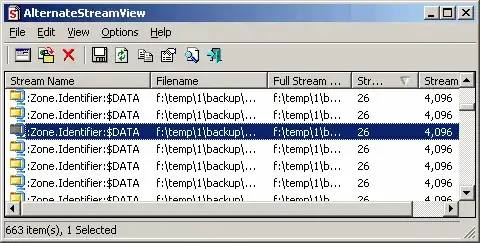
AlternateStreamView can list all alternate NTFS streams for files in a directory (and sub-directories if desired).

Delete all streams marked ":Zone.Identifier:$DATA" for the selected files to get rid of the security blocks.

enter image description here

Gaff
  • 18,569
  • 15
  • 57
  • 68
Snark
  • 32,299
  • 7
  • 87
  • 97
14

A very easy workaround for this kinda ties into the first answer, say if you have around 1000 files that are all blocked just take all the files, and put them in a new folder on your desktop (or whatever folder directory you're working in them right click said folder and then click Send To and then out of the options Click Compressed (zipped) Folder, then after that delete your original files and extract the .ZIP folder and Viola!!! all your files are unblocked :D, worked for me on XP Pro SP3, so kinda assuming it will work on vista as well

Kristian
  • 61
  • 1
  • 2
11

To disable blocking when files are downloaded, open the following registry key:

HKEY_CURRENT_USER\Software\Microsoft\Windows\CurrentVersion\Policies\Attachments\SaveZoneInformation

Change SaveZoneInformation to 1.

NOTE:

  • 0 = Not Configured
  • 1 = Enabled
  • 2 = Disabled
Gaff
  • 18,569
  • 15
  • 57
  • 68
user61000
  • 31
  • 1
  • 2
  • 2
    I don't have that option on windows 7 and article only mentions XP. Still, looks interesting. – AndrejaKo Dec 31 '10 at 11:41
  • Can you add the key to enable / disable? Just because you don't have a User Policy key only means that it hasn't been set up that way; you can still use it. – JohnZaj Jun 13 '11 at 11:22
  • @user61000 - Am I right in my suspicion this only alters IE's behaviour, and not (as I found out is now done with the latest release of) Firefox (or other) browsers? – user66001 May 11 '14 at 19:55
  • Requires admin rights :( – Quandary Jan 08 '15 at 10:11
  • Just set this via the appropriate group policy (which I then confirmed set this registry key). Thanks :) – Ian Yates Jun 22 '15 at 06:12
  • 1
    This works in Windows 7 and 8 as well (and likely 10). Updated link: https://support.microsoft.com/en-us/kb/883260. This also affects Chrome and I think Firefox. – thaimin Aug 15 '15 at 19:39
8

As another poster said the insecure file flag is stored in an NTFS data stream. What this means is there's a very easy way to remove this data stream, just move the file to a drive that doesn't support NTFS data streams.

Assuming that your problem is more related to the number of files, rather than the size of them, then the easiest way to do it might be to move (not copy) the files to a FAT formatted drive, then move them back to the NTFS drive (almost every USB stick is formatted FAT32 so will do nicely), and then move those files back to where you want them.

I've done this before when I've wanted to strip the blocked flag from a whole directory of downloaded files and it did exactly what I needed.

GAThrawn
  • 4,326
  • 2
  • 22
  • 42
8
  • Download the Sysinternals Streams utility.
  • Unzip and copy streams.exe to \Windows\System32.
  • Create a new text file and rename it to something like "unblocker.reg".
  • Copy the below registry script in it:

    Windows Registry Editor Version 5.00
    
    [HKEY_CLASSES_ROOT\*\shell\unblockfile]
    @="Unblock file"
    
    [HKEY_CLASSES_ROOT\*\shell\unblockfile\command]
    @="cmd /c streams -d \"%1\""
    
    [HKEY_CLASSES_ROOT\Directory\shell\unblockallthefiles]
    @="Unblock the files inside"
    
    [HKEY_CLASSES_ROOT\Directory\shell\unblockallthefiles\command]
    @="cmd /c streams.exe -d -s \"%1\""
    
  • Save the file.

  • Double-click the saved file to merge it into the registry.

After this, whenever you right-click a file, you can select "Unblock file" in the context menu or you can right-click a folder and select "Unblock files in here".

source

creapure90
  • 41
  • 1
  • 1
  • +1 Great idea to make this process less time intensive. – user66001 May 11 '14 at 19:56
  • It worked for me, after I added the path to streams.exe in the 8.3 format: `@="cmd /c C:\PROGRA~2\Sysinternals\streams.exe -d -s \"%1\""` – Olivier Jacot-Descombes Sep 27 '14 at 16:21
  • I know this is an old thread but thanks. There are multiple versions of the same reg script on the internet and most of them don't work. I can add that this worked for me on Windows 7 professional 64bit. – trenten Jul 28 '16 at 18:28
5

AlternateStreamView is great. Another method though is to archive the files to .RAR, 7z or .ZIP . Delete the originals and then re-extract the files.

Indrek
  • 24,204
  • 14
  • 90
  • 93
3

I had the same issue and the way I unblocked the files was:

  • I added all the blocked files to a RAR archive (I used WinRAR)
  • I removed the original files
  • I extracted all the files from the archive

All the files are now unblocked.

For me it was some MSDN Magazine issues that were in .chm format, but I do not think the file type matters.

slhck
  • 223,558
  • 70
  • 607
  • 592
leoinfo
  • 81
  • 1
  • 10
1

I was searching for a batch method (without using powershell) and after reading this post I came up with this simple solution

echo. > .\filename.zip:Zone.Identifier

this will not remove the Zone.Identifier data stream but clear it's content which seems to work fine.

Another solution (which will clear all data streams and use a temporary file is this)

type filename.zip > filename.zip.tmp
move /y filename.zip.tmp filename.zip
1

ZoneIDTrimmer looks like the most user-friendly tool available for this:

enter image description here

RomanSt
  • 9,553
  • 15
  • 56
  • 74
0

I have a usb external Hard Drive that works great for removing the blocks... I made a small partition and formatted it in FAT32..when I want to remove the block from something I simply move it to that drive and then move it back :-)

user200075
  • 11
  • 1
  • This is certainly a good approach, but it has already been mentioned in [GAThrawn's answer](http://superuser.com/a/38519). – Dennis Feb 18 '13 at 03:54
  • Possibly the least risky/step intensive out of the workaround answers provided. – user66001 May 11 '14 at 19:58
-4

Yes. At a command prompt, takeown /f <name of file>.

In your case, takeown /f *.* /r to recurse into all sub-directories and unblock *.*. Play with the pattern if necessary.

takeown /? for more usage instructions.

Peter Mounce
  • 708
  • 3
  • 9
  • 20
-5

There is another easy way. Just select the file or the folder, right click it and select Properties⇨Security⇨Edit, then click on Full Control.

After that you should just click [Save] and exit.

Synetech
  • 68,243
  • 36
  • 223
  • 356
  • 2
    This is not the place where Windows stores the information that the file comes from another computer. – Werner Henze Jan 22 '14 at 10:30
  • Agree [Werner Henze](http://superuser.com/users/220983). Pity, though - like shreyas 's effort with the unicode arrows. – user66001 May 11 '14 at 20:22