4

Possible Duplicate:
What are PATH and other environment variables, and how can I set or use them?

I ran a third-party install script which added its folders to the %PATH% variable in the Windows shell.

I want to get rid of it, but I can't find the place where they are defined. My current %PATH% variable seems to be a concatenation of:

  • PATH for current user
  • PATH for the entire system
  • something else?
slaphappy
  • 143
  • 1
  • 5

2 Answers2

6

1. This applies to Windows 7 (and I think to Vista as well):

  • Start > Right-click on Computer > Properties.
  • Advanced System Settings link (on left).
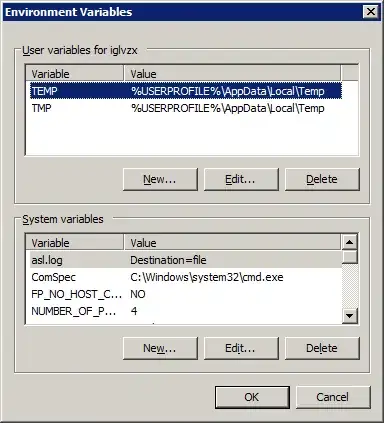
  • Environment Variables button.
  • You will find a Path variable under the System variables section.
    • Select it and click Edit button to edit it.
    • You may also find a Path variable under the User variables section. You can edit it also.
  • When done, click OK three times.

Tip: The Edit variable window is not very user-friendly. Copy the contents to Notepad for easier editing, and then copy the edited version back.
screenshot

2. Some systems may contain a PATH variable in the Volatile Environment. This variable is normally created on a computer connected to domains and usually cleared off at log out. However, you may want to check whether a PATH variable persists in the Volatile Environment:

  • Start > type in regedit.
  • Run the regedit.exe program that is found in the search.
  • Navigate to HKEY_CURRENT_USER\Volative Environment in Registry Editor's left pane.
  • If there is any entry with the name PATH on the right pane, ensure that the stored paths are not necessary^, then right-click the entry and click Delete.
  • Click Yes to the message.
  • Restart your computer for changes to take effect.

^ If any of the stored paths is necessary:

  • Copy it to a Path entry in HKEY_CURRENT_USER\Environment.
    • You will have to copy the text manually. There is no drag-and-drop copying in Registry Editor.
    • Double-click on the original entry to open the Edit String dialog, and then copy the necessary text.
  • If there is no Path entry in HKEY_CURRENT_USER\Environment:
    • Right-click an empty space in right page and choosing New > String Value.
    • Type the name Path.
    • Press Enter twice to save the name and open the Edit String dialog.
    • Paste in the copied text.
    • Click OK.

Source on Volatile Environment (See Using Volatile Environment PATH towards the end.)

ADTC
  • 2,954
  • 3
  • 30
  • 49
  • Thank you for your answer, however the components I want to get rid of seems to be defined elsewhere (http://i.imgur.com/bNstI.png). And now that my question has been closed I'm not sure what to do. – slaphappy Feb 24 '12 at 14:20
  • Hmm, that's very strange. What do you get when you double-click on the Path variable(s) in the _Environment Variables_ window? Also, try using `setx` command to **reset** the Path variable to something other than its current value (you won't see the change in the same command window, so open a new one _after_ issuing `setx` command). – ADTC Feb 24 '12 at 14:55
  • Both variables have empty contents when I click them in the GUI. Also, I tried the `setx` method like that : `setx path TEST` (Took ~10 seconds) `echo %path%` gives `;TEST;;u:\tools\bin;r:\tools;`. No luck. – slaphappy Feb 24 '12 at 15:21
  • You need to do this: `setx path TEST /M` (Do it in an Administrator command window.) The /M will change the Path in the _System variables_ section (bottom part in the dialog). Without the /M, the Path variable is changed (or added) in the _User variables_ section (top part in the dialog). Also if this doesn't work, try editing the variables in the _Environment variables_ dialog itself. (PS: The path shown in command window when you do `echo %path%` is a concatenation of **both** system and user Path variables.) – ADTC Feb 24 '12 at 17:09
  • It did that, with no luck. (It was already empty). After a lot of googling, it turned out that the third component was the "Volatile Environment"'s PATH, which can't be modified using `setx`. I used `setenv.exe` which knows how to do that. – slaphappy Feb 27 '12 at 14:06
  • Also I don't have the rep to do that, but I think the linked answer (in the duplicate link) deserves to be updated. – slaphappy Feb 27 '12 at 14:07
  • @kbok wow I had no clue about *Volatile Environment*. But I found out it's stored in `HKCU\Volatile Environment`. I'll add it to my answer here, but I can't update the duplicate question's answer coz, well it's so damn long I can't even begin to tell where I must include this info! (You could help me with that. And you can suggest edits even if you can't edit. Your suggested edit will be placed in a queue and they get approved very fast.) – ADTC Feb 27 '12 at 15:31
3

You can use the Setx command at the command prompt to edit environment variables persistently, as it affects the values stored in the registry. Setx by default works on the user variables, and SetX with the -m option edits machine-wide environment variables (and consequently must be run from a command prompt with administrative privileges). The PATH environment variable is indeed a composite of current user and machine variables as stored in the registry.

iglvzx
  • 23,459
  • 13
  • 85
  • 122
kreemoweet
  • 4,565
  • 17
  • 19
  • Thanks, I learnt a new command `setx`. But to anyone using this command, be careful to not lose the current value of PATH variable by incorrect usage. `setx` does not provide a way to *edit* the value of an existing environment variable; it can only replace the value. It's better to use the GUI method to edit, especially if you're a novice user. – ADTC Feb 19 '12 at 07:57
  • @ADTC: I do not understand your comment. Editing existing env. variables is exactly the purpose of setx, and is far easier to do at the command-line than using the tiny GUI window. Both methods can equally easily overwrite existing values. The same can be said for any third-party application. – kreemoweet Feb 19 '12 at 20:05
  • No, what I mean is, in the GUI you have access to the existing value where you can place the keyboard caret anywhere in the existing text and *edit* that text. In `setx`, all you can do is *replace* the existing value with a new value. If you want to edit, you'll have to use `set` to get the existing value, then copy it to some other place like Notepad or the command line itself, edit it, then use `setx` to *replace* the existing value with the edited one. There is no *direct edit* (textbox-like) in `setx`. (If there is, please show me how it's done.) – ADTC Feb 20 '12 at 10:29
  • PS: I do know it's easy to add a *new* path to the `PATH` variable using `setx` like this: `setx PATH "%PATH%;C:\New\Path\Here"` but it's not easy to edit or remove existing paths in the `PATH` variable. – ADTC Feb 20 '12 at 10:32