103

For every generation of Excel I can remember (including 2010, which I'm using now), Excel's "Auto Size Row" features sometimes fails to actually auto size a row when the cell contains wrapped text. When it works properly, all the text is revealed and there is no additional space below the last line of text. When it fails, it adds extra space below the text. To make matters worse, what you see is not always what you get, i.e., text that appeared okay on screen gets cut off when it's printed. You also get different sizing depending on whether you are zoomed in/out or at actual size.

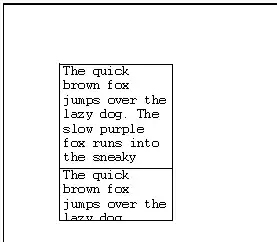
Simple test case:

Why is there a one-line gap after the text in cell A1 but not in A2?

(To reproduce: set width of column A to 17.14 (125 pixels), text wrap on, and cell alignment top.)

(I double-checked that I applied Auto Fit Row Height to both rows. Zoom level is 100%.)

Auto Fit fails for the first row, succeeds for the second

Is there any known remedy for this without resorting to manually adjusting the row heights (which is not practical for more than a handful of rows)?

devuxer
  • 3,951
  • 6
  • 31
  • 33
  • In case anyone wants to reproduce the example in my question, the width of column A is 17.15 (125 pixels). – devuxer Feb 14 '12 at 21:47
  • Can reproduce this – Raystafarian Feb 14 '12 at 23:54
  • 1
    Bug seems dependent on font and font size – Raystafarian Feb 15 '12 at 00:08
  • Raystafarian, also zoom. – devuxer Feb 15 '12 at 00:09
  • The workaround would be to auto-fit column instead. – Raystafarian Feb 15 '12 at 17:01
  • 1
    @Raystafarian, doesn't seem to work with Wrap Text turned on. – devuxer Feb 15 '12 at 17:29
  • 1
    I tried autofitting the columns, which widened one column, and then autofitting the rows. That got it down from 73 to 64 pages but still lots of blank lines at the bottom of most of the rows. I have the rows aligned top. Manually changing the size of the rows makes it look OK when I'm working on the doc, but not in the preview or in print. –  Aug 05 '12 at 07:15
  • 1
    Yes, so annoying! Also seen this at least in Excel 2007. Don't recall ever seeing it in Excel 2003. – abstrask May 23 '13 at 20:57
  • I simply wanted to add that, as well as the "adding extra space" symptom, the row auto-height problem also manifests itself in a manner which causes the last line of wrapped text to be HIDDEN from view. This occurs especially at zoom levels under 100% when the wrapped text in question contains no spaces. I have so far been unable to find a solution to this. – blackworx Oct 23 '14 at 10:32
  • I had no problems after turning the text wrap on. – tedi Nov 27 '17 at 09:45
  • I cannot post an answer, but [here](https://pastebin.com/raw/BTcw0xaf) is a VBA module I wrote that can properly Autofit the height of any Excel cell, including a merged one. – Anton Shepelev Mar 29 '18 at 16:45

16 Answers16

115

A method I just found (extending the previous post a little):

  • Select the whole sheet.
  • Resize a column a little wider (because the whole sheet is selected, all the columns will get wider)
  • Double-click a row separator - the row height will be auto-fitted
  • Double-click a column separator - the column widths will be auto-fitted

Voila!

Nick Carrington
  • 1,166
  • 1
  • 8
  • 2
  • 2
    This really does seem to work. The one gray area is where you say "a little wider". One of the examples I tried didn't work unless I stretched the column a fair amount, but I did eventually get it to work. Thanks! – devuxer Feb 14 '13 at 02:18
  • 5
    I selected the whole sheet then double clicked the row separator between two random rows and the entire document re-adjusted the row heights. – Keith Sirmons Aug 16 '13 at 19:02
  • 7
    Note that AutoFit does not work for any merged cells: http://support.microsoft.com/kb/212010 – freb Jul 21 '14 at 18:59
  • Doesn't this method only work if all the columns are the same width? When I resized a column a little wider, all the other columns became the same width (in Excel 2010). – Ed Greaves Sep 24 '15 at 13:38
  • 3
    Wait a minute—this method has the side effect of increasing the width of all columns in the sheet, does it not? – Anton Shepelev Mar 29 '18 at 16:49
  • @Andreas Furster, it is possible in VBA, yes. See my first comment to the original question for a VBA module implementing an alternative approach. – Anton Shepelev Mar 29 '18 at 16:52
  • @Ant_222, yes all columns increase in width, so you will have to adjust them afterward. – KAE Mar 29 '21 at 14:35
  • Sort of works .. I still have some cells that are not wide enough and text chopped off from being visible at the top of the cell .. admittedly I have 13 lines of text in single cell. – Allan F Feb 16 '22 at 01:36
20

Excel's WYSIWYG isn't the best. In your picture, 'cat.' just barely sneaks into the 5th line. If you reduce the zoom percentage to anything less than 100% (99% for example.) then 'cat.' is now wrapped down to the 6th line. I think Excel is trying to auto-fit in a way that will ensure everything is almost always visible no matter your zoom level.

That isn't the only problem you will have with AutoFit. In addition, the way a word-wrapped cell is printed won't always match what you see on screen. Take your example and change the font to Courier while leaving size at 11.

Changed font to Courier

As you can see, cell A1 appears to be given 1.5 extra lines. Now look at print preview, 'cat.' is completely hidden.

print preview of same file

In my experience, Excel has this problem with certain fonts and font sizes more than others. Courier is worse than Courier New, size 11 is generally worse than 10 or 12. (Why they picked size 11 as the new default, I have no idea.)

mischab1
  • 1,312
  • 8
  • 10
  • 2
    So... basically they broke it. You're explanation is plausible though, but it really bugs me, that it is like this :-/ – abstrask Jun 28 '13 at 23:31
4

I just wrote a small macro for that purpose. I assigned it a shortcut key (Ctrl-Shift-J) and it works like a charm for me.

Sub ArrangeTable()
'set proper column width and row height for the current region
    With Selection.CurrentRegion
        .Columns.ColumnWidth = 200
        .Columns.EntireColumn.AutoFit
        .Rows.EntireRow.AutoFit
    End With
End Sub

To make this permanently available, you can easily make a automatically loading add-in:

  • create a module in a fresh blank workbook and paste the code,
  • assign it the shortcut key you want,
  • then Save As, Add-in, to folder %appdata%\Microsoft\Excel\XLSTART
    This way it will be invisibly loaded every time you start Excel.
iDevlop
  • 634
  • 6
  • 17
  • Or you could do this: Private Sub Worksheet_Change(ByVal Target As Range) ArrangeTable End Sub – kurdtpage Nov 23 '16 at 21:57
  • How is an add-in meaningfully different than placing it into personal.xlsb? They're both silently loaded, but it's easier to maintain code in personal.xlsb. Pretty portable too. (Edit: Answer appears to be a combo of personal preference and whether your audience is you or not you as per https://www.theexcelfactor.com/personal-macros-personal-xlsb-or-add-in/) – Neman Oct 27 '22 at 16:14
2

In some cases, the problem of extra space in some rows after invoking "AutoFit Row Height" may be that a hidden column has wrapped text in those rows.

BobO
  • 37
  • 1
0

There is a kb article on this which "suggests" (it's unacceptably sparse, in classic Microsoft fashion) that if you ever set a row height, automatic height autofitting is permanently gone for that row of that worksheet. Rows whose height you haven't touched will autofit fine though.

While you can reset column widths with the "standard width" setting in 2003 (madman-designed 2007: change to "default width"), but they forgot (again) (and again) to put that in for rows. So the permanency seems unavoidable. That means, if you have a default height of 15, and you create a sheet and set all the heights to 12, you just forfeited automatic autofitting.

Brad Patton
  • 10,540
  • 12
  • 40
  • 68
  • 2
    I cannot duplicate this behavior. As soon as I do "Auto Fit Row Height", any manual height setting for that row is immediately replaced with the auto-fit height. The problem is simply that the auto-fit height is often wrong. – devuxer Jun 20 '13 at 17:31
  • I CAN duplicate this behavior. This is exactly as it works for me. – Myer Nov 03 '14 at 15:38
  • I think what that kb article means, is about the automatic resizing of the row height when you're typing in text that is wrapped to the next line. When you normally do this, Excel will automatically increase the row height to keep your text visible. But if you have changed the height of the row before, this behavior is lost. It reappears after you autofit the height of that row. – tvo Feb 17 '21 at 07:48
0

Sometimes there is the nuclear method to fix misbehaving autoproblems.

What I do is copy the text out of each cell and paste the data in Notepad, then delete the row. Then I immediately copy and insert a row that is blank but has the same formatting and good behavior as the row that was deleted. (You must copy and insert the entire row by using left row buttons.)

Once that is done, you have to go back and insert the text from notepad into each cell. (Use F2 or otherwise activate the edit mode of each cell before inserting text.) It is a pain, so it is a last resort, especially for ginormeously wide worksheets.

It is the only solution sometimes, as the problem resides in the program itself.

nc4pk
  • 9,037
  • 14
  • 59
  • 71
Paul
  • 1
0

I have not thoroughly tested this but it's been working for me. Essentially it will auto adjust all sheets then go back through and set the column width to the original width, unless it's been extended by the auto adjust. I only had 10 columns and never more than 1000 rows so adjust the code as needed.

Sub ResizeCells()
    Dim sheetCounter As Integer
    Dim rowCounter As Integer
    Dim colCounter As Integer
    Dim totalWidth As Double
    Dim oldColWidths(1 To 10) As Double

    For sheetCounter = 1 To ThisWorkbook.Sheets.Count
        ActiveWorkbook.Worksheets(sheetCounter).Select
        totalWidth = 0

        ' Extend the columns out to 200
        For colCounter = 1 To 10
            oldColWidths(colCounter) = Cells(1, colCounter).ColumnWidth
            totalWidth = totalWidth + oldColWidths(colCounter)
            Cells(1, colCounter).ColumnWidth = 200
        Next

        For rowCounter = 4 To 1000
            If Cells(rowCounter, 1).Value <> "" Or Cells(rowCounter, 2).Value <> "" Or Cells(rowCounter, 3).Value <> "" Then
                Rows(rowCounter & ":" & rowCounter).EntireRow.AutoFit
            End If
        Next

        ' do autofit
        For colCounter = 1 To 10
            Cells(1, colCounter).EntireColumn.AutoFit
        Next

        ' reset to original values if current width is less than the original width.
        For colCounter = 1 To 10
            If Cells(1, colCounter).ColumnWidth < oldColWidths(colCounter) + 0.25 Then
                Cells(1, colCounter).ColumnWidth = oldColWidths(colCounter)
            End If
        Next
    Next
End Sub
Dan Williams
  • 146
  • 3
  • How does it solve the Autofitting bug? You auto fit rows, then autofit columns, and then resotre the original column widths. Why does it end up with the correct fitting row height? By the way, `totalWidth` is unemployed. – Anton Shepelev Mar 29 '18 at 15:58
  • It does not fully work for me, because you restore the width only of those colunns that have become narrower. Your algorithm therefore does not retain column width. – Anton Shepelev Mar 29 '18 at 16:08
-1

Actually there is an extra character there. It's the hidden LF character that is at the end of every field. When the text is just the right size the extra row is there to hold the LF character. Resizing the column width as other people have suggested will resolve that cell's issue, but if your spreadsheet has lots of varying size values in this same column, it is possible that your fix for this cell will cause another cell in the column to have the problem. I've learned to live with it most of the time.

phipywr
  • 54
  • 4
  • 1
    There is certainly no hidden LF character at the end of *every* field, unless of course the OP have put it there with Alt+Enter. The question is really about the case when there is no newline character, but Excel still fails to align cells properly. – Dmitry Grigoryev Dec 17 '15 at 16:36
-1

To paraphrase Dunc:

I've solved a similar issue by:

  1. Selecting the entire spreadsheet.

  2. Double clicking the line in the margin in between the two rows.

Specifically to address your issue of that extra line, I'd assume that there is a character there. It may not be a visible character, but there is definitely something there.

wizlog
  • 13,277
  • 24
  • 77
  • 116
  • 3
    Your steps are no different than what I already tried (double-clicking between rows is just a shortcut for "Auto Fit Row Height"). As for your theory that there is an extra character, you may be right, but I certainly didn't type one, and I wouldn't know how to get rid of it. I invite you to try typing the exact text as I have in my illustration into Excel and see if you get the same results. – devuxer Feb 14 '12 at 21:39
  • 1
    There's no character there on mine. – Raystafarian Feb 15 '12 at 00:08
-1

I didn't take the time to read the other comments. Why the line at the bottom of the first block and not in the second block?

It's because the text ends too close to the right edge of the cell. If you adjust the column to be a little bit wider and double click between the rows it will resize accordingly.

Excellll
  • 12,627
  • 11
  • 51
  • 78
-1

I too have endured this tiny but extremely distracting bug for many years. I have no work-around except fiddling around with the row width for the cell with most text in it, and eventually the program will relent and show the text properly.

Indrek
  • 24,204
  • 14
  • 90
  • 93
-1

There is an easy solution:

1) Select all rows that you want to autoformat (if it's a large block click on the first and then press Shift+End and Shift+Down)

2) Right click on the selection, Format Cells, Alignment tab, uncheck Wrap text.

Hope this helps ;)

Pedro
  • 17
  • 1
    If you uncheck `Wrap text`, there's no point in auto-adjusting your row heights anymore, since all rows will be the same size. – Dmitry Grigoryev Jan 27 '17 at 10:01
  • I've been bothered by this problem for years. Toggling Wrap Text for a troublesome row restored the autofit function. – Mitch Aug 30 '17 at 04:36
-1

I have Excel 2010. I found that this issue happened to me when my Zoom setting wasn't at 100%. As long as I am at 100%, I don't get the text cut off with the AutoFit for columns and rows

  • 3
    In the example I used for my question, I was at zoom = 100% the whole time. The problem occurred regardless. – devuxer Jun 20 '13 at 17:33
-1

My hypothesis is that Excel gets knotted when it has to extend too many lines. I had a similar experience to the above. It looks like there's an extra NL/CR/LF at the end but I know there's not. If I build up the cell some characters at a time, it auto-formats OK until a particular size is reached, then it puts in the extra line. (Similar behaviour in reverse happens if you start by deleting some characters.) It happens at different times with different cells.

Bummer!

So if you can extend the cell width, you can probably avoid the problem. If you can't (like in my case) you're stuck with manual formatting. As I said, "Bummer!"

GeoffH
  • 1
-2

What worked for me (Excel 2010), was to delete a hundred or so unused columns to the right of my data. I can only guess that there was something there causing the auto row height to misbehave.

Runk
  • 1
  • 4
    I can see how that would help, but it doesn't make any difference for the test case shown in my question. – devuxer Dec 20 '12 at 00:52
-2

select all cells, and click on the line that separates the rows twice... it'll automatically do it.

paul
  • 7