6

Today I have installed an exe icon changer application unfortunately this application did not work as expected, so I decided to uninstall this...

I can't remember the application name, but I remember that while I was uninstalling this, there was an message on the uninstaller saying: Restoring icons from windows-cache. and uninstaller did freeze with 100% progress bar, after restarting my PC I can not see any application icons anymore.

Here is an screen-shot from my start menu, the same happends on my desktop.
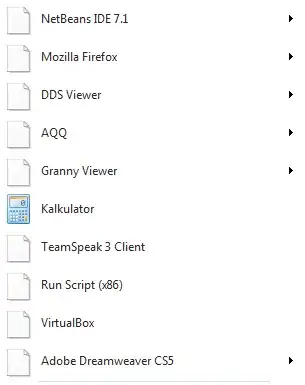
enter image description here

/sorry for my English.

Cyclone
  • 143
  • 1
  • 2
  • 8
  • I had something like this happen many moons ago on Windows XP. Unfortunately, I never found a fix, other than manually changing the icons back which (sometimes) worked. Hope you have better luck than I did... – Ben Richards Feb 24 '12 at 20:20
  • Thank you, I cant work with the icons looking like this `:S` I hope I do not have to re-install the Windows :/. – Cyclone Feb 24 '12 at 20:22
  • The *Kalkulator* entry shows an icon. What’s special about that one? `o.O` Do `.ico` files show correctly or are they blank as well? What about `.jpg`, `.png`, etc? What about `.bat`, `.zip`, `.txt` and other file types? Do folders look have a folder icon or are they blank too? – Synetech Feb 25 '12 at 22:38
  • `Kalkulator` is a `Calculator`, Microsoft application - all Microsoft applications have correct icons. `*.ico`, `*.zip`, `*.rar`, `*.bat`, `*.txt` are also fine, it seems like there are only problems with exe files. – Cyclone Feb 25 '12 at 23:15

3 Answers3

12

Whenever icons or thumbnails are not displaying correctly in Windows, there are several steps to try/check:

  1. Rebuild the icon cache:
    • Automatically:
      1. Run the Disk Cleanup tool (cleanmgr.exe)
      2. Select Thumbnails, then OK
      3. Reboot?

    • Manually from Explorer:
      1. Open your local application data folder:
        • 2000/XP: %userprofile%\Local Settings\Application Data
        • Vista/7  : %localappdata%
      2. Delete the file IconCache.db (you will need to have hidden files visible)
      3. Reboot

    • Manually from the command-prompt:
      1. Open a command-prompt (cmd.exe)
      2. Change to local-app-data: C:\> cd "<dir from step 1 above>"
      3. Delete the icon cache:       C:\…Local…> del /a IconCache.db
      4. Reboot


  2. Check for custom icon-handlers:
    1. Open a command-prompt (cmd.exe)
    2. Type assoc EXT where EXT is the extension of the problem file-type e.g.:
      C:\> assoc .exe
      .exe=exefile
    3. Navigate to HKEY_CLASSES_ROOT\<file-type>\ShellEx, where file-type is the result you got from the previous command (e.g., exefile)
    4. See if there is an IconHandler subkey/branch under ShellEx
      (Some file-types such as shortcuts (.lnk files) need an icon-handler)
    5. If so, delete it or just rename it (e.g., to #IconHandler, IconHandler-, etc.)
    6. Refresh the desktop/window with the files


  3. Check for “Old Icon”s:
    1. Find the extension association as in steps 2.2-2.3
    2. Navigate to the CLSID in the IconHandler (e.g. HKCR\CLSID\{42042206-2D85-11D3-8CFF-005004838597})
    3. Check if there is an Old Icon subkey, if so, expand it
    4. Examine the subkeys under Old Icon and make sure that the DefaultIcons are correct (they cannot contain quotes and must contain an icon index—even if just ,0—for non-icon files such as .dll, .exe, or .icl)


  4. Set the icon to “self” for files containing their icon (e.g., .exe, .ico, .bmp…):
    • Using the registry editor:
      1. Determine the file-type as in steps 2.1 - 2.2 above
      2. Run the registry editor (regedit.exe)
      3. Navigate to HKEY_CLASSES_ROOT\<file-type>\DefaultIcon
      4. Set the default value to "%1"
      5. Refresh

    • Using a file:
      1. Create a plain-text file with a text-editor (e.g., notepad.exe)
      2. Type or copy-paste the following (remember to replace the file-type):
        REGEDIT4                               
        [HKEY_CLASSES_ROOT\<file-type>\DefaultIcon]
        @="\"%1\""                             
      3. Save the file as Reset_Icon.reg (not Reset_Icon.reg.txt)
      4. Double-click the .reg file to merge it into the registry
      5. Refresh


  5. Ensure that thumbnails are enabled (Vista and up):
    1. Open the Folder Options dialog:
      • Open shell:::{6DFD7C5C-2451-11d3-A299-00C04F8EF6AF}
        or
      • From an Explorer window, the menu Tools->Folder Options…
    2. Select the View tab
    3. Un-check the Always show icons, never thumbnails option
    4. Refresh
Synetech
  • 68,243
  • 36
  • 223
  • 356
  • 1
    No results :/ still I still see the 'blank' icons. – Cyclone Feb 24 '12 at 22:14
  • For *everything*? From your screenshot, it looks like *some* things are showing correctly. – Synetech Feb 24 '12 at 22:33
  • 1
    Not for everything, I can see the Microsoft related icons, like: `My Computer`, `Recycle Bin`, `Documents`, `MSN` and I can also see all folders icons. The problem appears when there are some external applications icons to appear. – Cyclone Feb 24 '12 at 22:38
  • Okay good. That means that only the `.exe` files are incorrect (the other items you mentioned are not program files; they are special and have their own icons). So use the registry script I added to my answer to reset the icon for `.exe` files. – Synetech Feb 24 '12 at 22:57
  • 1
    Well, I can't believe it, but it still does not work. :/ I've saved your registry entry into a `Reset_EXE_Icons.reg` file and then I run it and accepted the warning, then message box appear saying that the entry has been successfully added... I did reboot, but still no results... – Cyclone Feb 24 '12 at 23:17
  • Open `Regedit.exe` and navigate to `HKEY_CLASSES_ROOT\exefile\DefaultIcon`. What is the default value in the [pane to the right](http://i.imgur.com/9BeGF.png)? – Synetech Feb 24 '12 at 23:23
  • I got the same value as on the screenshot you gave. – Cyclone Feb 24 '12 at 23:32
  • Maybe the program set it to show icons instead of thumbnails. Try resetting it as above. – Synetech Feb 24 '12 at 23:46
  • It was unchecked by default. – Cyclone Feb 24 '12 at 23:51
  • It may not be executables at all, it could shortcuts. Open a folder that has `.exe` files in it. Do they have the correct icons? Create a shortcut to one of them (hold `Alt` then drag and drop an `.exe` file). Does the shortcut have the correct icon? – Synetech Feb 25 '12 at 01:10
  • shortcut doesnt have icons, same as executable files at all. – Cyclone Feb 25 '12 at 13:07
  • *> shortcut doesnt have icons, same as executable files at all.* Shortcuts do not have icons. Executables do or do not? Check `HKEY_CLASSES_ROOT\lnkfile\shellex\IconHandler` to see if the default value is `@="{00021401-0000-0000-C000-000000000046}"` If so, then that program seems to have broken something in an unusual way, which will require some more work to figure out… – Synetech Feb 25 '12 at 18:59
  • Executables do not have icons. `HKEY_CLASSES_ROOT\lnkfile\shellex\IconHandler` is `{00021401-0000-0000-C000-000000000046}` – Cyclone Feb 25 '12 at 22:37
  • I've fixed this by removing the registry data on `HKEY_CLASSES_ROOT\exefile\` . Thank you :-). – Cyclone Feb 26 '12 at 00:25
  • Huh? It sounds like that program installed some kind of custom handler (in the `shellex` subkey). That could be removed without deleting the whole `exefile` branch. You completely removed the `exefile` branch? Do executable files still work? – Synetech Feb 26 '12 at 00:39
  • Yes, everything is working, and you're right, there was some custom handlers. – Cyclone Feb 26 '12 at 00:52
  • Okay, great. If you remember what the program was, add it to the question so that future users of it can have an idea about fixing it (and perhaps someone filing a complaint with them about their uninstaller). – Synetech Feb 26 '12 at 00:54
  • Sure, I will :-). – Cyclone Feb 26 '12 at 01:03
  • I was trying to figure out why in Windows 7 I have a Chromium icon for `.html` files, but in Windows XP, I get a blank icon. While investigating, I figured out that there is indeed another mechanism that relates to the displaying of icons and thumbnails that some programs mess with [just as I thought](http://superuser.com/questions/71652/windows-7-image-thumbnails-fail-to-appear#comment447271_71652). I’ve added it to the answer. I suspect that the program you used had installed an IconHandler which of course is now gone. – Synetech Feb 29 '12 at 04:28
  • Yeah I've never had this happen to me before, but it just did, and none of the listed steps have worked either. This suspiciously occurred right after I just ran CCleaner – krb686 Mar 07 '15 at 14:02
  • @Synetech My `DefaultIcon` values for `.jpg` and `.png` files is set to `%SystemRoot%\System32\imageres.dll,-83` Is that odd? – krb686 Mar 07 '15 at 14:04
  • #1, third bulleted item works, but with one alteration as described here. http://superuser.com/a/613868/387576 – Kennah Aug 03 '15 at 18:42
  • This solved it for me! http://superuser.com/questions/71652/windows-7-image-thumbnails-fail-to-appear/613868#613868 – naisanza May 04 '16 at 02:44
3

Since all normal procedures to fix icons problems (and detailled here by Synetech) wont works, I supposed the problem comes from remaining elements of the failed uninstallation of this unknown application...

Suggestion #1: Try this My folder and application icons on Windows 7 are generic N.B.: same of the Synetech solution #1 except with this difference: «change your screen bit depth to 16 bit and then back to 32 bit»

Suggestion #2: Try this Ms Fix it: «Fix problems with programs that can't be installed or uninstalled»

Suggestion #3: Try a system restore…

Hope this help.

climenole
  • 3,428
  • 1
  • 19
  • 30
  • For you it's a minor problem not for the user. System restore is a normal fixing procedure (like restoring a backup... for example) not a reformat which is useless in 99,99% of the case (good for n00bZ imnsho...). Have a nice day Synetech! Keep smile :))) – climenole Feb 29 '12 at 21:06
  • Suggestion #1 worked for me. Thank you! – Eli Gassert Apr 04 '14 at 15:10
0

I've tried a few different things. The thing that worked for me was here.

This page has two options:

  1. An automatic option: Download a batch file and run it
  2. A manual option (I assume this contains the contents of the automatic option batch file):
    • ie4uinit.exe -ClearIconCache
    • taskkill /IM explorer.exe /F
    • DEL "%localappdata%\IconCache.db" /A
    • shutdown /r /f /t 00

I've had the trouble twice. Today, the first command from the manual option fixed the problem.

Good luck!

Brad W
  • 1