65

Trying to maintain good security settings on my laptop, I want my home network to be interpreted as private and the university network at school to be interpreted as public. However, my home network is currently showing as public.

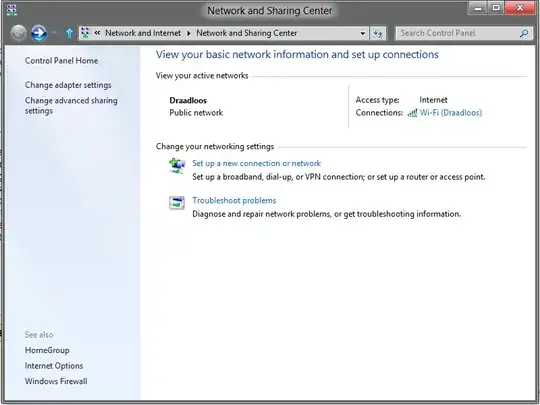
Here is what my Network and Sharing Center looks like:
How do I change my home network from public to private on Windows 8 Consumer Preview?

Edward Brey
  • 1,915
  • 6
  • 27
  • 38
Tamara Wijsman
  • 57,083
  • 27
  • 185
  • 256
  • +1 to remove the -1 somebody did. I've only used XP so I suppose this private/public thing is in windows 8 and maybe a bit earlier. Could be the downvoter thought you weren't using the right terminology. A screenshot may have deterred them from having such a thought. – barlop Mar 01 '12 at 03:23
  • For best security, set all networks as Public. Unless you're hosting file shares or other server-type services from your computer, you shouldn't need to open it up any more than that. – Iszi Mar 01 '12 at 05:28
  • First make sure that your wireless network *is* private. Unless you've set a password it isn't. – Daniel R Hicks Nov 18 '12 at 19:26
  • Are you asking how to change the network *itself*? If so, why do you say "How do I change my home network from public to private *on Windows 8 Consumer Preview*?" Are you trying to change a setting on your network or on your machine? And if on your network, why do you tell us all about your machine and *nothing* about your network? – David Schwartz Dec 16 '13 at 00:25
  • Back then, interpret them as public or private on Windows 8 Consumer Preview on my laptop. – Tamara Wijsman Dec 16 '13 at 01:09
  • Once again, one *should not* tell Windows that a network is "private" unless it's encrypted. An out-of-the-box WiFi network is not encrypted and *should not* be declared "private". – Daniel R Hicks Dec 16 '13 at 01:54
  • 1
    How is that related to this question? Are you trying to address Microsoft? – Tamara Wijsman Dec 17 '13 at 14:30

8 Answers8

80
  1. Press Win+R, then type secpol.msc
  2. Click on "Network List Manager Policies"
  3. Double-click on your network
  4. Click on "Tab Network Location"
  5. Set "Location Type" to "Private"

Go back to Network and Sharing Center to check the result.


enter image description here

jww
  • 11,918
  • 44
  • 119
  • 208
Huynh Son Tung
  • 801
  • 1
  • 6
  • 2
37

There are a few paths to the correct UI.

"Easiest" : (Use homegroup to get to the UI / No right clicking needed)

  1. Tap Win+W to open the search charm for settings
  2. Type HomeGroup and Click the tile labeled only "HomeGroup"
  3. Click on the "Change sharing settings" button
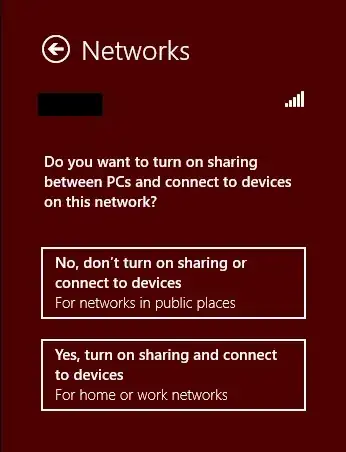
  4. Then select the "Yes" option which corresponds to private networks

"Most Direct"

  1. Bring up the "Networks" UI via a Click on the network icon from the desktop taskbar or from the system charm (Win-I)
  2. Right Click on your connection and select "Turn Sharing On and OFf"
  3. Then select the "Yes" option which corresponds to private networks

Here is the correct UI:

Network Sharing UI

Ari Pernick
  • 1,468
  • 11
  • 10
14

Things have changed for Windows 8.1. The public/private setting might be even less discoverable now. Well here is what you need to do:

  • Open the PC Settings (Win+C, Settings, Change PC Settings)
  • Go to Network -> Connections
  • Tap/Click on the network you want to change
  • A page with network details opens
  • There should be a switch "Find devices and content" -- turn it on

Caveats: The switch is not there if the machine is domain-joined and connected to the domain network. I think the switch is also missing if you are connected to an unsecure WiFi.

See also http://windows.microsoft.com/en-us/windows-8/find-pcs-devices-content-on-network.

Tomas Karban
  • 241
  • 2
  • 3
  • 1
    This worked for me. Windows 8.1, up-to-date as of 2014-05-17. – Radim Cernej May 17 '14 at 15:10
  • 1
    The switch "Find devices and content" doesn't show up for me, running as user, not administrator. – Tom Anderson Jul 06 '14 at 07:13
  • There is no switch for me as well for "Find devices and content" on my HP notebook with Windows 8.1. My router requires a password. Don't know if there is more to it to make it secure WiFi - Windows says that the security type is WPA2-Personal. I don't know what a domain-joined network is, but I would think I don't have it. Only my laptop and a cord-attached PC on this network. Didn't do anything fancy with it. Incredible that Microsoft makes it so hard - or possibly impossible - to do. – Scooter Jan 14 '15 at 02:46
  • My office laptop had some settings which prevented me from starting nodejs on private network turning the button off made my network public and I can develop at home! – Rishul Matta Jun 12 '16 at 06:10
7

using Powershell

Set-NetConnectionProfile -interfacealias <Ethernet name> -NetworkCategory [Public,Private,DomainAuthenticated]

so..

Set-NetConnectionProfile -interfacealias Draadloos -NetworkCategory Private

credit to an account called "Reader"

BozoJoe
  • 205
  • 2
  • 6
  • btw ***DomainAuthenticated*** can't bet changed manual. see here https://serverfault.com/q/814557/153084. and here https://social.technet.microsoft.com/Forums/en-US/796f1788-d219-44ef-9aa7-e8040215df12/unable-to-change-network-profile-from-domain-authenticated-to-public?forum=winserverNIS – Tilo May 10 '17 at 17:13
5

The HomeGroup troubleshooter worked for me. It noticed that I didn't have any private networks, and fixed the problem by turning my "public" network into a private network.

Neil
  • 847
  • 7
  • 10
2

While the answer about secpol.msc is great, on my win8.1 there is no such program. I came up with another simple option: forget the network and add it again with the proper settings.

You can do this by clicking on the wireless icon, manage connection settings, manage known networks, select the network by clicking on it, click on forget network. After this you need to connect to the network again with the wifi password and select that you share printers and files, so Windows will put it into the private network category.

inf3rno
  • 1,095
  • 3
  • 23
  • 49
2

Correct me if I'm wrong here, but you are trying to keep good security posture by making the change from category of public to private on your home network?

Note that categorizing the network as public is actually more secure in this particular setting. If you change from public to private then you open yourself up more-so. It's a bit of a false positive if you take it at face value. It is asking you if this network is considered a public or private and not actually making it public or private.

justatech
  • 21
  • 1
0

on win10 it is quite easy....

  1. left click on your network icon in the task bar. This will list all the currently available wifi connects
  2. left click on your wifi connection. It will be top of the list and have Connected, secured. Also under that will be Properties (underlined)
  3. left click Properties
  4. a settings page will pop up. Right click on the private button and is done!
Daniele Santi
  • 2,244
  • 1
  • 22
  • 17