Is there a way to list all files currently under source control in git? (Not just those that have been modified).
Asked
Active
Viewed 1.8e+01k times

5 Answers
214
If you want to list all files for a specific branch, e.g. master:
git ls-tree -r master --name-only
The -r option will let it recurse into subdirectories and print each file currently under version control. You can also specify HEAD instead of master to get the list for any other branch you might be in.
If you want to get a list of all files that ever existed, see here:
git log --pretty=format: --name-only --diff-filter=A | sort -u

slhck
- 223,558
- 70
- 607
- 592
-
6Thanks for the answer. I was looking for this. Note that `git ls-tree -r master --name-only` would do the same as the first option, without needing the `cut`. Ah, and you can specify `HEAD` instead of `master` if you just want this list for whatever branch you are currently on. – maurits Sep 13 '12 at 10:15
-
17Running "git ls-files" will save you a few characters :) – Zain R May 14 '15 at 21:30
-
Why was cut given the ending `-`? It causes some additional lines to show some files in a second column which are repeats from the first. – Adrian Apr 15 '19 at 13:06
-
@Adrian No idea, copypasted back then, fixed now. – slhck Apr 15 '19 at 13:09
-
1Replace `master` with `$(git branch | grep \* | cut -d ' ' -f2)` for current branch. – Eduard Aug 09 '19 at 19:33
-
@ZainR more importantly, it gives you `-z` `--eol` and other nice options – CervEd May 07 '21 at 15:42
94
The git ls-files command will do what you need.
Source: http://www.kernel.org/pub/software/scm/git/docs/git-ls-files.html

Michael Frank
- 7,855
- 2
- 39
- 52

Mihai Capotă
- 1,143
- 10
- 12
-
8`git ls-files` instead of `git ls-tree -r master --name-only` is certainly simpler. – karatedog Oct 22 '13 at 08:14
-
1Sorry but my edit wasn't invalid. In current git there is no `git-ls-files` binary. There is the `git` binary with the `ls-files` command. The link to the documentation is correct in content, but technically for an outdated binary. – JonnyJD Jan 11 '14 at 03:09
-
@JonnyJD, probably marked invalid because your edit should be a comment. – Ascherer Oct 12 '14 at 20:16
-
1@JonnyJD All Git man-pages are named as `git-commit`, `git-init`, `git-ls-files`, etc. even though the programs are actually subcommands. There never was a `git-ls-files` binary, most likely. The reasoning is that it's consistent with the external subcommand mechanism, which allows you to register a `git foo` command by writing a `git-foo` binary. – Resigned June 2023 Jul 19 '17 at 16:50
-
1This is indeed simpler, but on the other hand `git ls-tree` lets you specify a "tree-ish" (i.e. a branch, tag or commit), whereas `git ls-files` doesn't offer that option and works therefore only on `HEAD`. – Fabio says Reinstate Monica Dec 15 '20 at 23:10
7
git ls-files will only print files in the current working directory.
If, for instance, you have a git repo for dotfiles (core.worktree = /), then you will have files outside the git root and that simple command won't work anymore.
In short, this will work:
git --git-dir "`git rev-parse --git-dir`" \
    -C "`git config core.worktree || pwd`" \
    ls-files
Example:
mkdir ~/dotfiles
cd ~/dotfiles
git config core.worktree /

# Ignore all files by default, else Git will find all files under "/"
echo "*" > .git/info/exclude

# Add files at the git repo's root and somewhere in the work tree
touch README
git add -f README
git add -f /etc/ssh/sshd_config

# `git status` would now print:
# new file:   ../../../etc/ssh/sshd_config
# new file:   README
git status

git commit -m "Initial commit"

# At this point, `git ls-files` prints only:
# README
git ls-files

# But you can print all files inside the work tree. This will print:
# etc/ssh/sshd_config
# home/yourusername/dotfiles/README
git --git-dir "`git rev-parse --git-dir`" -C "`git config core.worktree || pwd`" ls-files
If you want paths specified relative to your current (shell) directory, this does the job:
alias gls='git ls-tree -r master --name-only HEAD "`git config core.worktree`"'
and in the example above, it would print
README
../../../etc/ssh/sshd_config

Benjamin Loison
- 180
- 5

AndiDog
- 636
- 3
- 10
- 15
-
In git v2.21, `git ls-files` shows all in the current directory and below. It just doesn't show files that were deleted in the repo. – Adrian Apr 15 '19 at 13:17
0
You can also use the gitk interactive repository viewer.

JPaget
- 545
- 4
- 6
-
3This mentions a tool, but doesn't really answer the "how". Can you expand this into an actionable solution? Just pointing someone in a research direction for them to develop their own solution is more appropriate as a comment. Thanks. [from review](https://superuser.com/review/low-quality-posts/737832) – fixer1234 Mar 12 '18 at 22:39
-1
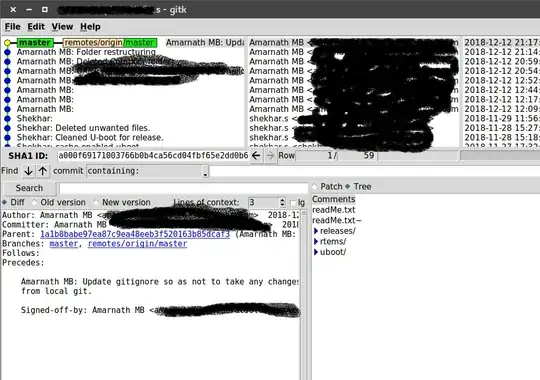
Please have a look at the image, on right side there are two options patch and Tree. If you select tree, you can view the folder structure for each commit.

I say Reinstate Monica
- 25,487
- 19
- 95
- 131

Amarnath MB
- 11
-
2Please consider a better commit to screen shot so you do not have to censor as much. – Thorbjørn Ravn Andersen May 14 '19 at 11:25
-
While I get the image could have been better, this IS actually a useful answer, and the users first (only!) answer. I'd never realised that `gitk` has this tucked away in its UI. – dsz Jun 15 '21 at 01:57