6

I like to view information about all processes (including every daemon etc etc) that are running on Mac OS X.

I use:

sudo ps -A

Update: I also tried Activity Monitor as suggested by Alex.

My questions:

  • Is there a better way?

  • How do I identify which of processes are native (shipped with the OS), belong to my installed applications (I.e. Thunderbird, Parallels Desktop etc) or cannot be classified?

  • How do I find out which processes sending information into the Internet or local network?

Background:
The system responds slowly and the Terminal tends to hang up after I start the Terminal application for the first time after start up. I tried to remove unused applications, run all of Maintenance.app's maintenance scripts, disabled startup items, disabled all eye candy, bought max. RAM - but still everything is slow.

studiohack
  • 13,468
  • 19
  • 88
  • 118
SimonSalman
  • 15
  • 1
  • 1
  • 4
  • 1
    In regards to the Terminal slow down check: http://superuser.com/questions/31403/how-can-i-speed-up-terminal-app-or-iterm-on-mac-osx – Chealion Nov 16 '09 at 23:41
  • I agree that many times Activity Monitors simply isn't good enough for finding bottlenecks and performance issues and I'd appreciate a good app for that! – cregox Apr 13 '11 at 16:01

3 Answers3

9

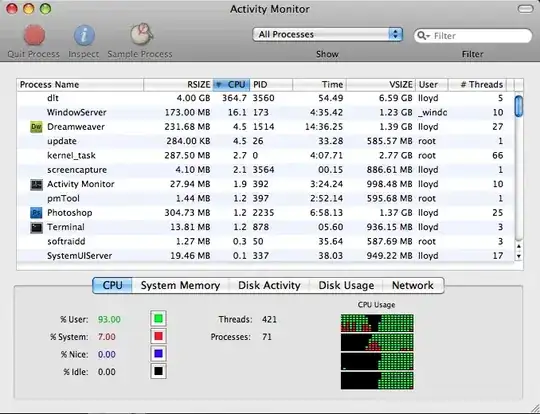
Why not try using Activity Monitor? It's buit-in, has a GUI and offers plenty of information.

Here's how it looks:

alt text

Gaff
  • 18,569
  • 15
  • 57
  • 68
alex
  • 17,684
  • 7
  • 54
  • 77
  • thanks! Yes, the application is more comfortable than ps. Unfortunately I cannot find any hint for a process or application that eats up the system's performance. – SimonSalman Sep 18 '09 at 11:39
  • If it's not there, then maybe it's something else. Look at memory usage, disk activity and usage; there has to be at least a clue about what is hitting your system performance. – alex Sep 18 '09 at 11:51
  • The problem appears when I start a new process. Most noticeable, when I start the Terminal: The terminal is hanging while trying to execute my .profile file. Inside .profile I define several functions (in bash script). I guess they might be eating up my memory. I uncommented them and if needed, I will post them at stackoverflow (since they are related to programing). – SimonSalman Sep 22 '09 at 12:39
  • Ok. Hope you can actually solve your problem! :) – alex Sep 22 '09 at 12:47
1

If I were trying to find out why Terminal or bash were slow at starting up, I would first double-check for directories in PATH that are network-based (do you have any AFP or NFS shares mounted on your machine? Not so common on desktop Macs, but that's a 'Unix-SA-101'-taught cause.)

I would then try sourcing the script into a separately executed shell, to see if they were slow then. I might also either log in remotely, via SSH, or use a second different 'term' type program, to execute 'sudo dtruss -d -f -p ' on the newly started Terminal.app process ID and see if there were any clues there as to what it was busy doing (or not doing!) If I could reproduce the problem just by starting a bash process, then I'd dtruss that directly.

jrg
  • 745
  • 3
  • 6
1

Assuming you're running some variant of Leopard, this script will dump out a big long list of all the aftermarket system augmentations it can find on your system:

http://www.khiltd.com/Downloads/ConsultantsCanary.tar.gz

And this one will dump out a big long list of all the processes with open network connections (very, very slowly):

http://www.khiltd.com/Downloads/lwt.sh

The first one is a double-clickable AppleScript wrapper, the second must be run from the command line and may spew a few errors as well under 10.6. Neither actually does anything beyond reporting the files' existence, so if you want something removed you have to do it yourself.

Hasaan Chop
  • 4,738
  • 1
  • 18
  • 13