17

Does anyone know how to disable Aero on Windows 8 (currently Release Preview)?

Note: Contrary to what many places mention, I believe this should still be possible, because you can see it during the installation process! (That is, if you press Shift-F10 at the appropriate stage in the installation, you'll see that Aero is disabled -- the classic borders are there.) I just don't know how.

user541686
  • 23,663
  • 46
  • 140
  • 214
  • Try searching for things to do with DWM or desktop window manager - thats the 'proper' name for the process underpinning aero. – Journeyman Geek Jul 07 '12 at 02:54
  • @JourneymanGeek: Thanks, but I've already searched -- that's how I saw people saying "the code is removed", etc.... and hence my second paragraph. – user541686 Jul 07 '12 at 03:19
  • I thought Aero was to be removed in final build & it's still present in RP? – Sathyajith Bhat Jul 07 '12 at 14:38
  • @Sathya: It's still in the release preview, yes... but I don't understand how they can "remove" Aero? What will they do, go back to the old interface? Or draw windows without borders? That just doesn't make sense to me... – user541686 Jul 08 '12 at 05:24
  • @Mehrdad Flat borders, much like how you see in Office 2010 / SharepPoint I believe http://www.winsupersite.com/content/content/143133/8270_Desktop-theme_0459AA86.jpg;pv667e1150e20de74c – Sathyajith Bhat Jul 08 '12 at 06:29
  • @Sathya: o.O is it just me, or is there virtually no difference then? (I can see there's no transparency here, but Aero doesn't need to have transparency either...) – user541686 Jul 08 '12 at 06:41
  • @Mehrdad that's pretty much what MSFT is doing wrt Win 8, dropping the transparency elements, making it more "flat" – Sathyajith Bhat Jul 08 '12 at 16:16
  • @Sathya: Ah, but that's still Aero! :) What I'm talking about is turning it off entirely, and going back to the 'basic' interface you can have in Win7 (and also in Win8 during setup). – user541686 Jul 08 '12 at 17:43

3 Answers3

18

Navigate to Control Panel -> System -> Advanced system settings

Then click Performance -> Settings... Under Visual Effects, select "Adjust for best performance', then click Apply.

This will disable all visual effects associated with the old Aero theme.

josh
  • 181
  • 1
  • 3
1

Windows 8 isn't supposed to be supporting the aero interface.

http://www.winsupersite.com/article/windows8/windows-8-release-preview-rip-aero-20032012-143133

http://www.computerworld.com/s/article/9227318/Microsoft_dumps_Aero_UI_in_Windows_8_Metro_izes_desktop

http://www.tomshardware.com/news/Windows-8-Metro-Aero-Jensen-Harris-Vista,15708.html

  • 1
    I can't believe my eyes. Did they just throw corporate customers out the window? How can you do anything *productive* (Office? Visual Studio? etc.) with Metro? – user541686 Jul 07 '12 at 03:17
  • 1
    Only the Aero theme is ditched, the underlying Desktop Window Manager is still there to provide GPU accelerated rendering. – Phil Jul 07 '12 at 03:55
  • Microsoft might have merged DWM with another service during refactoring though. – Phil Jul 07 '12 at 04:01
  • I don't believe you will be restricted to Metro only, but the interface would be minus the transparency effects that make the aero glass theme (so like XP's themes). – Kevin Scharnhorst Jul 08 '12 at 00:07
  • @Mehrdad - "Metro" isn't meant for corporate customers. The traditional desktop is still present in Windows 8. – ChrisF Sep 27 '12 at 21:45
  • @ChrisF: Yeah I ended up installing and trying out Win8, it's definitely there. The only trouble is getting rid of Metro when he computer has booted. :\ – user541686 Sep 27 '12 at 21:51
1

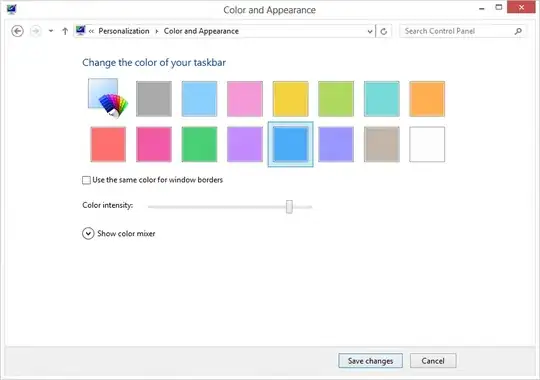
If you're talking about the Windows Classic theme as well as the transparent borders/glass effect of Aero themes, that's gone in Windows 8. Other than that, the 'Aero'/DWM GPU accelerated visuals still remain (and cannot be disabled AFAIK).

Release Preview:

enter image description here

RTM:

enter image description here

Karan
  • 55,947
  • 20
  • 119
  • 191