3

I have a Mac and I am trying to save my Photoshop CS5 extended file as a BMP. When I click save as the only ones available are Photoshop, Large Doc, Photoshop eps, JPEG, JPEG 2000, Photoshop DDF, Photoshop 2.0, Photoshop raw, Scitex, Tiff, and Photoshop DCS.

But there's no option to save as bmp. Is there a way I can save it like that?

Jess Stone
  • 770
  • 8
  • 18
Karen
  • 41
  • 1
  • 1
  • 3
  • 1
    Did this ever work for you in the past? Are you sure you're not referring to [.BMP](http://en.wikipedia.org/wiki/BMP_file_format) (bitmap) file? – Ƭᴇcʜιᴇ007 Aug 17 '12 at 23:51
  • Yes, it is a BMP – Karen Aug 18 '12 at 00:02
  • 1
    What format (color mode, bit-level, etc.) is your image set to in Photoshop? I don't think PS supports 32-bit BMPs, so if it's set to a 32-bit mode in PS, they may not offer BMP as a "save as" option. – Ƭᴇcʜιᴇ007 Aug 18 '12 at 00:04
  • I haven't used photoshop much, but BMP can't deal with transparency, layers or, as techie007 said, >8bit colors. Try flattening the image, and switching to 8bit palette mode . – terdon Aug 18 '12 at 00:32
  • Why would you ever want to use BMP? – Simon Sheehan Aug 18 '12 at 04:54

3 Answers3

3

Change your colour mode to RGB and 8 Bits/Channel (Image > Mode > RGB Color), then you should get the BMP option in the drop down box when you use 'Save As'.

Rob
  • 31
  • 1
0

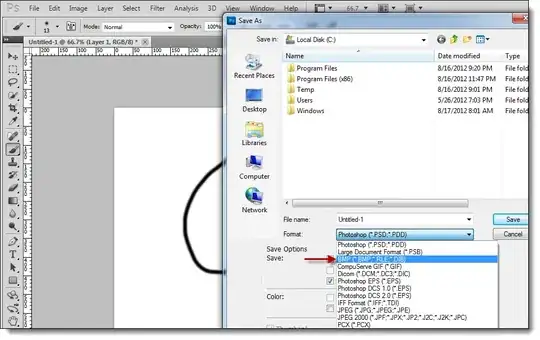
Not sure how or why you're having issues, but I am able to save a multilayer image with transparencies as a BMP while using Adobe Photoshop CS5e. Of course, the transparency will go away with a BMP, but I still at least have the option.

enter image description here

And, Photoshop does support BMP 32bit Images

enter image description here

kobaltz
  • 14,784
  • 3
  • 36
  • 57
0

This works under Mac on Photoshop CS6. Set the color mode to RGB and 8 Bits/Channel. You can then save as BMP. You'll get the BMP options dialog once you save.

Rick
  • 1