12

Im using a Lenovo ThinkPad T420 with Windows 7 64-bit and my integrated webcam is not working. Skype settings always show an error (see below). I tried to install this driver but it didn't work.

Skype settings of Lenove T420

Any help?

Update: Result of Fn+F6

Here is the screenshot of that

Resized to 75%

It means something wrong with my the integrated camera. But any solution? Or suggestion that might help?

fixer1234
  • 27,064
  • 61
  • 75
  • 116
Samiron
  • 363
  • 3
  • 6
  • 12
  • Could you please clarify, what happened when you tried to install the driver, the installation failed or what? – Serge Oct 05 '12 at 09:17
  • Well it just installed and prompted me for restart. Then after restarting I checked this settings again and found same. – Samiron Oct 05 '12 at 09:56

12 Answers12

11

I now it's rather late to post any answers here, but I just had the same problem and the solution is actually much less cumbersome than all the answers so far. The camera is in privacy mode (obviously it likes to change that by itself) and you can turn it back to normal by just clicking "show my video image" in the settings page visible on the screenshot posted in the question.

You get to this settings page by opening Lenovo - Web Conferencing.

schluchc
  • 442
  • 3
  • 6
  • 13
  • ah ha... seems like really a good point. Because now I can remember I had some of those lenovo utility softwares installed at that time. And after movin to Windows 8, I didnt install those softwares yet. Probably thats why the camera is working by default. Will give update if I get those utility softwares installed again and found the problem same as you described. – Samiron Aug 29 '14 at 02:46
6

had the same issue with the same configuration - t420, win 64bit, had the lenovo-suggested driver installed (and re-reinstalled) and camera wasn't working, with same behavior as described in your issue and picture.
for my case, an addition to the behavior described is: when i had the communication settings screen open (i.e. where the camera should appear but didn't), the camera's green Led was lit, suggesting it's started.

searched about it quite a bit, and finally now i did something simple - uninstalled camera from the device manager . refreshed the device manager and automatically the camera got reinstalled under the default Win driver. Ta Daaaaaa... camera's working now.
i guess it's not the top performance/quality that the manufacturer's driver should've offered, but... at least it works.

i don't know to what extent this trivial solution works on your case, nor if you tried it already, but hope it helps.
now i'm still curious what happens if i reinstall the lenovo camera driver. i'll try that too.

serban_clauss
  • 76
  • 1
  • 1
  • I already lost hope for this to work and adapted my life to work without camera or with external camera in extreme situations. But after reading your answer I tried to check up once again and found my camera is working!! Thing is meanwhile I upgraded my system from win7 to win8. Probably thats when the driver problems are fixed. I dont know.. but somehow your answer seems to be closer with the original solution (which I dont know either) hence accepting it. – Samiron Jun 15 '14 at 11:36
4

Check your Lenovo settings menu, go to camera settings, and make sure you are set to normal instead of private.

Josh
  • 41
  • 1
3

The integrated camera does NOT appear to be supported in Windows 8. Look at the driver page for the Lenovo T420. You will notice that there are Windows 8 drivers for many devices. Under the camera and card reader section, Windows 7 (32-bit, 64-bit), Vista (32-bit, 64-bit), and XP are listed. Windows 8 is not.

You can try to install the Windows 7 driver, but barring that working, you are probably out of luck.

Keltari
  • 71,875
  • 26
  • 179
  • 229
  • The fact that there are no windows 8 drivers on the site might simply mean that the Win8 drivers are not needed because they are already included in the OS. I find your answer a bit misleading. – slavmaf May 27 '14 at 06:20
1

I had a problem with identical symptoms.

Turns out I was too strict in removing app camera permissions, and removed access to the LenovoUtility app.

Unfortunately, the LenovoUtility app is responsible for handling the "cut camera" Fn key, and removing its webcam access prevents it from controlling the privacy mode, making it impossible to disable privacy mode.

Giving back camera permissions to LenovoUtility fixed the bug.

b0fh
  • 2,245
  • 16
  • 18
1

Lenovo Tools

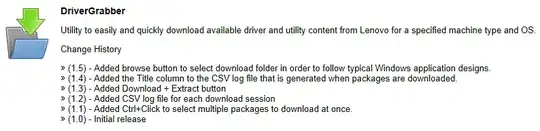
Lenovo makes a few tools that may work. Check out Lenovo's Driver grabber and the System Update Tool.

Driver Grabber - Handy tool for grabbing and extracting drivers Lenovo Lenovo Driver Grabber


System Update - A complete system updating tool, does BIOS, and critical windows updates too. LTSU5 Lenovo System Update

MDT Guy
  • 3,741
  • 1
  • 18
  • 37
0

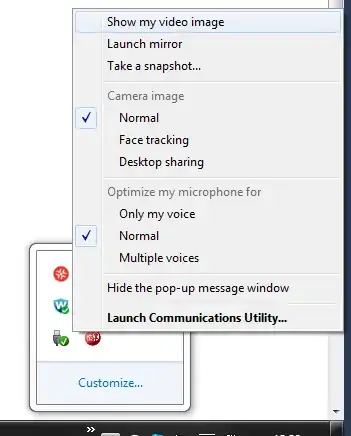
You can get this to work by Selecting Show my video image option in the Lenovo - Web Conferencing utility.

I did not need to reinstall/remove any driver. It goes back to privacy mode by itself and Rather I accepted that because there's an option to keep the Web Conferencing utility in the system tray for easy access anytime (see image below).

The option in System Tray

I think Privacy Mode is a useful feature but introducing such a thing without an introduction is a very bad idea.

It is still ironic though that we need such a feature to keep a Webcam inactive after deactivating it on the UI. A lot of people would agree that this is a much needed feature to stay away from hackers.

0

Hi I am using Win10 64bit. The camera on device manager is displayed as working and it just didn't work no matter what settings I adjusted, the thing just didn't want to work. Open my computer, rgt click this pc choose properties, click device manager, expand camera some instances imaging devices or it may be found on other devices, rgt the camera choose update driver, click browse my computer, click let me pick from a list, choose the USB video device, next next its done. Cheers people

Mark
  • 1
  • As it’s currently written, your answer is unclear. Please [edit] to add additional details that will help others understand how this addresses the question asked. You can find more information on how to write good answers [in the help center](/help/how-to-answer). – Community Jul 23 '22 at 14:50
0

Check that you have installed and are running CyberLink YouCam or software similar to that. If it is already running, exit it and try again.

Indrek
  • 24,204
  • 14
  • 90
  • 93
Kumar
  • 423
  • 2
  • 5
  • 14
  • Im sure that **CyberLink YouCam is not installed**. But usually **i use CamtasiaRecorder** to make tutorials which is kind of screen capturing software. Other than these I **dont have any video recording softwares**. But im stil not sure **if any other installed software is creating the problem** or not. – Samiron Oct 08 '12 at 02:53
  • Ok fine if possible update image of device manager. we can check that all device drivers are installed correctly or not. – Kumar Oct 08 '12 at 08:56
  • Since its a long list, i didnt want to spoil the page here. So [**click here to get the image of full Device List**](http://goo.gl/zfgLC). – Samiron Oct 08 '12 at 09:13
  • @Samiron, Getting error 403 Error. Try to update to some other server. – Kumar Oct 08 '12 at 10:06
  • Sorry for that... here is the proper url **http://goo.gl/RW9HE** – Samiron Oct 08 '12 at 10:17
  • I think you need to update your camera driver. It took default driver from Windows 7. http://support.lenovo.com/en_US/downloads/default.page Find your model of laptop, download driver and update it. – Kumar Oct 08 '12 at 10:25
  • Ive tried one driver and the link is added in my question. Would you please verify that it is proper driver or not. – Samiron Oct 08 '12 at 10:27
  • Find your exact product model and check it here. http://support.lenovo.com/en_US/downloads/default.page – Kumar Oct 09 '12 at 12:40
0

test the integrated camera with F6 - the Lenovo camera and sound control - when only the OS is running. Then you should get a view from the integrad camera, if it doesn't work, there is something wrong with integrated camera.

FredrikD
  • 445
  • 5
  • 22
0

Just find 'settings' on your pc's Win 7 main screen (which shows all of your applications), change the status of 'Camera' from 'private' to 'normal' - and say hello to your own smiling face! I fixed my own camera in this way.

It may have nothing to do with your operating system. Do we really think Win 7 is so lame that it is incompatible to a camera? :)

-1

yes. also with me this simptom in a brand new lenovo T450 - and as simple as it was the solution - only change the status of the camera from "private" to "normal" - in the camera setting , that sould be in the capture video program that you use - skype/debut/atc.

itshak
  • 1