1

A .pyw file is a Python script that launches an application with a user interface, without a console window. I want to be able to double click a .pyw file in Finder in OSX to open that application, but when I right click and select Open With->Other I'm not allowed to select /usr/bin/python. It is greyed out even though I've enabled "All applications".

I assume this is because it will only let me select .app directories. It there any way to work around this so that I can open Python GUI applications without the terminal?

Dave
  • 25,297
  • 10
  • 57
  • 69
Hubro
  • 5,716
  • 14
  • 61
  • 87

1 Answers1

3

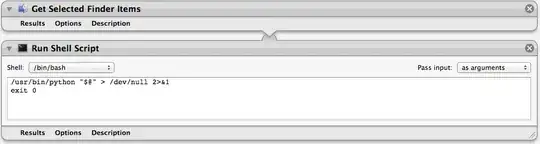
Use Automator to create an application like this:

Automator workflow for pythonw

(Make sure you select the as arguments option in the Pass input dropdown.)

The script in Run Shell Script above is (notice Pass Input as arguments):

/usr/bin/python "$@" > /dev/null 2>&1
exit 0

When saving it choose File Format Application (not Workflow). You could save it as /Applications/pythonw.

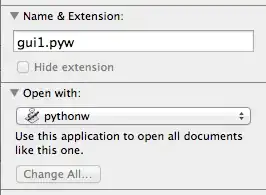
Then select a pyw file, press Command-I and select Open with>Other... and /Applications/pythonw. Then click Change All... and confirm with OK. The Get Info window should look like this:

Get Info pyw file

Now double click the pyw file and accept the warning (only the first time).

I've tested it with gui1.pyw:

from Tkinter import Label
widget = Label(None, text='Hello GUI world!') 
widget.pack()
widget.mainloop()

and worked like a charm.

jaume
  • 5,487
  • 1
  • 26
  • 33
  • 1
    This worked great for me on my Macbook Pro. At first I used get info to associate with python launcher, but it would open up the launcher and terminal windows. Even when the app was closed the terminal window remained open, a real pain. This solved all those problems and just my app opens up and closes. Make sure you select "as arguments" for the pass inputs dropdown. – RufusVS Jul 09 '17 at 22:45