36

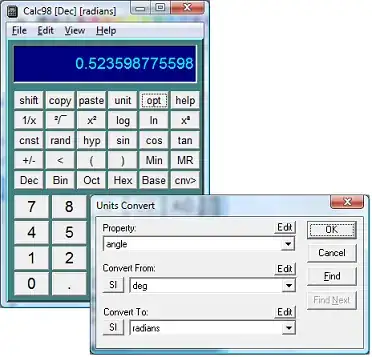
On multi-core CPU systems, Windows 7's task manager used to display a separate utilization graph for each core unit:

Windows 7 task manager

On Windows 8 the task manager looks much fancier, and yet it shows a single graph for a multi-core cpu and there is no obvious way to show other cores:
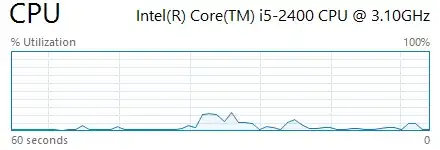
enter image description here

Did Microsoft remove this feature or is it buried somewhere in the settings?

Update: Okay, it's really that simple. It turned out that I could not switch the graph into multi-core mode as the 'logical processors' menu item was disabled. Disabled because I was running Windows 8 in a virtual machine that by default had limited the number of available processors to 1. After changing the setting and rebooting I've got new graph options. Thanks everyone!

Vladimir Sinenko
  • 2,685
  • 6
  • 26
  • 33

3 Answers3

53

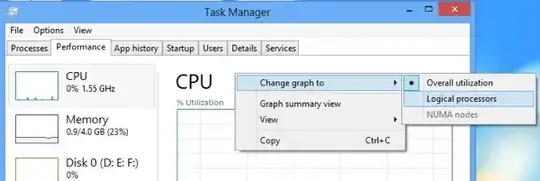
To see individual graphs, "Change graph to" > "Logical processors"

enter image description here

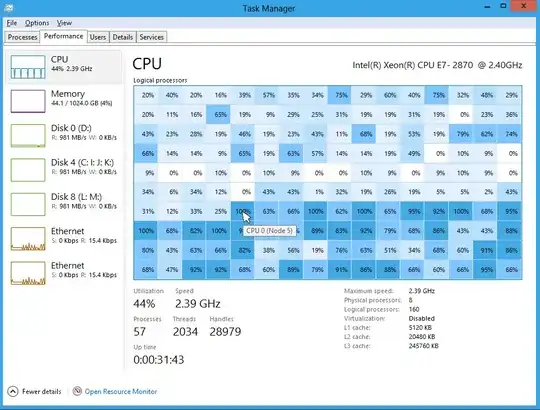
The task manager can also show a heat map of the cores to better show what they are doing (instead of having tiny graphs). This means that if you have a large number of cores (eg. 160), it will be easier to interpret the data:

enter image description here

More tips on using the task manager can be found at 8 Windows 8 Task Manager Tips

Sources:

ronalchn
  • 4,541
  • 3
  • 26
  • 32
2

right click roughly where "cpu" is shown. a submenu opens, then you click "change graph" to show "logical processors".

akira
  • 61,009
  • 17
  • 135
  • 165
1

You can follow the following steps to see in an alternative way screenshot

Shekhar
  • 5,009
  • 4
  • 33
  • 49
  • Or start the Resource Monitor by opening the [Run dialog](https://en.wikipedia.org/wiki/Run_command#Accessing_the_Run_command) and entering [`resmon`](https://en.wikipedia.org/wiki/Resource_Monitor#Ways_to_start_the_application). – Martin Aug 31 '18 at 11:28