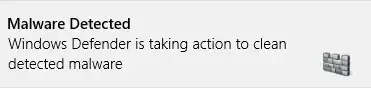
Windows Defender is treating these changes as malware. This is because changing the hosts file is something malware does. It's an effective way to trick people, since they think they are visiting the real website, for instance facebook.com, but are in fact really talking to a malicious (phishing) server.
What we need to do is disable Windows Defender's protection of the file. Note that this may open you up for the attack mentioned above, so it shouldn't be done unless needed.
Exclude the hosts file from Windows Defender
- Open up Windows Defender.
- Press Win and write Defender and start the program.
- Go to the Settings tab.
- Select Excluded files and locations.
- Press browse
- Find and select the hosts file.
- Normally located at
C:\Windows\System32\Drivers\etc\hosts
- Press Ok.
- Press Add.
- Press Save changes.
Now the hosts file is not protected anymore, so we can finally:
Edit the hosts file
You need Administrator privileges to edit the hosts file, so open up your text editor as admin. How to do it with Notepad:
- Search for Notepad in your apps.
- Right click it and select Run as administrator.
- Press Yes if UAC appears.
- Press File -> Open and navigate to the hosts file.
- Again, normally in
C:\Windows\System32\Drivers\etc\hosts
- You may have to select All files instead of Text Documents in the lower right corner.
- Edit the file to your liking and save it.