5

I have Dell Inspiron 15R N5010 with the Network Adaptor card as

Broadcom 802.11n Network Adapter

Provider : Broadcom

File version : 5.100.245.20

Driver Provider : Microsoft

Digital Signer : Microsoft Windows

It always fails to connect to the wifi network provided in our campus.Even if it connects their is no internet connection . I have to "Diagnose" the adapter always and it will connect to it.

How do I make it work again as it was working in Windows 7? Any problem in settings or I should change the driver ?Update ?

MY DEVICE MANAGER . IF IT HELPS.
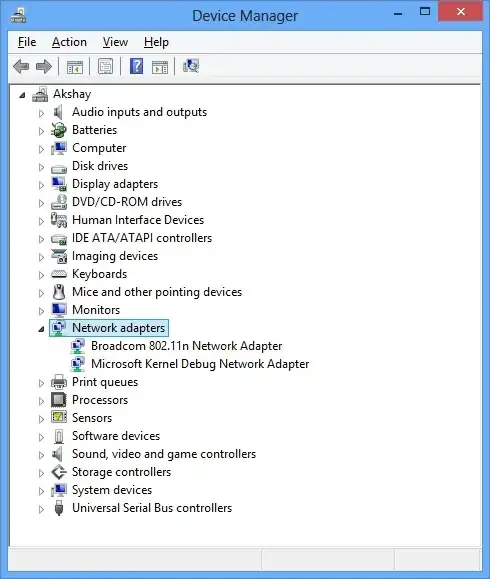
enter image description here

magicandre1981
  • 97,301
  • 30
  • 179
  • 245
akshaykumar6
  • 538
  • 3
  • 7
  • 13
  • Can it connect to other networks? Does your campus require you to register the machine? (it may be filtering on MAC address). You _could_ try updating the driver, either by Windows update or something like DriverMax. Just be sure to create a restore point first. – Mawg says reinstate Monica Nov 08 '12 at 02:38
  • 1
    And did you ask your campus IT department? – Mawg says reinstate Monica Nov 08 '12 at 02:38
  • As far as I know no one has registered the PCs to Admin anywhere. Even I was using wifi without registering for last 2 years. It all started when I installed Windows 8. – akshaykumar6 Nov 08 '12 at 02:41
  • Where did the current driver come from? Did you try downloading the correct driver from Dell's website? – Windos Nov 08 '12 at 02:44
  • It came pre-installed when I bought the laptop. Nothing from dell website. – akshaykumar6 Nov 08 '12 at 02:47
  • how does the network adapters screen look? that's in control panel -> network sharing center -> change adapter settings – Hosney Nov 08 '12 at 15:22
  • yeah!! Or right click the system tray for network, ->Open Network and sharing center->change adapter settings. – akshaykumar6 Nov 08 '12 at 15:51
  • Can it connect to other networks? or does it only have a problem with the campus network? Ad did you call Dell tech support? – Mawg says reinstate Monica Nov 09 '12 at 00:43
  • i had a similar problem. in my case i solved it by disabling all other network adapters except for vethernet broadcom, wifi and network bridge. – Hosney Nov 09 '12 at 01:02

4 Answers4

5

I'm having a similar issue on my work wireless. I can connect at home but not at work. The issue is because Cisco wireless use a different encryption of security than windows 8. There are two solutions. Either:

  1. Change your drivers back to windows 7 like mentioned above.
  2. Have your school update their wireless to the latest Cisco drivers.

Here is a link to the blog post

Canadian Luke
  • 24,199
  • 39
  • 117
  • 171
Rafi
  • 176
  • 3
  • :) Thanx for the blogshare :). I have a detailed blogpost about the Broadcom Wireless-N Adapter up here: http://blog.jessehouwing.nl/2012/10/wpa2-enterprise-and-broadcom-wireless-n.html – jessehouwing Dec 02 '12 at 05:12
1

This is a known issue with Windows 8 and Cisco Wireless equipment running on many college networks. You can read a brief on the problem here:

http://www.educause.edu/discuss/networking-and-emerging-technologies/wireless-local-area-networking-constituent-group/fwd-advance-notice-microsoft-wi

Here's an excerpt that may help:

Problem: Microsoft Windows 8, to be released on October 26th, is among the first clients to support IEEE 802.11w natively in the OS. Clients running 802.11w fail to connect to Cisco's MFP capable APs because of interoperability issues in the service capability negotiation. It is /not/ possible to address this by simply disabling MFP on the Cisco Infrastructure, and Microsoft confirm that Windows 8 does not provide any way (e.g., RegKey, Group Policy) to turn off 802.11w as it is considered a positive feature to always have turned on for security purposes. The Cisco bug ID tracking this is CSCua29504.

Solution: The only two solutions are: 1. Update the Controller code to a fixed version. 2. Downgrade to a pre-Windows 8 wireless NIC driver on the client device - where that option is available - as 802.11w is NIC driver and/or supplicant dependant.

Looking at the two solutions, as far as I've heard the fix for the controller is not available yet, or may require an expensive upgrade (of the tens of thousands of dollars variety) for your college, if they're still on a very old version of Cisco's management software. My network doesn't use Cisco, so I can't confirm whether the fix is available and for what software.

Option 2 looks a lot better for you. This says that if you find the Windows 7 version of your network card driver, it should be able to connect okay.

Joel Coehoorn
  • 28,098
  • 14
  • 88
  • 133
0

This is a common problem with window 8. After the upgrade to window 8 from any other window or sometimes window 8 itself download & install the update available...

As a result window 8 WiFi driver may corrupt. This can also result in stop working of WiFi. Sometimes it also notice that WiFi button also stop working...In this case we recommend that you will re-install the WiFi Driver again.

If you buy the laptop/computer with pre loaded copy of window 8, you can locate the WiFi Drivers in "Window Drive". Most of the time it is Drive C:

Alternatively go to the below link to download the driver.

http://support.dell.com/support/topics/global.aspx/support/product_support/dd_segmenter?c=us&l=en&ref=ff32&s=gen

Please select the county from the top left of the page.

Now select the product Home Users, Small Business and Enterprise IT to download & install the WiFi driver.

For more information & help you can see the below article.

http://www.webburr.com/window-8/wifi-button-not-working-window-8/578

Webburr
  • 11
  • 1
-1

Download and install the correct driver from the dell website (Link so you don't have to go looking: here.)

It is possible the driver didn't install properly as part of the upgrade (speculation on my part...), and what you download from their site is probably going to be newer than was pre-installed on the laptop regardless.


Edited to summarise link posted by @developer:

Download this driver.

Run the installer, it will fail with an error but have let you extract the driver(s) to a folder on your computer. Take note of where this extracted to.

Open device manager, press Win + X then M

Find your wireless adapter, right click it, choose Update Driver Software...

Device Manager

Click, Browse my computer for driver software.

Point it to where you extracted the drviers above and finish the wizard.

... Restart for good luck (it may even ask for a reboot, I'm not 100%.)

Windos
  • 11,061
  • 4
  • 38
  • 56
  • Which one is wireless driver there? too much confusing..help – akshaykumar6 Nov 08 '12 at 02:52
  • Look under Networking for ones labeled "Dell-Driver." You're looking for ones that don't mention Intel or Bluetooth in the "applies to" section. – Windos Nov 08 '12 at 02:57
  • Hey ! @Windos , I found this http://social.technet.microsoft.com/Forums/en-US/w8itpronetworking/thread/76f97f59-d528-428c-b92c-22ec04357c66 having something similar to me, can you understand the solution. I didn't get it. – akshaykumar6 Nov 08 '12 at 03:12
  • I edited for showing you my current device manager. Any risk in doing the above experiment ?? – akshaykumar6 Nov 08 '12 at 03:35
  • No risk, you can always roll back to the old driver if it fails. – Windos Nov 08 '12 at 03:45