20

How do I change the default login/lock screen of Windows 8 which is shown after Windows has loaded and no user is logged in? I've changed the lock screen of both users but when Windows starts this one here is always shown
Default login screen

Another problem I have is that it's displayed in English. I first installed the English version of Windows 8 and afterwards installed the German language pack and made German the primary language. Everything in Windows is now German expect the default login screen.

Sven
  • 314
  • 1
  • 3
  • 9
  • 2
    please ask *one* question at a time – Sathyajith Bhat Nov 18 '12 at 04:30
  • 1
    Actually the question was about changing the default lock screen which for me at least does not only contain the background image but everything you see there. The language and date/time formatting is part of it _imho_. – Sven Nov 21 '12 at 07:28
  • Changing background is explained on this question: http://superuser.com/questions/677600/windows-8-1-default-system-lock-screen-customization/923362#923362 – Ruskin Aug 21 '15 at 11:24

4 Answers4

24

How to Change the Default Language

To change the language settings to the Welcome screen, the default lock screen, do the following:

  1. Open the Start screen and type Region.
  2. Select Settings as the search area, and
  3. Click Region on the left pane.
  4. Click Administrative tab.
    Region settings in Windows 8, Administrative tab
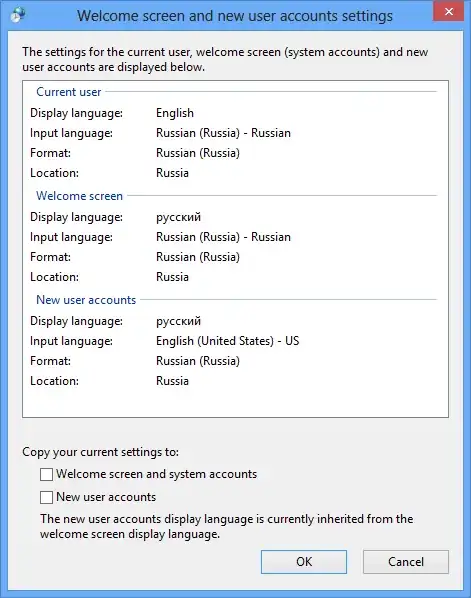
  5. Click Copy settings in the Welcome screen and new user accounts group.
    You will see the current settings.
  6. Select Welcome screen and system accounts check box and click OK to copy the settings of the current user to the Welcome screen.
    Welcome screen and new user accounts settings

Since you switched to German language, you have to search for German word Region at step 1.

Alternative way:

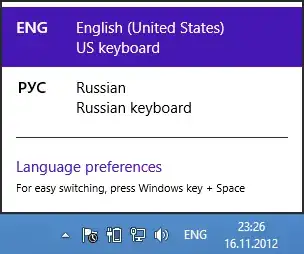
  1. Click the language on the Taskbar.
  2. Then click Language preferences.
    enter image description here
  3. Click Advanced settings on the right.
  4. Click Apply language setting to the welcome screen, system accounts, and new user accounts link in the Override for Windows display language group.
    It will open Region settings with Administrative tab selected.
    Follow the steps 5 and 6 from the instructions above.
Alexey Ivanov
  • 4,349
  • 4
  • 26
  • 59
  • Great answer and well hidden setting. I wouldn't have found it ;) – Sven Nov 18 '12 at 13:36
  • What about changing the background? Or making any other changes. I feel that this answer is incomplete. – Matt R Jun 26 '15 at 15:26
  • @MattR I answered only to the part of the question, *language of Login screen*, because changing picture was covered by [another answer](http://superuser.com/a/506062/80304) by Andrew Robinson, and later with [using Group Policy](http://superuser.com/a/611125/80304) by Jaykul. – Alexey Ivanov Jul 03 '15 at 11:30
4

Try this: Navigate to "C:\ProgramData\Microsoft\Windows\SystemData\S-1-5-18\ReadOnly\LockScreen_Z\" and replace that picture. You will also need to add permission to "System" to read it.

Let me know how it works.

0

I think the right way to set the default lockscreen is the Local Machine setting:

Set-ItemProperty HKLM:\SOFTWARE\Policies\Microsoft\Windows\Personalization LockScreenImage "C:\Path\To\Image.png"

You can also set it via Group Policy (depending on your version of Windows): Configuration\Administrative Templates\Control Panel\Personalization "Force a specific default lock screen image" ... there's even a matching "Prevent changing lock screen image" if you want to make sure nobody else using your PC can change it.

Jaykul
  • 234
  • 1
  • 6
-10
  • Open up the side 'start menu'
  • Click on 'Change PC Settings' down the bottom
  • 'Personalize'
  • 'Browse'
  • Choose your picture.
John Bensin
  • 1,577
  • 16
  • 23
Josh
  • 368
  • 1
  • 5
  • 2
    Doesn't this just change the screen for the current user? Also, please keep your answers respectful and polite. – nhinkle Oct 08 '13 at 22:40
  • This changes the actual 'Lock' screen. It does not change the 'Logon' screen. There is a lot of confusion around but the crux is, you can change the Lock screen using my process above. You can only change the *colour* of the logon screen however. – Josh Oct 08 '13 at 22:45
  • 2
    So in other words it doesn't answer the question? – nhinkle Oct 08 '13 at 22:49
  • Not sure what question you're reading but here is the original question: "How do I change the default login/lock screen of Windows 8" The answer I provided is the best answer for users. Group Policy, reghax and the rest are unnecessary as M$ have provisioned for this facility...... – Josh Oct 08 '13 at 23:36
  • 2
    You said yourself, "It does not change the 'Logon' screen," and the user wants to change the login screen that you see before anybody has logged in. Ergo, you didn't answer the question. – nhinkle Oct 09 '13 at 04:33