I have created my own custom heading style in Word and want it to appear under Headings in the Navigation pane. How can I do this?
Asked
Active
Viewed 3.2k times
15

I say Reinstate Monica
- 25,487
- 19
- 95
- 131

Eran
- 311
- 2
- 5
- 15
2 Answers
21
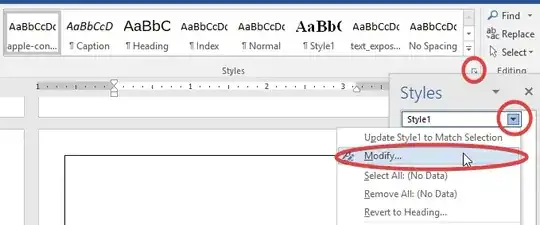
- Right click on your style in the Quick Style gallery and choose Modify
- Click Format down the bottom left and then on Paragraph

- Change Outline Level to reflect what heading level you want the style to be. For example Level 1 matches Heading 1, Level 2 matches Heading 2 etc.


-
When I try this, "outline level" is greyed out and not usable. Could you supplement your answer to explain how to reliably get at it? – Francis Davey Feb 08 '18 at 16:13
-
@FrancisDavey, Haven't encountered that, what style are you trying to modify? The only thing I can think of is that you are trying to change the outline level of one of the in-built styles such as Heading 1 and Word won't allow that. – Adam Feb 08 '18 at 22:05
-
1I have no idea what caused it to occur. Selecting an alternative style (essentially starting again) solved the problem. The offending style was based on "Normal", which is what puzzled me. I know about the "Heading" style restrictions. If it comes up again I may dig more. – Francis Davey Feb 08 '18 at 23:20
1
Right click on the style you want to be seen as a Heading in the Navigation. Click on 'Modify' Look for 'Style based on' and choose any Heading (e.g. Heading 1, Heading 2, etc.) Customize to your liking. You'll see the new style become a Heading in the Navigation.
Good luck :)

ejecily
- 11
- 1