14

I have a Windows 7 PC with TeamViewer installed on it. This computer is always on and has no screen, keyboard and mouse attached to it, only an internet-cable.

I login from my Mac on TeamViewer, create a connection to my Windows 7 PC and the result is an 640x480 screen. The problem is that my Windows 7 PC does not detect any display.

If I check display settings in Win 7 then this happens: enter image description here

I can't select another resolution. How can I choose another resolution?

Canadian Luke
  • 24,199
  • 39
  • 117
  • 171
Pieter
  • 141
  • 1
  • 1
  • 4
  • Did you install the correct graphics drivers? – ChrisN Jan 10 '13 at 00:04
  • Default drivers of my graphic card are installed. I didn't install any other one. Do I have to? This is my view of Win7 in Teamviewer right now: http://cl.ly/image/01160D31472I – Pieter Jan 10 '13 at 00:55
  • 2
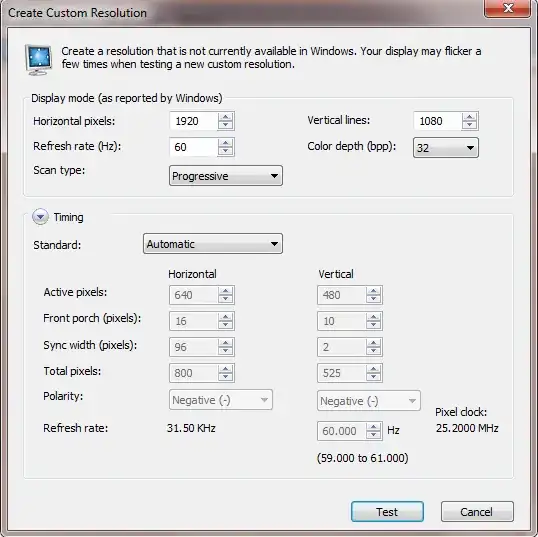
    Can you force the resolution using your graphics card drivers? In my nVidia Control Center, I can go to Display-->Change resolution, click on Customize, and click Create Custom Resolution... I don't know if that would work because you don't have any physical displays attached. Your best bet would probably to use Remote desktop - it isn't affected by display size on the remote computer - it uses your local display size. – ChrisN Jan 10 '13 at 01:28
  • Hi Chris, thanks for your reply. I did try an custom resolution setting but indeed it do not work without a display. So I installed Remote Desktop and now it works fine! – Pieter Jan 11 '13 at 12:10
  • Same problem with two Windows 7 machines with latest nvidia drivers (2560*1440 host and 1920*1080 remote). But via Teamviewer the remote machine has only Analog display with 640*480 resol –  Jan 12 '13 at 11:22
  • 2
    I have the same problem with windows 7 (enterprise) laptop. My current workaround is to connect a monitor. Note that I never use the monitor, I just connect it. A decent solution or even a hardware dongle which can fake a connected display would be nice. – Hennes Apr 20 '14 at 10:28
  • I have the same situation. But in my case is that I am using a lenovo t530 laptop to connect to my home desktop. What I realized was that the desktop monitor has been turned off. My hypothesis is that when I connect from my laptop to my desktop, it is using the onboard graphics card to render the screen (hence the low resolution). – Bluebird Dec 25 '15 at 20:17

8 Answers8

4

Try this :

  1. Access Control Panel -> Appearance and Personalization -> Display -> Screen Resolution -> Advanced button.
  2. In the Adapter tab click List All Modes.
  3. If not enough modes are shown, try to uncheck the Hide modes that this monitor cannot display checkbox in the Monitor tab.
  4. Click on a resolution to choose it
  5. Click OK twice.

image

harrymc
  • 455,459
  • 31
  • 526
  • 924
4

If installing the latest graphics driver hasn't helped you, then this might.

It's a tutorial on how to create a dummy VGA plug so your computer thinks you have a monitor connected. However, I haven't tried this out myself so I have no way of knowing it'll work for sure.

I found out about this from a Super User answer here. Let me know if this helps.

Vinayak
  • 10,625
  • 10
  • 54
  • 89
  • I am not sure if this will work on my laptop, but the idea is beautiful in its simplicity and I will attempt it. – Hennes Apr 27 '14 at 15:37
  • I don't know why you're facing this problem on a laptop. Is your laptop monitor busted? – Vinayak Apr 27 '14 at 16:50
  • 1
    There are two reasons: The part is practical. I tried leaving the lid slightly open in the first few weeks and my cat kept walking over it, closing the lid. But the main reason is that it annoys me that there was no clean solution for this. There is/should be no need for an open lid or any physical monitor. I can RDP into laptops with any resolution I want. No problems when using that protocol. No problem when using X-windows. But with VNC and teamviewer I am somehow needlessly limited and I am trying to work around that. – Hennes Apr 27 '14 at 19:53
  • If you wonder why I do not just used RDP: I can't. It is a work laptop and I already asked for a way to RDP to the laptop. I got neither that nor my backup question (which was a VM with a copy of the work software). That leaves me with a physical laptop on which I am allowed to install teamviewer but not RDP. – Hennes Apr 27 '14 at 19:56
  • @Hennes, I think I still don't fully understand the problem you're facing. I decided to reproduce your problem and I installed TeamViewer as well as RealVNC server on my notebook, set them up for remote access and closed the lid. I connected to the system using my Android phone which has both the VNC and TeamViewer apps installed. I checked the screen resolution and it was still 1366x768 (my notebook's native screen resolution). However, my notebook is running Windows 8. – Vinayak Apr 28 '14 at 07:33
  • The notebook I use has windows 7 enterprise installed. When I come home I put it on top of my desktop, connect power and Ethernet, press the power button and close the lid. While it boots I also boot my main desktop (which takes a few minutes to boot) and fire up my default programs. This includes teamviewer to the work laptop. That used to limit me to 640x480 and no method to change resolution. Since I have added a DP to HDMI cable and connect that alongside power and Ethernet. – Hennes Apr 28 '14 at 17:13
  • Connecting this Eur 40 DP to HDMI 'cable' works, but I like a solution which does not require extra hardware and which allows me to keep the lid closed. Preferably one which allows me to select a 3840x1200 (or better) resolution. – Hennes Apr 28 '14 at 17:13
  • I think the problem might be with mismatched resolutions for your notebook and your desktop. Check out [debra.carlson's comment here](http://windows.ittoolbox.com/groups/technical-functional/windows-7-l/teamviewer-bigger-display-5164282). She suggests using LogMeIn which apparently supports different screen resolutions. – Vinayak Apr 29 '14 at 07:41
  • [This guy](http://www.sevenforums.com/software/292419-cannot-change-640x480-screen-resolution-teamviewer.html) had the same problem, however his laptop screen was broken so he connected it to an external monitor and got 640x480. But the problem was resolved once he started the computer without a monitor attached. The client computer has a resolution of 1366x768 (16:9 aspect ratio) and remote computer probably had a 4:3 aspect ratio. This leads me to believe that you could probably solve the problem by disabling the monitor on the Win7 laptop and then try connecting to it. – Vinayak Apr 29 '14 at 07:51
  • Or maybe you could change your desktop's screen resolution to something that's the [same aspect ratio](http://www.digitalrebellion.com/webapps/aspect_calc.html) as your laptop's screen resolution. That's what [TeamViewer Support had to say](http://windowssecrets.com/forums/showthread.php/151065-Screen-Size-With-Teamviewer?p=884263&viewfull=1#post884263). – Vinayak Apr 29 '14 at 07:55
3

@ChrisN comment is the right answer. I'll post it as an answer to the readers:

In my nVidia Control Center, I can go to Display-->Change resolution, click on Customize, and click Create Custom Resolution: Creating custom resolution

After that, select the checkbox that adds it to the list of resolutions and select in on the main "Change resolution" screen.

JBaruch
  • 178
  • 7
2

There is no Screen, so Windows Detects that there is no screen.

all you have to do is connect a monitor to it, you don't have to use it, just connect it.


another option is to purchase a Dummy Dongle, it sounds like there are a few of them out there if you know where to look, another Superuser was able to find this DVI-Dummy it seems pretty expensive to me, but I have never had the need to do something like this before.

another option is to look for people that do stuff like THIS I don't really know what they are talking about with the EDID Dongle, but it sounds like you can make the graphics card think there is something of a certain resolution connected to it.

Malachi
  • 1,073
  • 1
  • 11
  • 26
  • This is actually very useful feedback. If no powered screen is connected to the machine, no usable resolutions other than 640x480 will be listed. – Kris Apr 04 '17 at 16:14
0

I think there is decent solution (at least for Windows 7) that does not requires hardware dummy adaptors. I used this solution with the following setup:

  • A windows 7 (pro) laptop with a 1360x760 screen and an Intel (#1)
  • Another pc connected to an HD screen 1920x1080 (#2)

On the windows 7 laptop (#1), enter control panel->display (or search for “display” in the control panel search box) -> connect to a projector.

In my case, I keep the windows 7 laptop (#1) lid closed, therefore I picked “projector only” and clicked ok on the message telling me that there is no projector connected…

Next, I changed the resolution in “adjust resolution” to 1920x1080.

On the PC connected to the HD screen (#2) in the teamviewer->View menu, I have verified that scaling is set to “best fit”.

When teamviewer is not set to full screen the resolution is not accurate (part of the screen’s height is used for the window around teamviewer). You have two options:

  1. Work in a full screen mode (view menu->switch to full screen)
  2. Adjust the resolution (custom resolution) in laptop #2 (I used 980 height instead of the default 1080).

Hope it will help.

0

I got this to work WHILE being remote in on Teamviewer in TWO steps:

STEP 1 Per ChrisN comment..

"In my nVidia Control Center, I can go to Display-->Change resolution, click on Customize, and click Create Custom Resolution: Creating custom resolution (1280 x 720))

After that, select the checkbox that adds it to the list of resolutions and select in on the main "Change resolution" screen.

STEP 2: Right-clicked on my Desktop --> Properties --> Display Setting, and 1280 x 720 showed up. Set and displayed perfectly.

Dan
  • 1
-1

If you can switch to a Windows Remote Desktop Connection you don't need any dummy to get a higher resolution. Of course this is no answer to your question, but it helped me in the same situation.

-1

I have 2 Desktops, 3 Laptops, 2 Android Tablets and 1 Android Moto phone. All with Teamviewer. I encountered the "640x480" intermittently, it seems. Sometimes my Remote Display is good, sometimes not. Even logging in to remote displays from different devices gave no solution. You know what I finally realized?.... (This just may be something specific to me-not that I'm special). After updating my Graphics Drivers, the 640x480 (sometimes) corrected itself. Then, using the Graphics Driver Install from Teamviewer, would revert my display back to 640x480. Hmmm.......So now, I keep my Manufacturer Graphics Adapters set for the Card/Monitor on the systems. Been this way for more than 6 months (at one time, I was having such problems, I redid all Passwords and Security Settings, thinking someone may be "listening" to my connections). Silly me.

Anyway....Uninstall Teamviewer GMH / GBH / Or whatever that Graphics Display Driver is, and update your Driver for the Specific Adapter and Monitor attached. If there is no monitor attached, it should still work just basing it off of the Graphics card installed in the system, provided you're able to navigate the whole of the screen to select miscellany.

Hope this helps some of y'all, if not all y'all.