366

It seems that Mac OS X 10.6.1 Snow Leopard has a tendency to leave some windows off-screen at times, especially when I disconnect an external monitor from my MacBook. How can I move the window back on-screen when it's not possible to grab the title bar and drag it back onto the screen?

XvsXP.com recommends adjusting your screen resolution downward to have off-screen windows "snap back into view" and then adjust your screen resolution back to its original setting. In OS X 10.4 Tiger, I had a script that brought all off-screen windows back on-screen, but in my upgrades to Leopard and now Snow Leopard, I don't seem to have that script.

Any better solutions out there?

kba
  • 347
  • 1
  • 4
  • 16
Matthew Rankin
  • 5,240
  • 3
  • 26
  • 25
  • You may want to check out a very similar question: [Reset Mac OS X Windows Position after de-attaching external monitor](http://superuser.com/questions/331/reset-mac-os-x-windows-position-after-de-attaching-external-monitor) – Chealion Oct 14 '09 at 17:19
  • I've found that deleting the offending reference items from Interface Builder's plist sometimes helps. I've even tried to set the window's position via AppleScript with no luck. –  Aug 16 '10 at 05:28
  • I was able to recover an x11 window by moving the spawning display over to the other side of an adjacent display. In other words, I had the following arrangement with my monitors [ 2 ][1], and the x11 window was spawning off-screen to the apparent left of [1]. By rearranging: [1][ 2 ], my x11 window correctly appeared on window [1]. I'm on OS X 10.10. – jyalim Jan 10 '15 at 20:57
  • Astonishing that in 2023 this is still an issue - and it is: just bit me. – davidbak Mar 11 '23 at 03:37
  • I don't have enough rep to add an answer, but with Big Sur and newer you can use **[Ctrl] + [Opt] + [Cmd] + [←] or [→]** to move from the "disconnected monitor" or the "phantom monitor" to the active monitor. The arrow key direction doesn't always match the arrangement; **try both arrow keys, one at a time**: https://apple.stackexchange.com/a/462465/501701 – James Jul 25 '23 at 14:23

21 Answers21

390

This method seems to work: click on the Window menu, then click Zoom

Hai Vu
  • 5,850
  • 3
  • 21
  • 17
  • 9
    For the first time in months, I just ran into this problem with Parallels. Unfortunately, they don't have a zoom menu option under the Window menu. – Matthew Rankin Jan 15 '10 at 15:25
  • The next answer should work for all applications. – James Robinson Sep 08 '13 at 20:35
  • 6
    Zoom didn't work for me. Now the window is just bigger, but still not where I can reach it. – bugloaf Mar 18 '14 at 03:35
  • 21
    Great solution, except Photoshop has it's own non-standard implementation of the Window menu, and has no zoom option. Bloody Adobe. – Rory McCrossan Jul 09 '14 at 06:22
  • Worked for iTunes. Never seen that option before; I always assumed it'd be called "maximise". Jazzy! – Matt Fletcher Sep 25 '14 at 10:40
  • "Untitled" (X) checked (focused) in TextEdit doesn't reappear when pressing zoom .. Hmm .. This is one of the most annoying things about OS X. – dza Mar 23 '15 at 13:32
  • Like a similar comment above, FileZilla does not have a Window menu option...so didn't work for me. – DemiSheep Oct 22 '15 at 16:37
  • Doesn't work on modal windows either, e.g. TextWrangler's "Find" window... there is no "Zoom" option :( – Doktor J Dec 03 '15 at 07:50
  • Using Filezilla, enter fullscreen mode and exit, next time you'll open it, it'll be on screen. – P. Lalonde Jan 04 '16 at 19:45
  • This does not work with VLC. Fortunately clicking from menu "Quit and Keep Windows" (how ironic) has helped. This option appears after holding 'alt'. – niieani Jan 20 '16 at 18:30
  • Zoom makes the window visible, but if I unzoom it becomes invisible again. I.e. it remembers the unzoomed position. This for Microsoft's PowerPoint app, although I believe I have had similar problem with apps from Apple. – Krazy Glew Apr 14 '16 at 18:11
  • When the other answers do not work (Zoom, change resolution, etc.): Cascade Windows --- in detail: select the app in the Dock; the Windows menu for the app, WAAAY at the top of my large screen, has items like Zoom, Cascade, Arrange All, Bring All to Front. Although Zoom has the problem I mentioned in a previous comment, Cascade and Arrange All work, and are persistent. (This with PowerPoint.app; may be restricted to apps that have multiple windows.) (I dislike the app menu at the top of my large screen, but it worked here; I wish MacOS had a window manager.) – Krazy Glew Apr 14 '16 at 18:19
  • Wow thanks for this answer! This window issue had me pretty annoyed and this was an easy fix. – CodeGuyRoss Sep 27 '16 at 12:32
  • I usually have iTerm2 set to full-width top, and it has gotten off-center, either from some display switching/re-arranging, or some sort of accidental rogue click I just did. Sometimes I was able to full-screen it using the green icon in the upper left corner, but this didn't work when I dragged it out from a full screen space. Usually it auto-centers after that operation. This zoom approach did work however. – Pysis Jun 07 '17 at 14:48
  • After zooming the window, it can be resized in-place without 'unzooming' it first, since unzooming puts the window back where it was before. – ash Mar 30 '18 at 16:52
  • What works for me in El Capitan I to press ^⌘F twice. It enters and exits full screen mode and the window remains visible. – Florian F Dec 05 '21 at 17:27
  • haha bloody Apple again – ThaJay Apr 26 '22 at 16:51
148

Haven't read through the whole thread but the easiest way I found was to change the resolution of the screen:

Go to System preferences » Displays and then change the resolution.

This will force your computer to render the display again and reposition all open windows. Then just switch it back to your original resolution settings and everything should be back in place.

Brad Koch
  • 151
  • 9
Philip Ebanks
  • 1,481
  • 1
  • 9
  • 2
  • 4
    In my case, the app (xScope) didn't have a Zoom option, and my new Mountain Lion build wasn't showing a "detect displays" function, so this tip worked perfectly. Thanks! – Jon Aug 05 '12 at 16:07
  • +1 worked for me too. (On Lion trying to get the iPhone Simulator window). Zoom was disabled for this app. What makes this easier is having the Displays button in the menu bar (System Preferences->Displays->Show displays in menu bar) - this way you can quickly change resolution or detect displays – Rhubarb Oct 12 '12 at 16:54
  • Also worked with Virtual Box, which was full screen in another (non-existent) display. I didn't have a menu bar at all. Thanks. – mwilson Oct 04 '13 at 13:44
  • Didn't work for me. I resized the display, but the window is still sitting out of reach. I can see it in Mission Control, but I can't touch it, so maddening! – bugloaf Mar 18 '14 at 03:37
  • 3
    Rotating 90 degrees and reverting worked for me. – mjhm Apr 16 '14 at 22:34
  • Make the window as small as possible, then change the resolution. Worked for me with Filezilla. – Gavin Thornton Aug 08 '14 at 04:59
  • had my photoshop window out of screen. changed resolution to the maximum, resized the window to get smaller, changed resolution back. working – Rayjax Apr 18 '15 at 11:40
  • This doesn't work for modal windows either, such as TextWrangler's "Find" window :( – Doktor J Dec 03 '15 at 07:50
  • The Applescript solution didn't work for me with Diffmerge, but this did. In my case I had to change the rotation of my display since it was already at max height. – Sridhar Sarnobat Jul 22 '22 at 16:45
60

If you can see a portion of the window, hold down the Option key and then click on one of the borders of the window. This will allow you to drag the window into full view.

Jim Geurts
  • 775
  • 2
  • 8
  • 9
  • 1
    I voted another answer up a long time ago, but now on a different OS, This worked for me. It's like holding alt and dragging a new shape in adobe programs! – ntgCleaner Jun 04 '15 at 00:59
  • This has worked flawlessly for me with a number of X11 applications that insist on opening up outside of the viewable space of my desktop. I typically see just a little bit of these windows and the above tip has worked to allow me to drag them back into view. – slm Jun 22 '15 at 20:13
  • I had to hold Shift-Option for this to work ... but ... fanstastic, thanks! – GreenAsJade Oct 16 '15 at 00:28
  • Neither Option or Shift-Option is working for me in Yosemite with FileZilla :| – DemiSheep Oct 22 '15 at 16:40
  • Thanks! This also allows me to resize photoshop when it's off screen. Seems like the only answer that work on all app windows! – dval Feb 29 '16 at 11:21
  • This worked great for me, but I don't think it will work 100% of the time. It works by moving the opposite side of the window an equal distance inward as you drag the other side. Therefore, I think there are situations where the distance you can drag inward isn't enough to bring the opposite side in enough. Still, worked for me this time, so thanks! – mattsoave Oct 28 '16 at 20:49
  • This works, but it sometimes requires several cycles of option-key dragging and regular resizing to get the window down to the right size if, say, you were using it on a much larger monitor previously. – elixenide Jun 04 '18 at 04:45
54

Three ideas:

  • CmdF1 (or CmdfnF1 if you've configured your MacBook's keyboard to use normal function keys) toggles your displays between mirror mode and extended desktop. A side effect is that windows get moved around somewhat unpredictably. This might move the missing window to somewhere visible. This likely requires the external monitor to be connected though.

  • Turn on Spaces, hit the hot key to displays the spaces overview and see if your missing window outline is visible there. If so, drag it to where you want it to be.

  • Quit the application and relaunch. Definitely a non-ideal solution and not practical if there's unsaved work.

slhck
  • 223,558
  • 70
  • 607
  • 592
Doug Harris
  • 27,333
  • 17
  • 78
  • 105
  • Toggling between mirror mode and extended desktop didn't work. I decided to quit Parallels, which brought up a dialog box prior to quitting. With the dialog box up, I moved the Parallels window back on screen and then selected "Cancel" from the "Are you sure you want to quit?" dialog box. Still wish there were a better way. – Matthew Rankin Jan 15 '10 at 15:30
  • Your first option worked for me. I have a macbook Pro with two monitors attached. I don't use the macbook as a screen. Cmd F1 worked like a charm. Thank you – ntgCleaner Nov 17 '14 at 16:21
  • 6
    Cmd-F1 to toggle into Screen Mirror worked like a charm. And then Cmd-F1 back to my normal mode. – Bryan Focht Aug 25 '15 at 17:30
  • Cmd+fn+F1 worked perfectly! Thanks a million! – theMarceloR Dec 27 '17 at 09:39
42

Some windows can be moved by for example dragging them horizontally from the bottom edge.

You could also try running scripts like this in AppleScript Editor:

tell application "iTunes"
    set bounds of windows to {100, 100, 800, 800}
end tell
tell application "System Events" to tell window 1 of process "UltraEdit"
    set position to {100, 100}
    set size to {800, 800}
end tell
neu242
  • 1,416
  • 2
  • 12
  • 14
Lri
  • 40,894
  • 7
  • 119
  • 157
  • this does not work with e.g. UltaEdit - there is an error message that the bounds can not be set. Also the syntax seems to be "set the bounds of the first window to ..." – Wolfgang Fahl Oct 31 '13 at 06:54
  • 1
    @WolfgangFahl `set bounds of windows to` is also correct syntax, but I edited the answer to add a second script that worked for me with UltraEdit. – Lri Oct 31 '13 at 11:38
  • This worked for X-Lite when everything else failed. There was no "Zoom" in X-Lite and changing the display scale didn't work since X-LIte was on another display entirely. – David W. Jun 27 '14 at 14:20
  • Thanks! The second script (but not the first) worked for me for FileZilla. Make sure the you're on the same desktop as the app in question when running the script. – Tom Oct 15 '14 at 13:29
  • Excellent, works on VLC too, which has a habit of getting stuck off-screen when it was previously being used on a now-disconnected external monitor. – Benji XVI Dec 30 '14 at 11:26
  • Whew! Worked for me for FileZilla (The second one with the phrasing `window 1 of process "FileZilla". None of the others did though. Thanks! – Taytay Feb 02 '15 at 14:12
  • 1
    This one does the trick for Adobe Illustrator. If anyone is wondering how to target an application, it's the full name in the dock. I had to use "Adobe Illustrator CC 2014" in place of UltraEdit and it worked like a charm. – Barrett Kuethen Aug 13 '15 at 23:46
  • Drag bottom edge! How easy! Doh! – GreenAsJade Nov 27 '15 at 00:06
  • 1
    I've made this into a command-line script with specifiable application name, and without modifying the widths and heights of windows at https://gist.github.com/jnothman/f794197abeb2da4ff6470ac791d014eb – joeln Apr 19 '17 at 07:42
  • @joeln thanks! I don't know much about this language, but it seems that in [onto-screen.scpt](https://gist.github.com/jnothman/f794197abeb2da4ff6470ac791d014eb) I need to indicate the name of the app, like `./onto-screen.scpt "Firefox"`. – Ferran Maylinch Jun 02 '23 at 10:17
22

None of the above worked for me, but I managed a fix by changing:

  • System Preferences
  • Hardware
  • Displays

Then go to the 'Arrangement' 'tab' and drag the external window on top of the internal one (instead of side-by-side).

slhck
  • 223,558
  • 70
  • 607
  • 592
Michael Durrant
  • 221
  • 2
  • 2
  • This worked for me, unlike all the other suggestions. However, it's not an ideal solution.... I'd like to be able to keep my current arrangement if possible. – nukeguy Apr 05 '15 at 23:48
  • 1
    Nothing else worked for me - it is fascinating why this will bring back an inkscape window on MacOS while no keyboard option no nothing will help. – Wolfgang Fahl Jun 25 '17 at 05:05
12

If Window/Zoom option from menu won't help (as suggested in 1st answer):

Window/Zoom on OSX

(this could happen when application has it's own non-standard implementation of the Window menu like Adobe Photoshop),

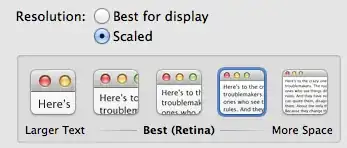
you've to go to Displays Settings and select 'More Space' (Scaled) option.

See:

Displays - Scaled - More Space

If you'd like to have some permanent solution, please install BetterTouchTool, which provides extra options (gestures) for moving the windows. In example:

BetterTouchTool - Move windows

kenorb
  • 24,736
  • 27
  • 129
  • 199
  • 1
    My resolution on my monitors were already maxed out , but setting from 'Best' to 'More Space' and then setting it back to default made the Filezilla window end up as full screen on my Macbook Pro screen – DemiSheep Oct 22 '15 at 17:00
  • 1
    The scaling + option-drag-window-edge worked for me. – Jorge Orpinel Pérez Nov 25 '15 at 21:53
10

I had this problem with Parallels desktop 6 in OS X Lion, whereby the VM's actual window was hidden off-screen, and only visible in Mission control, and when you swiped between spaces.

So for those with the same problem, and hopefully this is applicable elsewhere: The solution is to right click on the Application's icon in the Dock, then go to the 'Options' menu item, and under 'Assign To' choose 'This Desktop'. That should move the app window back on to the current desktop. Still preferred the old spaces pref pane for this sort of thing - much faster.

Hope that helps those stumbling upon this post, with the same problem with Parallels (as I did)

Note that on Lion, there is no Assign To option in this position.

bwDraco
  • 45,747
  • 43
  • 165
  • 205
purpletonic
  • 642
  • 2
  • 9
  • 19
8

If you still have an external display hooked up, or are reconnecting the external display, and at that point have the window offscreen and unmanagable, it is possible to right-click the icon for that application in the dock and force the window to snap to the other display.

This will allow you to adjust the window position without the need to modify the resolution of displays or open the system preferences tab. Still not as easy as an MS Windows solution, but definitely easier than going through all of the rest of that hassle.

slhck
  • 223,558
  • 70
  • 607
  • 592
James Brewer
  • 402
  • 3
  • 11
  • 2
    no option for that on yosemite – Chuck van der Linden Aug 31 '16 at 03:43
  • This worked for me with Sequel Pro app on High Sierra. It was off screen and I couldn't see it's menu bar. Selected Display 1 and it worked. Thanks! – Najki Oct 03 '18 at 07:55
  • This use to work for me on a Mac Pro 5.1 (mid-2010) with Mojave, and is great when you have a TV connected through the wall and have no access to the other screens. However, with a (new purchase) Mac mini 8.1 (2018), I am not seeing this option anymore. Does it need to be enabled? Greatly prefer this solution in my situation. – newyork10023 Jul 02 '21 at 21:46
8

I have found a way, by using "Force Quit ...", by clicking the  icon in left top corner.

Use it to force-quit the app, then start it again. It starts fresh, and the window is on-screen.

slhck
  • 223,558
  • 70
  • 607
  • 592
wgui
  • 89
  • 1
  • 3
6

Hold option + click the app icon in the dock two times and it will first minimize, then restore the windows into full view on your desktop.

Justin
  • 265
  • 1
  • 3
  • 9
5

None of the above methods worked for me on OSX 10.7.4. I was trying to access KeePassX, which was completely off the screen. (I had moved it to a second display at home, but was now at the office, with no second display.)

Changing resolution back and forth had no effect. Closing the app and opening it up again, had no effect.

However, when I closed the database, and asked to open a new one, it moved the window so I could access the dropdown to select a file. (yay!)

kenorb
  • 24,736
  • 27
  • 129
  • 199
3

The position of the views are saved in the nib files themselves. The way I fixed this was to make a change to the View and then saved it. Shut down Interface Builder and started it again. My window and view where gathered back to the main screen. I have to say that I tried all the options before doing this. That is the Zoom, deleting the .plist from Library/Preferences, F8, Gather Windows... None of those worked. I hope this helps.

Nima
  • 1
  • 1
3

I tried pretty much everything above for a token app called SecurID we use for VPN access for work. This AppleScript finally solved it (courtesy of http://www.leonamarant.com/2008/04/02/how-to-get-off-screen-windows-back-on-your-mac-os-x-v105/)

-- Example list of processes to ignore: {"xGestures"} or {"xGestures", "OtherApp", ...}
property processesToIgnore : {}

-- Get the size of the Display(s), only useful if there is one display
-- otherwise it will grab the total size of both displays
tell application "Finder"
    set _b to bounds of window of desktop
    set screen_width to item 3 of _b
    set screen_height to item 4 of _b
end tell

tell application "System Events"
    set allProcesses to application processes
    set _results to ""
    repeat with i from 1 to count allProcesses
        set doIt to 1
        repeat with z from 1 to count processesToIgnore
            if process i = process (item z of processesToIgnore) then
            set doIt to 0
            end if
        end repeat

        if doIt = 1 then
            tell process i
                repeat with x from 1 to (count windows)
                    set winPos to position of window x
                    set _x to item 1 of winPos
                    set _y to item 2 of winPos

                    if (_x < 0 or _y < 0 or _x > screen_width or _y > screen_height) then
                        set position of window x to {0, 22}
                    end if
                end repeat
            end tell
        end if
    end repeat
end tell
DustinB
  • 151
  • 3
2

Go to System Preferences » Displays » Detect Displays.

It will force the system to rescan, and detect the missing monitor... That typically solves the problem when I run into it.

Also, if that doesn't work, and your system still believes that the monitor is connected try two things:

  1. If you have the cable still connected (but unconnected to a monitor), disconnect it.
  2. On the arrangement tab on the displays panel, try "Gather Windows". That should gather all the windows to the active / primary monitor.
slhck
  • 223,558
  • 70
  • 607
  • 592
Benjamin Schollnick
  • 4,409
  • 18
  • 19
  • I tried using Detect Displays and that didn't work. I didn't try the "Gather Windows" option, but I will next time. – Matthew Rankin Jan 15 '10 at 15:28
  • This may or may not work. I found Wireshark (an X Windows app), would be off the display when a 2nd display was connected. This was actually an XQuartz bug (acknowledged). It's unclear if this is an Apple bug, or an XQuartz bug. See http://xquartz.macosforge.org/trac/ticket/797. – Benjamin Schollnick Oct 04 '14 at 21:47
2

The simple answer for me, if you're just completely removing external monitors (e.g., for going to a conference with your laptop) is to just close the lid and open it again. All of the other answers (^1, Zoom, moving windows) did not work for me.

user1442960
  • 131
  • 4
1

I wonder why it was not mentioned before but there is a very simple way to solve it.

You can grab one of the horizontal or vertical edge of the window (not the corners, though) and move the mouse parallel to the edge, not in the direction you normally would in order to resize the window.

That is, if you move the horizontal edge of the window horizontally or the vertical edge vertically then it does not resize the window but moves the whole. Now you can drag the missing part of the window back to the screen.

Csongor Halmai
  • 191
  • 2
  • 5
  • 1
    The problem is that entire window is off the screen. There isn't an edge to grab on. – F.S. Nov 26 '20 at 23:41
  • This is the only simple way I've found to fix a window that gets positioned with its title bar behind the system title bar so you can't move the window. – qel Mar 03 '21 at 14:42
1

The WindowZoom method is interesting and likely what I'd use if not for Moom. It lets you set up hotkeys for repositioning and resizing windows. I have a 9 cell grid (altoption1-9) as well as left/right halves and a few others.

The Moom default for centerring and expanding a window is controlshiftz then space - I changed this to altz. Super useful for screencasts too as you have much greater control over window positioning.

Koobz
  • 268
  • 3
  • 10
0

A third party solution is to use HyperDock. It is compatible with macOS 11.1 Big Sur but not later versions of macOS.

This utility modifies the Dock to show a preview of each application’s windows floating above the application icon.

These are draggable, so you just pick the window you wish to view and drag it to the monitor you need to see it on.

jasonology
  • 142
  • 6
0

For extreme cases, like I'm encountering with Interface Builder, you can try re-connecting your second monitor, finding that missing window and then dragging it back to the primary display.

Now, to check your work, quit the program and then re-launch it ensure that all of the desired windows are living on your primary display.

Now, disconnect the second monitor - things should be ok.

JJ Rohrer
  • 161
  • 1
  • 6
0

In my situation, the window disappeared on Mavericks after I unplugged one of my external monitors. I still had another external monitor plugged into my MacBook Pro, while the windows moved from the unplugged external were shifted to my built-in display. One window for Chrome was well outside the actual display, but with the way screens and "Spaces" work in Mavericks no part of it showed on the other displays.

The easiest way I have found is to open Exposé (either by pressing F9 if you have re-enabled that keyboard shortcut, or by swiping up with three or four fingers depending on your configuration) and drag the missing window from one monitor to another. This will cause OS X to position the window within the bounds of the new monitor automatically, and it will be visible again.

Bryson
  • 431
  • 1
  • 4
  • 9