58

I have figured out how to make folders auto arrange their contents. This is achieved in Finder->View->Show View Options (or cmd+J).

From the newly opened window, setting the arrange by dropdown will set the folders behavior from then on. But it is only for the folder this menu was opened in. How do I set this as a Finder rule for all directories?

EDIT
I am using Mountain Lion - 10.8.2
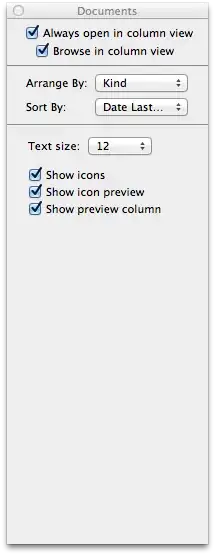
I don't have a 'Use as Defaults' button in my view panes - here's a screen grab:
enter image description here

drewwyatt
  • 795
  • 2
  • 9
  • 14

1 Answers1

69

If you select Use as Defaults from the view options panel, Finder will use those settings as defaults for all folders that don't have folder-specific settings stored in .DS_Store files.

You can clear the folder-specific settings by running sudo find / -name .DS_Store -delete && killall Finder. It also resets other view options, resets the positions of icons, and deletes Spotlight comments.

Lri
  • 40,894
  • 7
  • 119
  • 157
  • 1
    I don't have a Use as Defaults button... I'll upload a screencap to my question. – drewwyatt Mar 12 '13 at 14:01
  • It's not shown in column view. AFAICT, new column view windows use the same arrange by (`FXPreferredGroupBy`) and sort by (`StandardViewOptions:ColumnViewOptions:ArrangeBy`) modes. – Lri Mar 13 '13 at 06:55
  • 3
    @drewwyatt To show 'Use as Defaults': Finder > (in sidebar) Click your home folder > (menu bar) View > Show View Options – Jeaf Gilbert Sep 25 '15 at 02:18
  • 1
    Still works in Yosemite – abjbhat Oct 08 '15 at 05:27
  • This does not work anymore (Catalina). The clear terminal function just throws out `Operation not permitted` and the `Use as Defaults` does literally NOTHING whatsover – Frank Apr 24 '20 at 17:18
  • It doesn't work for the MacOS Big Sur v11.3.1 either – Abu Shoeb May 25 '21 at 20:07
  • Works in MacOS 13 Ventura. Just need to open and change setting to have the button enabled – DevDio Nov 11 '22 at 10:47