178

With Microsoft Office 2013 and 2016, Microsoft Office Upload Center runs automatically and shows up in the system tray. I don't use it and want stop it from running.

How can I remove that program completely?
enter image description here

Donald Duck
  • 2,473
  • 10
  • 29
  • 45
FiveO
  • 8,228
  • 12
  • 48
  • 77
  • 1
    Have you looked into msconfig? (WIN) + (R) -> msconfig -> Systemstart – Peter Mar 05 '13 at 08:21
  • You can't remove it completely you can just simply configure it not to start when your computer is rebooted. – Ramhound Mar 05 '13 at 11:07
  • It's not in the startup folder. But I think it always starts when I launch Microsoft Word, Excel or Outlook. I don't want to have background apps that I don't use... – FiveO Mar 06 '13 at 08:31
  • 8
    The application is supposed to "Manage Office document uploads to web server"?? And you can't close it down? What is wrong with you Microsoft? – Karlth Jul 10 '13 at 10:41
  • 1
    If you have OneDrive and Office 2013+ installed see answer from @GollyJer first, http://superuser.com/a/898818/8660 – TFD Nov 19 '15 at 00:12
  • go to 'C:\Program Files\Microsoft Office\Office15\' and find MsoSync.exe.delete it :D – AminM Dec 07 '15 at 15:59
  • All the answers below don't work for me (MS probably prevented these methods to be applied in later versions of Office), so I ended up removing office 2016 and installling the old Office 2007. What a drag.. – paddotk May 26 '17 at 19:38
  • **Note** - As of 2020 Microsoft is phasing this out completely in favor of a per-Office-app feature called [Files Needing Attention](https://support.office.com/en-us/article/files-needing-attention-faq-5c944ab8-1dd5-44f3-9dc6-9cd35846f8ab). – TylerH May 21 '20 at 13:50

10 Answers10

143

"You can't disable it and if you remove it from start up it still loads up anyway. All you can do is open task manager and end the process for MSOSYNC.EXE, pretty lame I know, but there's no way of disabling it and this info is coming from the office365 forum!"

Not true.

You can disable the Microsoft Office Upload Center easily in the registry- but this is the only way.

Microsoft went out of their way to stop people from doing this in the GUI, and even MSCONFIG won't work.

Here's the registry fix (only tested on Windows 7 + Office 2010... see other answers for more recent versions of Windows/Office):

Locate:

HKEY_CURRENT_USER\Software\Microsoft\Windows\CurrentVersion\Run

and delete the OfficeSyncProcess entry that points to the current location of MSOSYNC.EXE.

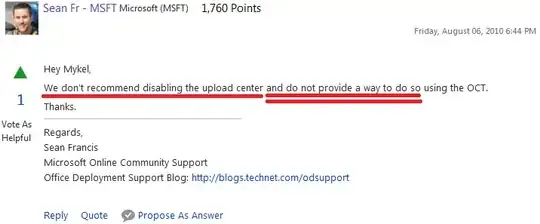
Microsoft's arrogance on this whole issue is astonishing:
enter image description here

Many people are turning to forums in frustration to turn off this feature.

These people want to disable it, so do these, and these, and even these.

It shouldn't be enabled automatically when you simply run SharePoint/SkyDrive once- and if it is, then it should be possible to turn it off without rolling up your sleeves and hacking the registry.

Poor show, Microsoft. Poor show.

Austin ''Danger'' Powers
  • 6,262
  • 15
  • 44
  • 64
  • 32
    Alas, on Win8 there is no such key for me in the registry. – Jeroen May 13 '13 at 06:09
  • 2
    I'm using Windows 7 Pro joined to a domain. No key at that location or at the same place under HKLM. – Jeremy Sep 27 '13 at 16:59
  • I searched the entire registry for a reference to `MSOSYNC` and did not find an entry to start this process. I'm also on Windows 7 Pro on a domain. I also searched for `OfficeSyncProcess`. – matthewpavkov Oct 01 '13 at 15:01
  • 8
    Office 2013 users, please see [this](http://superuser.com/a/569027/209415) answer. It worked for me without having to modify any registry entries manually. Good riddance Microsoft Office Upload crapware. – crayzeewulf Oct 07 '13 at 23:23
  • This accepted answer is for Office 2010. See user209050's answer below – wruckie Feb 04 '14 at 01:55
  • 7
    You can also use "AutoRuns sysinternal tool" to disable it at the login. – boos Mar 20 '14 at 13:38
  • 1
    @boos post that as an answer, after all it is *the* answer - afaik it works no matter what version you run as Autoruns captures everything anyway – stijn Apr 07 '14 at 07:23
  • @stijn I don't have enough point on my profile to answer this question but absolutely my answer is The answer. – boos Apr 07 '14 at 09:39
  • I found it is in Task Scheduler. – vee Feb 19 '15 at 23:07
  • 1
    not there for windows 10....help – MycrofD Aug 01 '15 at 08:29
  • 1
    Obsolete answer, for Office 2013+ see @GollyJer answer – TFD Nov 19 '15 at 00:15
130

To disable/configure this open up the Task Scheduler and click on the Task Scheduler Library node. You should see a task here labelled Microsoft Office 15 Sync Maintenance for USERNAME.

Disable the whole trigger (right click and choose disable) or change the Properties of this to amend the trigger that starts the job. For instance, you can delete the trigger that starts on user log on.
enter image description here

FiveO
  • 8,228
  • 12
  • 48
  • 77
user209050
  • 1,301
  • 1
  • 7
  • 2
  • 1
    Thanks! This worked for me with Office 2013 on Windows 7. Also, user MJS1A suggested the same [here](http://answers.microsoft.com/en-us/office/forum/office_2010-office_install/msosyncexe-uses-60-of-cpu-in-background-all-the/8002e848-6e27-4dce-9f33-24c419fd2c02?msgId=afb3e0df-ae41-453b-b3ec-ef73ececd33d). – crayzeewulf Oct 07 '13 at 23:22
  • Thanks @user209050Or edit the task to run one time in 2099..... – wruckie Feb 04 '14 at 01:53
  • 3
    Didn't work on Office 2013 in Windows 8.1 – Jonas Jan 22 '15 at 16:58
  • 5
    No joy in Office 2013 on my install... there's no entry in the Task Scheduler, in Microsoft, or in the Office subfolder. Microsoft Office Professional Plus 2013, Windows 7 SP1. – JeanSibelius Feb 24 '15 at 00:23
  • 1
    @Jonas I just tried this solution with Office 2013 on Windows 8.1 and it worked for me. – Peter Sivák Apr 24 '15 at 23:17
  • 2
    @mattshepherd It is in the root of "Task Scheduler Library" not inside any subfolder (I do have plus) – Gonzalo Contento Jul 09 '15 at 01:12
  • Do we need to restart the computer to make the changes take place? – Shaun Luttin Aug 04 '15 at 20:06
  • 1
    Obsolete answer, for Office 2013+ see @GollyJer answer – TFD Nov 19 '15 at 00:15
  • This did not work. Windows 7 Pro, SP 1, MS Office Pro Plus 2013. I disabled the entry in Task Scheduler. And lo and behold, the Upload Center still starts on logon. Also, the answer by GollyJer seems to only apply to other versions of OneDrive -- on Win 10 for instance -- where that "Settings" option is available. I don't have a "settings" when I right click OneDrive icon. – StormRyder Dec 17 '15 at 03:31
  • This still worked for me with Win10 and Office 2013 Pro Plus. I have already otherwise completely disabled OneDrive, so that may be the difference. – Travis Jan 02 '16 at 23:01
  • be aware you may have to actually edit the task as it has at least three triggers! – WhiteRau Feb 26 '18 at 22:44
66

Using Microsoft Office 2016 with Windows 10 and the now completely integrated OneDrive application...

Updated for OneDrive Version 2016 (Build 17.3.6517.0809) as of Aug. 2016


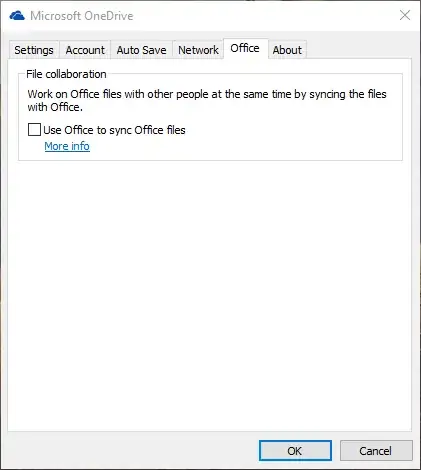
  1. Right click on the OneDrive tray icon and choose settings.

    settings

  2. Navigate to the Office tab and uncheck "Use Office to sync office files"
    Windows 10 OneDrive Version 2016 (Build 17.3.6517.0809)

  3. Reboot computer and Office Upload Center will no longer load at start-up.
GollyJer
  • 7,150
  • 8
  • 38
  • 45
  • 7
    This answer worked for me for Office 2013 on Windows 10. – Edward Brey Jul 31 '15 at 02:52
  • 1
    For the records, they changed the name of the option to _Use Office to work on files with other people at the same time._ – NoNameProvided Aug 02 '15 at 21:53
  • 2
    This is the correct answer if you have OneDrive and Office 2013+ installed – TFD Nov 19 '15 at 00:11
  • 4
    I agree this would the "nice" way to solve this. Worked for me on Windows 10 + Onedrive + Office 2016. – M-Peror Nov 30 '15 at 07:13
  • 2
    I don't have that checkbox available. I'm running Win10 + Office 2013 – Gustavo Puma Mar 06 '16 at 23:40
  • @vash47 See if a tab called 'Office' is between 'Auto save' and 'About'. – Attacktive Jun 09 '16 at 06:57
  • This works on Windows 7 as well, with Office 365. – Jonathan Potter Aug 24 '16 at 23:52
  • 1
    I disabled OneDrive on Windows 10. How can I disable Upload Center without having to enable OneDrive? – gavsiu Sep 22 '16 at 04:32
  • This answer worked for me for Office 2010 on Windows 7. – trejder Jun 11 '17 at 11:35
  • This worked for me too (Windows 10 + Office 2016), but I had to reboot twice... strange – UndeadBob Jul 15 '17 at 04:30
  • Since this answer has been posted both the Registry Key *and* the Scheduled Tasks have been removed. This answer provides the best solution at the writing of this comment. I would hope this gets referenced in the accepted answer so as not to mislead. And I can confirm this has worked for me as well. – mikeymop Aug 03 '18 at 18:37
  • I (Win 10, Office 2019) disabled/uninstalled OneDrive a while ago and the Upload Center popped up all of a sudden today, I've never seen it before. Is there another way? – Neph Mar 14 '20 at 17:49
  • @Neph If you aren't syncing to any cloud service then it shouldn't be running at all. Maybe check the setting of the Upload Center itself or your office app settings to see why it might be trying to sync. – GollyJer Mar 14 '20 at 18:04
  • @GollyJer I'm not using any cloud stuff and I never have on this PC. I already checked the Upload Center settings but there was nothing about autostart and also nothing to disable it. Haven't checked Office itself but, even though I disabled/uninstalled OneDrive, it still gives me the option to upload my files to it. – Neph Mar 16 '20 at 14:29
33

Note, this answer was written in the early days of Office 2013 and is reported to be out of date. Original answer follows...

Out of desperation I renamed the executable msosync.exe so that office cannot find it. Dirty, yes, but I have had no problems with this approach and now my computer works much better again :)

Mark Ch
  • 556
  • 4
  • 10
  • Where is msosync.exe located so I can rename it? – culix Aug 25 '13 at 07:08
  • 3
    @culix C:\Program Files\Microsoft Office\Office14 – Daniel B Sep 14 '13 at 15:17
  • 1
    I did the same, but then after some time (I guess after an update) the exeutable is back there, running. I'm now trying the Task Scheduler approach suggested by user209050 – superjos Feb 28 '14 at 09:46
  • this method worked for me, i changed the name of the file extension, so it now ends as '***. EX_' so the system doesn't loads it, by the way you need to change the name / extension of the file 'CSISYNCCLIENT.EXE' located at C:\Program Files\Common Files\microsoft shared\OFFICExx whre the 'xx' stands for the version of office (14, 15, 16... ) – diras2010 Nov 13 '15 at 03:13
  • Please don't try this. It just gets installed again. See @GollyJer answer – TFD Nov 19 '15 at 00:15
  • 1
    Yes, this answer is badly out of date. Lots of better answers have appeared in the 2.5 years since it was written. – Mark Ch Nov 19 '15 at 07:28
12

Just rename this file

C:\Program Files\Microsoft Office\Office15\msosync.exe
Kevin Panko
  • 7,346
  • 22
  • 44
  • 53
Vijit Uttam
  • 131
  • 1
  • 2
  • A bit a a brutal method, but when it works... (hopefully this doesn't generate any error messages) – FiveO Oct 02 '13 at 06:01
  • Good to know there's a solution for Office 2013! – Austin ''Danger'' Powers Oct 06 '13 at 00:59
  • In Office 2010, I also noticed this file right next to it: "MSOUC.exe" which no doubt stands for "MS Office Upload Center" -- I renamed that one as well. –  May 26 '15 at 22:10
  • This is the only method that works for me. I run Win7 x64 Pro SP1, and MS Office Pro Plus 2013. I tried the Task Scheduler method, and it did nothing. Of course, after any update I have to do this process again since the msosync.exe file gets replaced. – StormRyder Feb 08 '16 at 19:18
8

This is a terrible MS pushed annoyance, and to make it worse, MS insists that you use it by constantly avoiding previous removal procedures. So here is my attempt to collect and update some (currently) working solutions. The post answers here will probably need to be updated again, in a few months...

These instructions are for disabling Microsoft Office Upload Center on the MS Office 2013 Home & Student Edition on Windows 8.1.

  1. Optionally:

    • Uninstall SharePoint
    • Uninstall SkyDrive
  2. Kill the processes:

    a) Stop the system service "Microsoft Office Service". (Perhaps permanently disable?)

    b) Use Process Explorer to kill all of the following processes if present:

    integratedoffice.exe
    MSOSYNC.EXE
    CSISYNCCLIENT.EXE
    OSPPSVC.EXE
    MSOUC.EXE 
    

    c) Rename the following *.EXE files by adding ".disabled" to thier filenames in [1]:

    C:\Program Files\Microsoft Office 15\root\office15\MSOUC.EXE
    C:\Program Files\Microsoft Office 15\root\office15\MSOSYNC.EXE
    

    and possibly also:

    C:\Program Files\Microsoft Office 15\root\office15\MSOHTMED.EXE
    

    [1] This folder have also been found to be located in:

    C:\Program Files\Microsoft Office\Office15\
    
  3. Replace the above files with fake *.EXE files:

    a) Create and edit a new text file called MSOSYNC.txt with command:

    quit
    

    b) Copy and rename the file MSOSYNC.txt to:

    MSOSYNC.EXE
    MSOUC.EXE
    

    c) Set correct file permissions, if necessary.

  4. Remove the entry from the Task Scheduler:

    a) Open Control Panel and go to:

    Control Panel >> System and Security >> Administrative Tools
    

    b) Select and open "Task Scheduler".

    c) Click on the "Task Scheduler Library" icon. [on the left side/pane]

    d) Find and click on:
    "Microsoft Office 15 Sync Maintenance for - "

    e) Click on the "Actions" [tab] and check that it reads something like:

    C:\Program Files\Microsoft Office 15\Root\Office15\MsoSync.exe
    

    f) In the right pane, under "Selected Item", click "Disable"

  5. Other suspicious tasks to check:

    1) Expand the "Task Scheduler Library" tab [on the left pane]
    2) >> Microsoft >> Office >> Office Automatic Updates
    3) >> Microsoft >> Windows >> SettingSync >> BackgroundUploadTask
    4) >> Microsoft >> Windows >> SkyDrive >> Idle Sync Maintenance Task 
    
  6. Disallow Office to connect to the internet.

    a) Open any office application like Word, and go to:

    File >> Options >> Trust Center [on bottom left]
    

    b) Under "Microdsoft Word Trust Center" header [bottom], select:

    "Trust Center Settings..." button [bottom right] 
    

    c) In the new "Trust Center" window go to:

    Privacy Options [on bottom left]
    

    d) Under "Privacy Options" header, unselect Allow Office to connect to the Internet.


Here are some additional possible solutions, but which I have not tried:

  1. Change the Group Policy for Everyone, by adding MSOSYNC.EXE to 'List of disallowed applications'.
  2. Disable the system service called: "Microsoft Office Service"
  3. Edit the registry...
  4. Removing everything related to the "Microsoft Office Workspaces".
not2qubit
  • 1,993
  • 4
  • 28
  • 35
  • 1
    This approach seems to be quite overkill and might even produce errors if there are any dependencies between those files and Office... I would recommend to use the Task Scheduler approach - it's straight forward and all the dependencies are left intact. PLus: you are actually killing SkyDrive's synchronisation which might NOT be what some people had in mind when searching for "how to disable msosync". – Betaminos Jul 07 '14 at 09:05
  • 1
    @Betaminos: This is not an overkill at all, as every time any Office related MS updates have been run, I have to pretty much go through the same sequence again. And if SkyDrive require MSOSync or vice versa, that would be a bug issue to post at MS forums. I'm sure they will be very helpful there! Also notice I wrote `optionally` on the SkyDrive uninstall item. (Because if you do use SkyDrive, it will want to "help" you also synchronize your office stuff, and then BAM! we're back to step again.) – not2qubit Jul 07 '14 at 11:20
4

It appears that with Office 2013, MSOSYNC is under a new process called "CSISYNCCLIENT.EXE" I found this in process explorer. Perhaps if you searched for that in the registry, it could be disabled

Kevin Panko
  • 7,346
  • 22
  • 44
  • 53
Zackptg5
  • 41
  • 1
2

You might want to have a look at this MS answer.
In that case the user removed Office 2013, but still had SkyDrive Desktop app installed, and there was a SkyDrive setting referring to the upload center.

In my case, I only had Sharepoint Designer 2013 installed (Office suite was stuck at 2010, and I already disabled its upload center): that answer worked for me.

superjos
  • 316
  • 1
  • 4
  • 12
1

For Windows 7/8 Users this process can be disable from auto-run only by accessing Task Scheduler in Control Panel -> Administrative Tools . You must Look for Microsoft -> Office Folder and disable all tasks located in Office folder.

FaneGSM
  • 11
  • 1
0

You can't disable it and if you remove it from start up it still loads up anyway. All you can do is open task manager and end the process for MSOSYNC.EXE, pretty lame I know, but there's no way of disabling it and this info is coming from the office365 forum!

STFU
  • 1