Bookmarklets, such as SuperGenPass don't have favicons, because they are javascript: links and Firefox doesn't know where it would obtain the favicon from. Is there any way to add a favicon to a JavaScript bookmarklet?
Asked
Active
Viewed 4,947 times
17

fixer1234
- 27,064
- 61
- 75
- 116

Drew Stephens
- 591
- 6
- 12
-
I don't think this is possible, but if you find a solution I'd certainly like to know (I have 100's of bookmarklets) – scunliffe Oct 18 '09 at 02:09
-
2**None** of the answers seems to work anymore. – ashleedawg Dec 17 '19 at 23:28
7 Answers
6
You can try this trick:
Find a normal link (without JavaScript) for the website with the correct favicon.
Add that link to your bookmarks toolbar as a normal bookmark.
Finally, change the properties of the bookmark you just added and change the location to be the actual JavaScript bookmarklet you want (you want the location from the bookmarklet that doesn't have the favicon).
Now you've turned the bookmark from step 2 into a bookmarklet with the desired favicon and JavaScript.

James Mertz
- 26,224
- 41
- 111
- 163

URLParser.com
- 1
- 1
- 1
-
3**This doesn't work** anymore. As soon as the bookmark's location is changed, the icon updates (which, in the case of a javascript bookmarklet, is the generic "globe" icon) – ashleedawg Dec 17 '19 at 23:04
5
The Favicon Picker 2 extension will let you do this.
How to Use: Just right-click any bookmark and select "Properties,"
then click "Browse..." to select an icon or paste a URL to an icon.
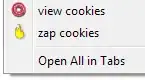
Also, you can uninstall the extension when you're done and the icons will remain.


-
Mucks up some other dialogs on Mac, but I was able to install the extension, set an icon, and uninstall it. Is there a way to change this using about:config or the like? – Drew Stephens Oct 19 '09 at 14:58
-
Unfortunately, the extension has been incompatible with the latest version Firefox, at least since May 2015, at most today. – Jul 20 '15 at 05:55
-
1
1
Working as of July 2020:
The only reasonable way I found to get a favicon for a javascript: bookmark is by importing it using Import bookmarks from HTML option in the following format (obtained by exporting to HTML):
<!DOCTYPE NETSCAPE-Bookmark-file-1>
<!-- This is an automatically generated file.
     It will be read and overwritten.
     DO NOT EDIT! -->
<META HTTP-EQUIV="Content-Type" CONTENT="text/html; charset=UTF-8">
<TITLE>Bookmarks</TITLE>
<H1>Bookmarks Menu</H1>

<DL><p>
    <DL><p>
        <DT><A
        HREF="javascript: (function() { if (window[%22_gainNode%22]) { window[%22_gainNode%22].gain.value = parseFloat(prompt('Set the audio gain')); return; } var v = document.querySelector('video'); var audioCtx = new AudioContext(); var source = audioCtx.createMediaElementSource(v); var gainNode = audioCtx.createGain(); gainNode.gain.value = parseFloat(prompt('Set the audio gain')); source.connect(gainNode); gainNode.connect(audioCtx.destination); window[%22_gainNode%22] = gainNode; } )();"
        ICON="data:image/png;base64,iVBORw0KGgoAAAANSUhEUgAAABAAAAAQCAYAAAAf8/9hAAAB3UlEQVQ4jb2SS2gTURSGD7oWEQQzBUHUjY/ccrMRtRvxBheiG3dCQV3M+EDrg5koLZ0b0rRWkYIFa9GWENBFRelS0EyDCIbOjG1ScjvqnKBUS0VxozsXx0WZFpPUogsPnM2B7+OH8wP8z/GDGvNna9knz16UT6fS87qUG1eFiGitV8XjbhUnPYXkKaT+oRzppk1GKt0BAAAf4m0b3u8WO7BVtNVY8mgYT57A1uTloP1Cj6dqKgKjvSRvLAos+QiQiWPIxE9kguq3PDpG9XCp8pbOd/XSmWsZMiw5DchEqRmMTJDvzjQIim6Fsndy1H3rLumm/QmQiYVmcJg41AB7CqlQmqab9x9SZnCUDEt+BWRiasUEr1VjgskK9Q3lyR4YJt2S8xDGDxorCcoPxhsErypvqMPup3OdWTJMOQMAAO92Htjlbdt3u7RlD7lb99LU9v3fkImB4NSVvDeLn+slF7v7Fr9gyvGlf09oPONonByNU0Hj96L7yyBY56vQcqvhXCToHRwh3bRJN+XVJYHTwnORYCLGU00LpfCwr8L846fFL7opf5zt7Nm8LIjx55HAaeHpP7VTSrkmdX14/W9HR+P+coLE2Kodr59iLHHS0fh3R+MfC5sSR/5a8K/zC9LelkXBQu43AAAAAElFTkSuQmCC">
        Bookmark name
        </A>
    </DL><p>
</DL>
- Notice that the javascript quotes have to be replaced either with a single quote or %22.
- Icon should be a base64 encoded png image
- Ignore the "DO NOT EDIT" line
- Editing the address / javascript after import will get rid of the icon
- Editing the name / bookmark folder after import will retain the icon
- Bookmark will likely not show up in any folder after import, you will have to search for it either with its name or part of href.
- Save the file as HTML and import it
Ctrl+Shift+B>Import and Backup>Import bookmarks from HTML - Importing the file will not overwrite any existing bookmarks you currently have, however backup is recommended (just in case)
If you import the given example you will get a volume gain management on videos in any tab using AudioContext. It has a loudspeaker icon and "Bookmark Name" as its name.

iairu
- 376
- 2
- 6
1
Pelms' suggestion led me to find the possibly-related Favicon Picker 3, which works better on Mac OS X.
Drew Stephens
- 591
- 6
- 12
0
You can do this with userChrome.css:
- Go to
about:support - Under "Application Basics", "Profile Folder", click "Open Folder"
- If they don't exist, create folder
chrome, then fileuserChrome.css
I use this style:
:root {
  --amber: #FFC000;
  --chartreuse: #B2D733;
  --magenta: #BF1449;
  --teal: #158466;
  --vermilion: #FF4000;
}
#PlacesToolbarItems image {
  padding-top: 16px;
}
#PlacesToolbarItems toolbarbutton:nth-child(5n+1) image {
  background: var(--teal);
}
#PlacesToolbarItems toolbarbutton:nth-child(5n+2) image {
  background: var(--chartreuse);
}
#PlacesToolbarItems toolbarbutton:nth-child(5n+3) image {
  background: var(--amber);
}
#PlacesToolbarItems toolbarbutton:nth-child(5n+4) image {
  background: var(--vermilion);
}
#PlacesToolbarItems toolbarbutton:nth-child(5n+5) image {
  background: var(--magenta);
}
If you want to use images, you can; just put them in same folder, then link like this:
background: url("something.png");

Scott - Слава Україні
- 21,399
- 46
- 64
- 121

Zombo
- 1
- 24
- 120
- 163
-
Doesn't work, as far as I can tell. What is it supposed to do? Change the color of every 6th to 10th icon? – ashleedawg Dec 17 '19 at 23:27
0
The easiest way is to hijack a bookmark. Just bookmark a page that has a favicon that you want to use. You may need to click on the bookmark to have it load the favicon from the site that it links to. Once you have the favicon, then, go to the bookmark, right click, and choose properties. You can then change the "location" to the javascript code for the bookmarklet you want to have associated with the favicon. Tip: To differentiate a bookmarklet from a bookmark, I change the "name" in the properties tab to whatever preceeded by M:, so for example, if the bookmarklet was for creating a shortened URL using goo.gl, I would name that "M:Goo.gl"

Amigo Omega
- 11
-
1Amigo, is this answer substantively different from the answer by **URLParser.com**? – Mr.Wizard Jul 01 '12 at 08:11
-
**Doesn't work** Neither the answer, nor the "tip" have worked, for years. – ashleedawg Dec 17 '19 at 23:07
-1
- Export bookmarks as HTML.
Edit HTML, add
ICON="data:image/png;base64,..."to your bookmarklet, i.e.<DT><A HREF="javascript:(function(){ ... })();" ICON="data:image/png;base64,iVBORw0KGgoAAAANSUhEUgAAABAAAAAQAgMAAABinRfyAAAABGdBTUEAALGPC/xhBQAAAAxQTFRFAQMAXV9chIaDx8nGZHRYHgAAADhJREFUCNdjYAAD8QkMDFz//zcw8P//f4CBNTTUgYHbZvMB3AS7TfEBBq5VqxpAxAQGztCwALBBALHhF442ZwQdAAAAAElFTkSuQmCC"></A>- Import bookmarks from edited HTML.
Works in Firefox as of now.

K3---rnc
- 280
- 3
- 8
-
-
1**Doesn't work** any more... (HTML tags cannot be used in the bookmark location.) – ashleedawg Dec 17 '19 at 23:13