6

Whenever I click on a mailto link, my computer gets whacko and starts a recurrent series of calls that open more and more instances of iexplorer. I need to manually enter the task manager and kill the process tree. Then the new iexplorer instances stop appearing.

I'm using FireFox to browse and Windows Live Mail for e-mail on Windows 7. I have Outlook 2013 installed but don't use it (haven't even configured it).

Don't know when the misbehavior started or what I could've done right before. Installed all updates. Reinstalled the obvious things.

How do I stop it?
What can be causing it?
enter image description here

Konrad Viltersten
  • 1,313
  • 5
  • 20
  • 44
  • 2
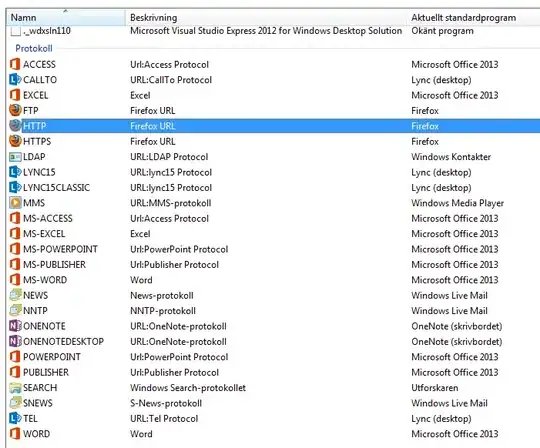
    Please go to the Control Panel `Control Panel\Programs\Default Programs\Set Associations` and check your association for the `MAILTO` protocol. What is it set to? – Oliver Salzburg May 01 '13 at 10:37
  • Please see my addition above. It's weird - I don't have the *MAILTO* in the list at all. Or do I and I just don't realize it? – Konrad Viltersten May 01 '13 at 16:05
  • Can you open regedit and tell us what `HKCR\mailto\shell\open\command` is set to? – Karan May 01 '13 at 22:43
  • Nothing, actually. I don't have that key in the registry at all. I'm assuming that *HKCR* means *HKEY_Classes_Root*. In fact, I made a search for *mailto* and there's only one reference, in *PROTOCOL\_Handler_\mailto* with *CLSID* set to a guid. What does it tell us? – Konrad Viltersten May 02 '13 at 13:03

3 Answers3

12

I've had the same problem and managed to solve it, so hopefully this helps someone.

I tracked down the problem and apparently a registry entry for handling of mailto: protocol has been removed. Probable culprit is IE10 installer, but I'm not sure about that.

Here's a fix:

  1. Open Registry Editor (type regedit in start menu).
  2. Locate HKEY_LOCAL_MACHINE\Software\Classes branch.
  3. Check if mailto key is present and has a string value of URL Protocol attached. Note: keys are alphabetically sorted, so first there are the ones prefixed with a dot (file extensions), look for mailto farther down.
  4. If HKEY_LOCAL_MACHINE\Software\Classes\mailto key is not missing in your registry, then the cause of your problem is somewhere else, try uninstalling IE10 (Programs and Fetures -> View installed updates -> locate IE10 and uninstall). EDIT: see comments - there's a solution even if mailto is present.
  5. If HKEY_LOCAL_MACHINE\Software\Classes\mailto is missing as it was in my case, you have to restore it. In parent branch (Classes) right click, select New -> Key, name it mailto. In this new key create a string value (right click, New -> String value), give it name URL Protocol and you're done. Close regedit and see if it worked.
toonczyk
  • 221
  • 2
  • 5
  • 1
    Thank you! This really helped. I added just string key "URL Protocol" with empty value under mailto node, and Explorer now behaves normally. – Michal Minich Nov 05 '13 at 12:44
  • 1
    I think #4 is wrong. I had the mailto key. The thing that fixed it for me was adding the "URL Protocol" String with empty value. As @MichalMinich says. – Phil_1984_ Sep 15 '15 at 16:43
1

If the mailto: links that you are clicking which cause this behavior are local links that you are clicking on your desktop or in a "Windows Explorer" window, then follow the suggestion from Oliver Salzburg and check the association setting for the MAILTO protocol. On my computer (Windows 7 Home Premium x64), I found it at Control Panel\Default Programs\Associate a file type or protocol with a program.

If the mailto: links are on a webpage that you are viewing in your browser (IE or Firefox) then it could be an Add-on which is malfunctioning. Disable all add-ons in your browser and try clicking the mailto: links again.

For IE, you can start IE in No Add-ons mode which temporarily disables all add-ons.

Click Start button (orb) then in the Start/Run textbox, type No Add-ons to locate the link to start IE in No Add-ons mode. Or, from a Command Prompt window type: iexplore.exe -extoff.

Kevin Fegan
  • 4,777
  • 3
  • 24
  • 37
  • This is **really** weird. In FF, the behavior is the same as described before (despite all the plugins being inactivated). But that's not even the beginning of the weirdness. In IE (no plugins installed) I got a bunch of windows on the screen (and a bunch of processes in the Task Manager) telling me that the default mail client isn't configured. Guess what I got in Crome! Perfect behavior - the new mail window in Windows Live Mail opened. WTF?! – Konrad Viltersten May 01 '13 at 16:18
1

I found- Outlook Email was missing. As soon as I added( using MS Office 2010 DVD), problem was fixed. And yes, after that, you can go to Default Program and pickup your preferred e-mail client instead of outlook. ( For example Lotus notes client)

user250976
  • 11
  • 1