33

This is similar to How to disable Ctrl+Shift keyboard layout switch (for the same input language) in Windows?, but regards Windows 8.

Here, I can change the keyboard language with Win+Space which is fine, but it also changes with Ctrl+Shift which is not. Is it possible to disable this on Win 8 as well?

Philipp
  • 443
  • 1
  • 4
  • 5
  • 1
    Thank you for asking this question... this "feature" has really bugged me, and the way to turn it off is not available from the standard settings UI for languages and keyboards. – LarsH Feb 22 '14 at 15:31

2 Answers2

47

You can disable the sequence Ctrl + Shift in Windows 8.

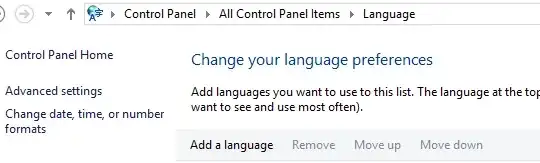
  1. In "Control Panel" | "Clock, Language and Region" | "Language" click "Advanced Settings" in the left pane.
  2. In "Advanced settings" click "Change Language bar hot keys"
  3. In "Text Services and Input Languages" click "Change Key Sequence" button and disable the the key sequence by selecting the "Not Assigned" radio buttons.
Jorge Moura
  • 496
  • 5
  • 3
  • 1
    interesting, I don't have "Clock, Language and Region". I have *Language* and *Region* as separate options in the control panel... – kluka Aug 13 '13 at 11:39
  • Ditto (in Windows 8.1). And there is no "Advanced Settings" button. :-( – LarsH Feb 22 '14 at 15:35
  • @LarsH: It's not a button, it's a link (on the left). I have it in 8.1. (But then, my version of 8.1 says "Clock, Language and Region", so...) – T.J. Crowder May 22 '14 at 11:22
22

In case you can't find the option as it's described in the other answer

  • Control Panel
  • Language
  • Advanced Settings (on the left side)

*Advanced Settings* (on the left side)

  • Switching input methods -> Change Language bar hot keys

Switching input methods -> *Change Language bar hot keys*

  • In the Tab Advanced Key Settings

    In the Tab Advanced Key Settings

  • Change Key Sequence FINALLY!

kluka
  • 2,164
  • 6
  • 23
  • 37
  • 1
    Thank you! I couldn't get the other answer to work, but with this one I was successful. I wish I could upvote this meticulous, illustrated answer twice. – LarsH Feb 22 '14 at 15:39
  • The key sequences were already showing up as "(None)" for me, however, by changing each key sequence and enabling and disabling back each of them, I got my Ctrl+Alt+0 freed up again :) – Attila Szeremi Apr 03 '18 at 14:22
  • Still works in Windows 11 :) (You should click on the Layout in the taskbar > More keyboard settings > Typing (in Related Settings) > Advanced keyboard settings > Input language hotkeys, which will give you the above-displayed Text Services and Input Languages window) – Gerhard Burger Jul 15 '23 at 20:39