5

Every time I open a *.mdb or *.accdb file I get the yellow Message Bar with a text in Spanish that translates as:

Security Warning: Some active content has been disabled. Click for more details.

... and a button labelled «Enable Content». Here's a screen-shot I found of the English version:

Security Warning

The button makes the bar disappear and seems to remember my decision for current file. The "more details" link opens the "File-> Information" panel where I can read that "VBA Macros" were disabled.

The problem is that I'm not getting this warning for specific files: I'm getting it from all files, including those that apparently have no macros at all (the "Database tools-> Visual Basic" window doesn't show any code). Even if I go to "File-> New" and create a blank database, the warning pops up when I open it.

My questions:

  1. Is the warning supposed to show up always no matter the file contents?

  2. If not, where can I find the VBA macros that Access is reporting about?

Álvaro González
  • 1,551
  • 2
  • 17
  • 30
  • On Access 2007 , go to the Windows thingy on the top left, chose Options, at the bottom of the list you'll find sthg like "Security center" or "Confidentiality center" (my version is not in English), once you click on that there will be a button with parameters, click on it and change the security settings of Macros. That should do the trick. – P. O. Jun 19 '13 at 15:15
  • @JoBedard - Thanks. The Access 2010 GUI is different. I've browsed all the panes and dialogues about security but I'm only given the choice to block or execute macros—I see no info about what precise macros are triggering the warning. – Álvaro González Jun 19 '13 at 15:36
  • 1
    To at least get the list of macro and modules did you try to Right-click the Navigation Pane’s title bar--> Choose Navigation Options-->Display Options section-->check the Show Hidden Objects option ? – P. O. Jun 19 '13 at 16:15
  • @JoBedard - Ha ha, I had never suspected there was a context menu in a combo. I can now see several tables that start with `MSys` but not other kind of objects. – Álvaro González Jun 19 '13 at 16:27
  • 1
    @ÁlvaroG.Vicario It's frustrating how everybody is just telling you how to get rid of the security alert without knowing how to "find the VBA macros that Access is reporting about". Did you ever figure it out? – John MacIntyre Mar 22 '15 at 16:31
  • @JohnMacIntyre Not actually. I finally assumed that Access displays the warning every time, no matter the file contents. – Álvaro González Mar 23 '15 at 08:12

4 Answers4

4

Another way to fix this is to create a Trusted Location for your project. you can use a registry key to make your folder a Trusted Location. This is actually easier then is sounds once you know what key to set.

The registry key is slightly different for each version of MS Access, but here is a sample key for MS Access 2010:

[HKEY_CURRENT_USER\Software\Microsoft\Office\14.0\Access\Security\Trusted Locations\Location20] "Path"="C:\Database\" "Description"="My Database location"

If you copy and paste the above quote into a text file and save it with a name such as RemoveSecurityWarning.reg, you can then run (merge) the file into your computers registry by simply double clicking the file.

Now lets explain a few things about what this key did:

  • The number "14.0" is the version of MS Office. You can simply change that to the number that represents the version you are running.
  • The "Location20" is a unique name that we assigned. The 20 can be any number that is not already used. Other programs, including default MS Access wizards, already may have used other numbers. Or if you want to make more then one path as a trusted location, then each location must end with a different number.
  • The "C:\Database\" actually is the physical path that you want to set to be a Trusted Location. You can put any path that you choose here. I am not sure why it uses double \, but I just copied the example of how the previous keys were set up and this seemed to work best.
  • The Description is not needed, but obviously any description can be used.

For more details, read this article: http://blog.ideaz.net/2013/12/how-to-remove-microsoft-access-security.html

ideaztech
  • 181
  • 3
  • 1
    Strictly speaking, this doesn't answer my question. But it makes me want to change my question :) Great tip. (On the Microsoft side, a security mechanism that's based on file location rather than file contents is possibly not the greatest idea.) – Álvaro González Dec 24 '13 at 10:57
1

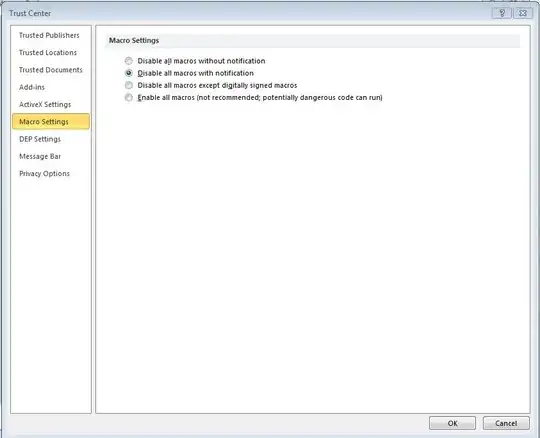
Access 2010 automatically safeguards against all macros unless you tell it otherwise. It also will disable content of files which it doesn't trust. You must tell it which ones to trust via the Trust Center.

In Access 2010, the Trust Center controls what content is allowed and can be accessed by File > Options > Trust Center > Trust Center Settings button.

enter image description here

Within the Trust Center, you can change macro settings and add files and locations to the trust settings.

enter image description here

CharlieRB
  • 22,566
  • 5
  • 56
  • 105
  • 1
    Yeah but... Does it check if there are actually macros before showing the warning or the warning gets displayed every time you open a file no matter if it has macros or not? – Álvaro González Jun 19 '13 at 16:53
  • 1
    As far as I know it checks each file, unless the Trust Center settings tell it to do otherwise. [Here](http://office.microsoft.com/en-us/access-help/decide-whether-to-trust-a-database-HA010341635.aspx) is some good info about how it works. – CharlieRB Jun 19 '13 at 19:10
  • I guess your comment answers one of my questions: if I'm getting the warning, there must be a macro somewhere in the file. For some reason, my copy of Access must be injecting hidden macros to *all* files. [Virus scanners](https://www.virustotal.com) don't report anything so it must be an add-on or something... – Álvaro González Jun 20 '13 at 08:01
  • If you add the file to the Trust Center, do you still get the warning? – CharlieRB Jun 20 '13 at 11:38
  • As far as I can tell, all methods to automatically approve or reject macro execution work correctly. – Álvaro González Jun 20 '13 at 11:52
0

http://office.microsoft.com/en-us/excel-help/active-content-types-in-your-files-HA010354381.aspx describes how to find this out:

To see a list blocked active-content types, go to the Trust Center dialog box.

There is a list on that page of the types of content which may apply.

  • I think the "Click for further details" I get points to the equivalent dialogue in Access. But all it says is "VBA Macros" (no details). – Álvaro González Jun 19 '13 at 15:42
-1

Another way to do it is performing a registry change to a specific product location that will do it to all access databases as well as for Excel or Word. There is a value known as VBAWarnings that by default has the value set as 2 and when you change it to 1 the yellow ribbon will not be displayed.

If you are using C# use the following code:

using Microsoft.Win32; // for required for registry reading/writing

// Opening the Registry Key
RegistryKey rk = Registry.CurrentUser;
// Open the corresponding Subkey
// I have to use CreateSubKey
// (create or open it if already exists),
// 'cause OpenSubKey open a subKey as read-only
RegistryKey sk1 = rk.CreateSubKey("Software\\Microsoft\\OFFICE\\14.0\\Access\\Security");
// Save the value to change Macro Settings in Security Warning
//sk1.SetValue("VBAWarnings, 4); //Disable all macros without notification
//sk1.SetValue("VBAWarnings, 3); //Disable all macros except digitally signed macros
//sk1.SetValue("VBAWarnings, 2); //Disable all macros with notification - Default Office Setting
sk1.SetValue("VBAWarnings", 1); // Enable all macros

This code is strictly and directly for Access 2010 but it can be changed to cycle through the registry including products. Basically, you have to cycle per release, notice where reads 14.0, it can be any other product release. If not mistaken 14.0 is for Office 2010, 12.0 is for Office 2007, etc.; and where reads Access can be changed for Excel as well as Word.

Jawa
  • 3,619
  • 13
  • 31
  • 36