96

Is there a way to arrange windows within the same application in the taskbar of Windows 7?

Right now we can freely adjust each application's position in the taskbar, but within the app itself the windows can't be reordered, for example multiple windows of firefox or chrome.

  • 12
    Can we expand this question to Windows 8 (including 8.1), since the problem still exists there? And Windows 10, if it exists there too? – Mathieu K. Nov 10 '15 at 14:36

5 Answers5

75

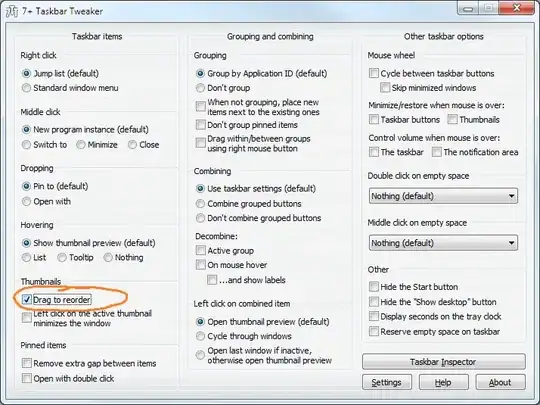
You can do this with 7 Taskbar Tweaker.

Just check the box Drag to reorder under Thumbnails section:

screenshot

As stated on the app, it's allowing you to reorder from the thumbnail: hover the app on the taskbar and wait until the windows' thumbnail is shown, then click-and-drag the thumbnail to reorder it. The corresponding window on the taskbar will follow the order of the thumbnail.

The previously mentioned Taskbar Shuffle doesn't support Windows 7 yet, to my knowledge.

Andrew T.
  • 249
  • 1
  • 2
  • 12
J F
  • 1,606
  • 13
  • 10
  • 1
    You can reorder the thumbnails by checking the box "Drag to reorder" under the "Thumbnails" section in 7 Taskbar Tweaker. It works now like it should. If you don't want to use that approach, then inside of Taskbar Tweaker you can click the "Taskbar Inspector" and drag around instances of your app inside of the app group and they will move in realtime. – MikeTeeVee Jun 13 '12 at 19:21
  • 1
    and you can sort alphabetically from 7 taskbar tweaker..taskbar inspector – barlop Jan 05 '13 at 02:54
  • @barlop though barlop, if I recall, you might have to keep telling it each time, to sort alphabetically, it's not automatic. – barlop Apr 24 '15 at 20:58
  • 1
    Are there any utilities that 'remember' the taskbar program order? – Daniel Sokolowski Aug 27 '15 at 17:44
  • 2
    Clarification, this feature allows you to drag and drop the **thumbnails** that appear when you hover over taskbar buttons. You still cannot drag the **buttons** in the taskbar. – Bob Stein Nov 01 '15 at 17:53
  • 3
    @BobStein-VisiBone: I just tried it on Windows 8.1. What you're saying (that the taskbar buttons themselves can't be dragged around) is technically correct, but it behooves me to point out that **when you reorder the thumbnails, the taskbar buttons follow accordingly**. – Mathieu K. Nov 10 '15 at 13:17
  • 1
    Agreed @Mathieu, you can reorder the buttons by dragging the thumbnails. But I just noticed that **the order reverts on reload** e.g. a Chrome update. – Bob Stein Nov 13 '15 at 19:19
  • 3
    **[Windows 10 version](http://rammichael.com/7-taskbar-tweaker#download)** – ChickenFeet Feb 27 '18 at 05:11
  • Malwarebytes blocks this site. Is it safe? – TelFiRE May 18 '18 at 20:18
  • @TelFIRE [FAQ](https://rammichael.com/7-taskbar-tweaker) states: "It’s a false positive. I guarantee that the tweaker binaries (and any other files on this site, unless specifically noted) are 100% clean. Also remember that the tweaker injects into explorer and modifies its memory, which is indeed suspicious." Also, you may be interested that the installer gives an option to install a Portable version instead of the Standard (Windows Registry) version. – SherylHohman Jan 19 '19 at 20:03
  • 1
    To clarify, reorder using *"thumbnails"* does NOT mean the little icons on the taskbar! I kept trying to re-arrange my Firefox windows from the taskbar. Instead, hover over the taskbar icon for your app, wait for its Window List or its Window Thumbnails to appear above the taskbar. Click-drag an item *there* to re-order! So Happy Now :-) **How have I never heard of `7 Taskbar Tweaker` before ?!** Should be standard. Made Donation. Also: he makes `Textify`: allows you to **select Error Messages**, etc -all that "unselectable" text, can now be copy-pasted. Hurray! Works on Windows 10, Jan 2019! – SherylHohman Jan 19 '19 at 20:24
  • @SherylHohman @BobStein and others if you want to re-order the items that are from the same program (multiple instances), you check `Dont Group` This is exactly what I needed to do and it took me years to find this solution. +1 – Jon Grah May 07 '19 at 03:47
  • 3
    Check "Drag within/between groups using right mouse button" checkbox below the `Grouping` and we can reorder by dragging the thumbnail preview. – trank Sep 24 '19 at 09:27
  • 1
    option **"Drag within/between groups using right mouse button"** - Is also handy for this case. – bugs_ Oct 15 '20 at 09:33
28

This is possible, but quite hacky.

Lets consider, you have three windows of the same application: A, B and C. You want them to be shown on task bar as [A][B][C], while they are shown in some other order. To achieve this do the following:

  1. Activate the windows one by one in the order, which is reversal of the desired order, i.e. activate window C, then B, then A
  2. Now window A is on top, window B is under A and window C is under B
  3. Press Ctrl+Shift+Esc to open Windows Task Manager
  4. Find explorer.exe process in Processes tab, select it and press End Process
  5. Choose File->New Task (Run...), enter explorer and click OK.
  6. When started, explorer arranges taskbar buttons according to the z-order of windows, so buttons will be arranged as [A][B][C]

This method will probably kill all Windows Explorer windows. If you need to preserve them, do the following:

  1. Press Win+E to open Windows Explorer
  2. Go to Organize->Folder and search options->View->Advanced settings:
  3. Check Launch folder windows in separate process checkbox and click OK

Now, if you have at least one Windows Explorer window, then at step 4 of the original instruction you will see two explorer.exe processes: one responsible for taskbar and another responsible for Windows Explorer windows.

To distinguish which one is which, turn on Command Line column in Task Manager (View->Select Columns...>Command Line). The explorer.exe process responsible for taskbar (i.e. the one you need to kill) will not have any arguments in command line, so its command line will look like C:\Windows\explorer.exe. The other explorer.exe process will have much longer command line looking like this: C:\Windows\explorer.exe /factory,{ceff45ee....
  • 2
    Unlike a display driver crash, this option doesn't preserve File Explorer windows. Still, it's nice to have a built-in option. – Mathieu K. Nov 10 '15 at 13:10
  • (I'm talking about substituting a display driver crash for steps 4 and 5, btw—which sometimes happens idiopathically on my system, and which I cannot reproduce at will.) In short, this answer explains why the order changes upon a display driver crash. – Mathieu K. Nov 14 '15 at 19:23
  • In step 2, `Ctrl+Shift+Esc` starts Task Manager. In step 5, `Ctrl+R` then typing `explorer` `Enter` starts Explorer. – Gnubie Mar 23 '16 at 19:11
  • 2
    You're a beautiful man. This has plagued me for longer than I'd care to admit. One note of "caution", make sure that you repeat steps 1-2 for all multi-window processes to ensure that you don't accidentally de-order a different program – goodguy5 Apr 08 '16 at 13:54
  • 2
    Anything like this for Windows 10? – Martin Feb 02 '17 at 16:15
  • worked for me under w7 – hfrmobile Aug 21 '18 at 13:52
  • 3
    This solution works under Windows 10. Thanks! – Bran Nov 13 '19 at 03:41
  • 1
    **The only solution without extra software!** To make rearranging easier, right-click the empty side of taskbar and click _"Cascade windows"_ or _"Show windows stacked/side by side"_ then you can easily layer the windows visually. Once you terminate and restart `explorer.exe` you can right-click again and click the _"Undo cascade (etc.)"_ option to put the windows back where they were. – ADTC Feb 17 '21 at 06:44
3

You can use RBTray to hide all windows and then show them in the order as you wanted.

zwhconst
  • 141
  • 2
  • This is actually a simple and brilliant solution and one I have sworn by for years. Ok, so not as simple as being able to drag directly, but still dead easy, and also gives the advantage of being able to minimise almost any window to the tray if you simple wish to keep them there. Why Microsoft does not add a 'minimise to tray' option to the standard Windows menu is beyond me – Patrick Herrera Dec 20 '17 at 22:44
  • Thanks! This is simple and lovely. I just wanted to share that this does not work with some newer Electron apps (eg VS Code). However, there's an RBTray fork out there which adds a shortcut, win+alt+down, that does the same, and that one *does* work everywhere I tried: https://github.com/benbuck/rbtray – skrebbel Dec 19 '18 at 08:16
2

No. Unfortunately, it is not possible yet. Opened instances of the same application are combined and their live thumbnails cannot be reordered.

Note that even if you disable Combine (Right-Click Taskbar -> Properties -> Taskbar panel -> Taskbar Buttons dropdown), an application with several instances opened will still move as one group.

A Dwarf
  • 18,981
  • 2
  • 44
  • 66
  • Actually [using 7+ Taskbar Tweaker](https://superuser.com/a/62047/140631) does exactly this. Under grouping, you select `Don't Group` and you can separate multiple instances of the same program. I've been looking for years for this "simple" ability. – Jon Grah May 07 '19 at 03:51
0

If you just want to re-order firefox or chrome, hitting F11 to put a browser into full screen mode will put that browser window to the far right of the list. It can be a little tedious, but if you want one specific window to be on the far left, just F11 all of the browser windows except the one you want on the left.

Stratos
  • 9
  • 2
  • 5
    Which OS? On my Windows 8.1, Chrome (Version 46.0.2490.80 m) has this behaviour, but Firefox 42.0 does not, even in its safe mode. On an old VM of Windows 7 32-bit, I install Chrome and FF (same versions as on 8.1), but neither shows this behaviour. – Mathieu K. Nov 10 '15 at 14:33
  • 2
    This was my go-to solution on Windows 7, but it does not work on Windows 10. Or maybe it depends on the browser version. I seem to think that at some point it stopped working for me even on Windows 7 Pro sometime in 2018? - so maybe that was after a browser (or Windows) update? Super Bummer loosing that ability !! – SherylHohman Jan 19 '19 at 19:22