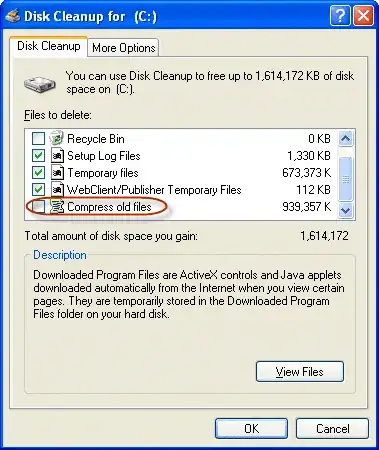
Selecting this option basically compresses all old DLL and SYS files in the Windows folder that hasn't been accessed recently or ever. It uses the normal built in NTFS compression, and to be very honest on today's hard-drives has little or no impact on the folder sizes. These files already take up minimal space.
The How-To Geek has an article here describing how to tweak it. The more precise description from the The Elder Geek here is:
Unlike the other categories, Compress Old Files doesn't delete any files from the drive. It compresses files that Windows hasn't accessed for a specified period of time. The files are still available, but there will be a slight increase in access times because the files will be decompressed the next time they are accessed. Note that when Compress Old Files is highlighted an Options button appears. Clicking it will allow you to set the number of days to wait before an unaccessed file is compressed.
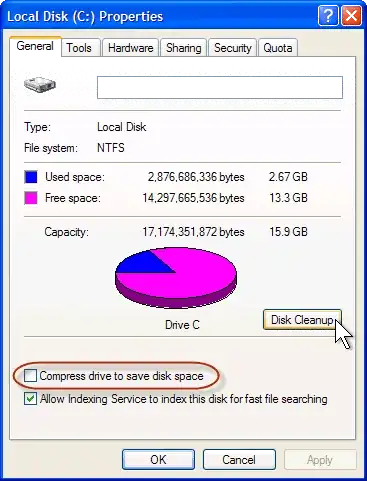
To answer the second part of your question, NTFS compression is reasonable if your storing a lot of data like Music, Documents and Videos and should NOT be enable on your OS drive. If you have a second drive just for storage it can be enabled, however the compression ratios are extremely small. You will not see 100GB's of space saved using this feature, and it is not as compact as zipping the files for example.
Among others, SQL Server does not allow it's database to be stored on NTFS compressed volumes as the performance on decompression is extremely expensive.