7

I am trying to create a table of contents page for my thesis. However, when am specifying my page numbers, am not able to set them in a straight line at all, compared to the previous entry. I have pasted an image of part of the problem am facing:
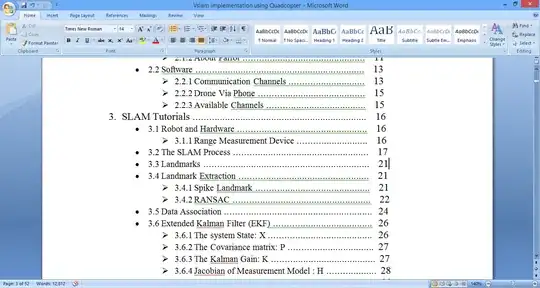
I am not able to align the numbers with space or tab as well, because somewhere the formatting seem to go wrong. Can you please help me? Am facing a deadline, but this maybe really silly, still am not able to do it.

Jason Aller
  • 2,340
  • 6
  • 23
  • 21
Lakshmi Narayanan
  • 231
  • 2
  • 4
  • 10
  • 1
    check [this](http://uwf.edu/graduate/documents/Lining_up_Page_Numbers_in_the_TOC.pdf) out and see if any of that helps – Raystafarian Jul 24 '13 at 09:42
  • That was fast and awesome. Thanks @Raystafarian – Lakshmi Narayanan Jul 24 '13 at 09:43
  • 3
    @LakshmiNarayanan: I'm guessing you're creating the TOC manually. Is there any reason for this? You do know you can just click the **References** tab and the **Table of Contents** button and Word will create on for you, all perfectly aligned and kept up to date automatically. The hierarchy of the entries are based on the styles you set, e.g. Heading 1, Heading 2. – James P Jul 24 '13 at 09:52
  • @Raystafarian True, but I have already given my headings in my own custom style, not using the Heading 1, Heading 2 tabs, etc. So I dunno if they would work the same way – Lakshmi Narayanan Jul 24 '13 at 09:55
  • 1
    @LakshmiNarayanan: Custom styles can be made to work with the TOC via the **Paragraph->Outline level** property in the style editor. The main advantage of an automatic TOC is that you do not need to worry about keeping it up to date so I think you may regret doing it manually in the end :-) – James P Jul 24 '13 at 10:15
  • @James is there a way to change the size of headings 1? 14 is too small. or should I change it everytime I apply? – Lakshmi Narayanan Jul 24 '13 at 10:53
  • 1
    @LakshmiNarayanan: Right-click the style where it appears in the toolbar and choose **Modify...**. In the style editor that appears you can then change pretty much anything; this is the same dialog where you can set the Outline level setting I mentioned before that affects if and where the item will appear in a TOC. – James P Jul 24 '13 at 11:00

1 Answers1

8

Try this:

  1. First, delete all those periods and spaces you put in. Your page number (shown below in Roman numerals) should be butted up against the end of the last word in the heading.

ABSTRACTix

  1. Insert a tab immediately in front of the page number.

ABSTRACT ix

  1. Access the paragraph formatting window. In Word 2007, you do this by clicking on the arrow to the right of the word “Paragraph” on the “Home” tab. In Word 2003, “Paragraph” is one of the options on the drop‐down “Format” menu.

  2. In the paragraph formatting window, click “Tabs.”

  3. Under “Tab stop position,” enter 6. Under “Alignment,” click “Right.” Under “Leader,” click 2. Click “Set,” and then click “OK.” ABSTRACT .......................................................................................................................................ix

  4. Do this to all of your TOC headings, and your numbers will be aligned perfectly.

  5. HINT: You can copy this formatting to other headings in your TOC so that you don’t have to change them individually. Make sure your cursor is on the line that you just formatted and then double‐click Word’s Format Painter (the icon that looks like a paint brush). Now click on the other lines that you want to have the same format. Just remember that the Format Painter copies all formatting, so for example, you don’t want to copy the formatting for an A‐level heading and apply it to a 1‐level heading. Otherwise, you will lose the indents and numbering that you set up for your 1‐level heading.

Exactly copied from source I take no credit.

Raystafarian
  • 21,583
  • 11
  • 60
  • 89
  • There's a small problem @Raystafarian. Whenever I click the tab button to edit the next line, the whole document shifts by a tab. any idea why? – Lakshmi Narayanan Jul 24 '13 at 10:25
  • The blank area after where you are tabbing is probably null characters rather than blank? – Raystafarian Jul 24 '13 at 10:28
  • no. I just gave a tab and when I go and click the tabs button, the contents above also shift right. Just when I clikc the button. Infact the whole document shifts – Lakshmi Narayanan Jul 24 '13 at 10:46