12

I use Windows 8 on my desktop. Currently I have to move my mouse over the taskbar, right click, click on properties, click on auto-hide the taskbar, and then click OK. This is a real pain if you want to toggle this status between on and off several times during the day. In fact, it's unworkable, so it stays on by default and wastes a lot of screen real estate when I don't need it.

Is there a better way?

(If it helps, I use Autohotkey.)

Kit Johnson
  • 1,038
  • 2
  • 13
  • 24
  • 1
    See this [post](http://superuser.com/questions/345897/is-there-a-windows-8-shortcut-to-display-the-taskbar) – Automate This Oct 04 '13 at 03:05
  • 1
    @PortlandRunner Thanks for the tip. I'd already seen it, but it's trying to do something different, which is to show a hidden taskbar. I want to toggle the auto-hide status of the taskbar, from 'do auto-hide' to 'do not auto-hide', and back again. – Kit Johnson Oct 07 '13 at 03:30

10 Answers10

18

Here is an AutoHotKey script to make Win+b into a hotkey that toggles the taskbar auto-hide setting:

VarSetCapacity(APPBARDATA, A_PtrSize=4 ? 36:48)

#b::
   NumPut(DllCall("Shell32\SHAppBarMessage", "UInt", 4 ; ABM_GETSTATE
                                           , "Ptr", &APPBARDATA
                                           , "Int")
 ? 2:1, APPBARDATA, A_PtrSize=4 ? 32:40) ; 2 - ABS_ALWAYSONTOP, 1 - ABS_AUTOHIDE
 , DllCall("Shell32\SHAppBarMessage", "UInt", 10 ; ABM_SETSTATE
                                    , "Ptr", &APPBARDATA)
   KeyWait, % A_ThisHotkey
   Return

If you wish to use a different key or key combination than Win+b, change the #b before the double colons in line 3 to whatever hotkey you want (using the syntax in the AutoHotKey documentation).

ZygD
  • 2,459
  • 12
  • 26
  • 43
Grey
  • 471
  • 2
  • 3
  • Thanks very much for posting that. Does this just hide the taskbar and leave other windows as they are, or will they automatically fill the space that the taskbar used to occupy? The problem with many solutions is that the taskbar hides but other windows don't fill the space. – Kit Johnson Oct 09 '13 at 06:14
  • 1
    This works for me (w7 x64). All windows are fill the space that the taskbar used. – Grey Oct 12 '13 at 18:56
  • Wow - this is the perfect solution for me, since I already use AutoHotKey. Thanks so much - working on Windows 8.1. – Kit Johnson Oct 14 '13 at 03:47
  • 4
    Note that this script is using Space as a hot key (if you were wondering how to toggle hide/show) which is not ideal. I replaced it with #b (win + b, b for bar). – alexeit Feb 05 '14 at 04:09
  • For some reason if you press the hot key repeatedly with a small delay it will skip every second call eg hit hot key -> it will toggle -> hit again -> nothing happens -> hit again -> it will toggle and so on. However it works fine if delay between hot key presses is more then a few seconds. – alexeit Feb 05 '14 at 04:14
  • 2
    Found this via google. Doesn't seem to work on Windows 10: It always switches to "always show", but the other direction (to "auto hide") doesn't work. – srs Apr 01 '18 at 11:06
  • If you just want to toggle taskbar visibility, remove the "Space::" line for the keyboard shortcut. Then compile the script. Every time it runs, it will change the visibility of the taskbar (hide it if currently show, and vice versa). Works perfectly when added to a scheduled task in Windows 10. Now if you set your taskbar to auto hide and run this script at login (or with a delay at login), your taskbar will never be visible until you mouse over it. Solved a pseudo-kiosk mode I'm running on a standalone system. – John Suit Apr 23 '18 at 18:16
  • 2
    Works perfect in Windows 10. Just remember to add the `VarSetCapacity(APPBARDATA, A_PtrSize=4 ? 36:48)` line at the top of your script (before your hotkeys). – Shayan Jan 13 '19 at 19:51
  • Can anyone explain what this is doing? More specifically, is AutoHotkey just being used as a front-end for some Windows commands? I ask because this is smoother in some ways than alternatives with batch files that have to reload Explorer (possibly even closing some open windows in the process), and it might be nice to understand the underlying commands to be able to port this to, for instance, a Powershell script. – Randy Cragun Apr 07 '21 at 04:13
5

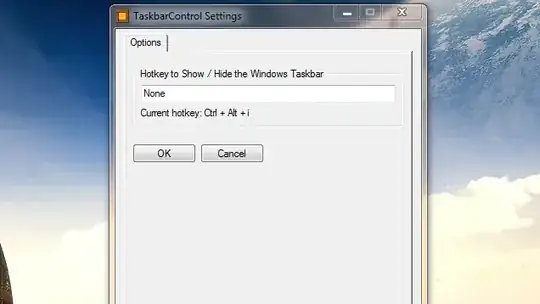
I found a program called "Taskbar Control" thats lets you set a Taskbar Autohide toggle key.

Taskbar Control

http://www.thefreewindows.com/3252/hide-completely-the-windows-taskbar-using-a-hotkey-and-unhide-it-with-taskbar-control/

Note: Make sure you download "Taskbar AutoHide Control" version if you want your current window to auto-fill the space.

Simon E.
  • 3,841
  • 5
  • 29
  • 31
user312348
  • 59
  • 1
  • 2
  • there's no download link on the page. I guess it's removed? – Shayan Jan 12 '19 at 16:26
  • I downloaded from https://www.softpedia.com/get/Desktop-Enhancements/Other-Desktop-Enhancements/TheFreeWindows-Taskbar-Control.shtml – Shayan Jan 12 '19 at 16:27
3

To autohide the taskbar from a cmd prompt or in a .cmd or. bat file:

Windows 7 (StuckRects2)

powershell -command "&{$p='HKCU:SOFTWARE\Microsoft\Windows\CurrentVersion\Explorer\StuckRects2';$v=(Get-ItemProperty -Path $p).Settings;$v[8]=3;&Set-ItemProperty -Path $p -Name Settings -Value $v;&Stop-Process -f -ProcessName explorer}"

Windows 10 (StuckRects3)

powershell -command "&{$p='HKCU:SOFTWARE\Microsoft\Windows\CurrentVersion\Explorer\StuckRects3';$v=(Get-ItemProperty -Path $p).Settings;$v[8]=3;&Set-ItemProperty -Path $p -Name Settings -Value $v;&Stop-Process -f -ProcessName explorer}"

Explanation

The registry key which stores this value also stores a number of other settings. Since we only want to change position 9 ($v[8] in the cmd) of that registry setting, we need to preserve the other settings.

Normally from cmd, it's enough to use a reg add command to modify the registry, but we use powershell because it makes it easy to preserve the other settings stored under the same registry key.

Explorer also needs to be restarted to pick up the change. We use Stop-Process because Windows automatically restarts Explorer when it is stopped.

Note: change $v[8]=3 to $v[8]=2 in the commands above to undo this change (if you want the taskbar to be always visible).

grenade
  • 527
  • 1
  • 6
  • 18
  • I like your reply. Even if the other tools might be better/easier your explanation was the most interesting. – Don King Jan 04 '19 at 09:02
3

Try this little program that I found a while ago. 'Tis amazing. It toggles the taskbar shown or hidden with Alt-T, and you can set it to start up with windows as well.

http://www.aviassin.com/taskbareliminator

It's called Taskbar Eliminator and it works for both Win7 and Win 8

  • Yes, that's the perfect little app. Just what I was looking for! – Kit Johnson Oct 14 '13 at 03:39
  • I'm forced to accept the other answer that uses AutoHotKey, though, since it doesn't require installing any more software than I already use. I'm sure your answer will be the right one for someone else, though. – Kit Johnson Oct 14 '13 at 03:48
1

I wanted something that does basically what that AHK script does but didn't want to install AHK just for this and also didn't want another background process listening for a hotkey and so ended up making this tool to toggle taskbar auto-hide. I'm persnickety about how the taskbar behaves whilst toggling with maximized windows so none of the existing tools satisfied me.

gordy
  • 193
  • 7
  • AHK really does a lot of cool things. It's amazing how many diverse problems it can help solving. And how much time it can save typing with its ability to expand abbreviations. – Kit Johnson Oct 15 '20 at 03:16
1

"taskbar real toggle"

The AutoHotKey script above in the best answer works fine. On my PC I combined it with

http://www.itsamples.com/taskbar-hider.html

(v1.2)

This taskbar hiding application lets me choose the hotkey to hide the taskbar. I mapped the AutoHotKey-hotkey to Win+A and the TaskBar Hider to Win+Y. So now when I press Win+Y, Win+A the taskbar toggles without popping up again when I accidentally the bottom pixel; when I press Win+Y, Win+A again it comes back and stays there no matter where I put the mouse cursor and it's just great. A one-key solution would be even better though with the two hotkeys so close together it's really manageable.

Maybe there is a better (one-key-) solution using just AutoHotKey?

mbbmbbmm
  • 19
  • 2
1

I couldn't get the AutoHotKey script from Gray to work for me on Win 8.1, so I made one. Put this in a .ahk file

Windows 8.1 version:

Run, %SystemRoot%\System32\rundll32.exe shell32.dll`,Options_RunDLL 1
WinWait, Taskbar and Navigation properties, 
IfWinNotActive, Taskbar and Navigation properties, , WinActivate, Taskbar and Navigation properties, 
WinWaitActive, Taskbar and Navigation properties, 
Send, {ALTDOWN}u{ALTUP}{ALTDOWN}a{ALTUP}{ESC}
Exit

Windows 10 version (tested on version 10.0.17134.523 1/13/2019):

#NoEnv
#Warn  ; Enable warnings to assist with detecting common errors.
SendMode Input  ; Recommended for new scripts due to its superior speed and reliability.

Run ms-settings:taskbar
WinWait, Settings, 
WinWaitActive, Settings, , 3
if ErrorLevel
{
    MsgBox, WinWait timed out.
}

CoordMode, Pixel, Client 
WinGetPos, X, Y, Width, Height
;OutputDebug, Width Height %Width% %Height%

; Wait for Settings UI to load
Sleep 500

if (Width <= 735)
{
    Send {TAB}{TAB}{space}
}
else
{
    Send {TAB}{TAB}{TAB}{space}
}

;Close the settings UI
Sleep 150
Send !{F4}

Exit

(You may need to adjust the sleep durations if they are not long enough on your system. There is probably a better way to detect when the UI has loaded besides sleeping, but I couldn't figure it out. I couldn't detect the text box control in the UI. I tried to detect a color pattern but the end user has control of the color scheme.)

Chuck
  • 11
  • 2
0

Another for AHK (autohotkey).

Toggle using F12 as a hotkey.

Tested on Win10 Home 22H2, build 19045.2130

f12::
RegRead, TaskbarToggle, HKEY_CURRENT_USER\Software\Microsoft\Windows\CurrentVersion\Explorer\StuckRects3, Settings
    If (TaskbarToggle = "30000000feffffff02800000030000003e0000001e000000000000001a04000080070000380400006000000001000000")
        RegWrite, REG_BINARY, HKEY_CURRENT_USER\Software\Microsoft\Windows\CurrentVersion\Explorer\StuckRects3, Settings, 30000000feffffff03800000030000003e0000001e000000000000001a04000080070000380400006000000001000000
    else ; If (TaskbarToggle = 30000000feffffff03800000030000003e0000001e000000000000001a04000080070000380400006000000001000000)
        RegWrite, REG_BINARY, HKEY_CURRENT_USER\Software\Microsoft\Windows\CurrentVersion\Explorer\StuckRects3, Settings, 30000000feffffff02800000030000003e0000001e000000000000001a04000080070000380400006000000001000000
process, close, explorer.exe
Return
0

My two cents, an AHK v2 script, stolen shamelessly from this post form user Teadrinker and adapted to v2 by me (source)

It activates by pressing F12, which will toggle between "autohide" and "always showing". If you want to change the trigger, change line 5

#Requires AutoHotkey v2.0

hide := false

$F12:: {
    global hide
    hide := !hide
    HideShowTaskbar(hide)
}

   
HideShowTaskbar(action) {
   static ABM_SETSTATE := 0xA, ABS_AUTOHIDE := 0x1, ABS_ALWAYSONTOP := 0x2
   size := 2*A_PtrSize + 2*4 + 16 + A_PtrSize
   APPBARDATA := Buffer(size, 0)
   NumPut("int", size, APPBARDATA)
   NumPut("int", WinExist("ahk_class Shell_TrayWnd"), APPBARDATA, A_PtrSize)
   NumPut("int", action ? ABS_AUTOHIDE : ABS_ALWAYSONTOP, APPBARDATA, size - A_PtrSize)
   DllCall("Shell32\SHAppBarMessage", "UInt", ABM_SETSTATE, "ptr", APPBARDATA)
}
0

Yes you can download this great tool called " Hide Taskbar" , which gives you a shortcut " Ctrl+Esc" (by default, you can change it) to hide/unhide the taskbar

download here

http://www.thewindowsclub.com/hide-taskbar-windows-7-hotkey

Fahad Saleem
  • 680
  • 3
  • 7
  • 1
    Thank you for this answer. I downloaded the program. Unfortunately when I press "Ctrl+Esc" it hides the taskbar, but it just leaves an empty task-bar-sized space on the desktop. Maximised applications don't use up that space (which is now wasted space). When I use the built-in Windows option, applications automatically will maximise to fill the entire screen. Now I just have a black strip where the taskbar used to be, but I don't get any more screen real estate. – Kit Johnson Oct 07 '13 at 03:33
  • This tool is created with autohotkey and all it does is, it sets the transparency of Shell_TrayWnd to 0 (hides it) – Shayan Jan 12 '19 at 14:33