1

How do I disable the the charms bar? I am surprised there is no easy way to disable the feature.

Here's what I've done so far:

1.) Disabled right edged swipe gesture in my touchpad settings. Part of the problem is solved as this was probably the most common way the charms bar would pop up. But there are still many other ways it can pop up.

2.) Used regedit and added the key "EdgeUI" with "DisableCharmsHint" set to 1 in HKEY_CURRENT_USER\Software\Microsoft\Windows\CurrentVersion\ImmersiveShell\

This stopped it from popping up whenever I moved the cursor to the top right or bottom right of the screen. I mean who ever needs to move his/her mouse there? (sarcasm)

But there's ANOTHER WAY it pops up: when I move the cursor to the top right of the screen followed by moving it downwards OR when I move the cursor to the bottom right of the screen followed by moving it upwards! How do I disable this method of invoking the charm bar?

John Dvorak
  • 187
  • 1
  • 3
  • 9
Kelly D
  • 21
  • 2
  • Hello and welcome to superuser.com. When writing a question, please be concise and descriptive. This means that personal opinions on how much problems you have had and what your personal opinion on the software is, should not be a part of the question. I will remove my -1 if you rewrite the question. – Mogget Nov 05 '13 at 15:20
  • @Excellll: No, it is not the same... I've already disabled the hot corners through the registry which is what I think that question is asking and the answer gives the same registry fix as the one I already applied. I'm asking how to disable the charms bar from coming up when I move my mouse to the top/bottom right corner and THEN SUBSEQUENTLY move the mouse down/up (respectively). – Kelly D Nov 05 '13 at 15:39
  • @Excellll: Hi. Actually, the Skip Metro Suite mentioned in the 1st response to that question worked!!! Now, the only way to bring up the charm bar is by Windows+C! – Kelly D Nov 05 '13 at 17:47
  • Well it looks like I've found a solution in the similar question posted by Excelllll. For anyone who can't stand this feature and want it completely gone, these are the 3 steps that worked for me. I have to break up the comment into 4 as I can't make a new line. Can this system be any more awkward lol?? – Kelly D Nov 05 '13 at 18:00
  • Well ok, as I said, it looks like I've found a solution in the similar question posted by Excelllll. For anyone who can't stand this feature and want it completely gone, these are the 3 steps that worked for me. I can't answer my own question for whatever reason so I'll just post it here but I have to break up the comment into 4 as I can't make a new line and there's apparently a character limit as well. Can this system be any more awkward lol?? – Kelly D Nov 05 '13 at 18:06
  • 1.) Go to mouse settings and disable right edge swipe gesture. – Kelly D Nov 05 '13 at 18:07
  • 2.) Go to registry editor and go here: HKEY_CURRENT_USER\Software\Microsoft\Windows\CurrentVersion\ImmersiveShell\ Then create a key called "EdgeUI" then click on it and create a DWORD "DisableCharmsHint" and modify the value to "1". – Kelly D Nov 05 '13 at 18:07
  • 3.) Go to http://winaero.com/download.php?view.33 and download Skip Metro Suite. Install it, enable it and remove both charms bar hot corners. I had to reboot for it to take effect. – Kelly D Nov 05 '13 at 18:07
  • Now finally, NO MORE ANNOYING CHARMS BAR POPUPS!! – Kelly D Nov 05 '13 at 18:08

1 Answers1

1

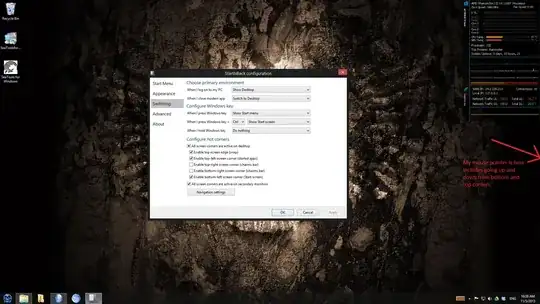
Since there is no default way to turn off the charms bar you must use the registry. I am not positive of all the keys. So for an easier solution I use StartIsBack. It only costs $3. Worth it in my opinion. The following are screens of the charms bar disabled.

enter image description here

enter image description here

enter image description here

jmc302005
  • 731
  • 4
  • 9
  • 1
    Hi. Thank you but I would prefer a solution that didn't require paying money, even if it is just $3. – Kelly D Nov 05 '13 at 17:45