30

As the title suggests windows time keeps changing in random times, with random amounts. It sometimes happens every minute, sometimes it is good for hours. If I go hit synchronize with Internet time, it updates to the correct time.

Things I read/checked

  1. Disable/Enable Internet time synchronization. No help.
  2. Disable/Enable windows time service. No help.
  3. CMOS battery is dead. No it is not dead. Time changes also do happen when windows is running.
  4. Your router/modem time is wrong and effecting windows time. No, it is not wrong.
  5. Your time zone is configured incorrectly. No it is UTC+0 London
  6. You are dual booting into Hackintosh/Linux. No only Win 7 runs on this PC.
  7. You have a dodgy overclocking. I did have a high OC profile, but tried running at stock speeds with no help.
  8. Virus/Trojan. I highly doubt it. This is a very bare Windows installation for gaming. Only windows and games with Steam are installed.

Update

I can confirm, this problem does not exist, when I start the windows in Safe Mode. I've tested this by booting into safe mode. After the boot, I corrected time manually and left the pc running for a couple of hours, and the time was not changed.

Update 2

I don't know how I missed this detail (or actually if it will help) but the time resets to "that" exact time. That exact time being the first updated time.

Example:

  • I boot the PC, and after sometime it resets to (lets say) 09:33:27
  • a-) I correct the time, leave it for a period, and it jumps back to 09:33:27
  • b-) I leave it running for some time and it resets to 09:33:27 after a period (very random period I see no pattern here like hourly/every 17 minutes or anything else)
  • This keeps happening, regardless of me changing the time or not.
  • After next boot (next day?) it picks another time to reset to

More details

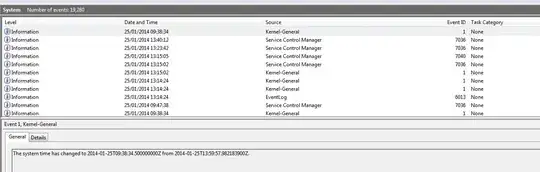
Here is a screenshot from Event viewer, about the time change. Keep in mind this screenshot is taken when the "Windows Time" service is disabled.
enter image description here

Event properties screenshot:

enter image description here

Details page from same event:

<Event xmlns="http://schemas.microsoft.com/win/2004/08/events/event">
<System>
  <Provider Name="Microsoft-Windows-Kernel-General" Guid="{A68CA8B7-004F-D7B6-A698-07E2DE0F1F5D}" /> 
  <EventID>1</EventID> 
  <Version>0</Version> 
  <Level>4</Level> 
  <Task>0</Task> 
  <Opcode>0</Opcode> 
  <Keywords>0x8000000000000010</Keywords> 
  <TimeCreated SystemTime="2014-01-25T09:38:34.500000000Z" /> 
  <EventRecordID>19280</EventRecordID> 
  <Correlation /> 
  <Execution ProcessID="4" ThreadID="64" /> 
  <Channel>System</Channel> 
  <Computer>slayer</Computer> 
  <Security UserID="S-1-5-18" /> 
</System>
<EventData>
  <Data Name="NewTime">2014-01-25T09:38:34.500000000Z</Data> 
  <Data Name="OldTime">2014-01-25T13:59:57.982183900Z</Data> 
</EventData>
</Event>

Screenshot and the details kind of implies that, windows is really thinking that this is the correct time and feel the need to update it. Although no windows service is activated to authorize this.

Any ideas?

Update 3 Problem & Solution

The problem was apparently not Windows or any other software trying to update the time.

After reading the system memory dump for an hour I found out Windows was unable to read RTC from motherboard. After failing to read the RTC state for a while, Windows thinks it is calculating the time wrong and reverts to last know RTC state.

I have no idea why this is not happening in "Safe Mode" and running windows successfully under safe mode put me in completely wrong route (Searching for an error in Software instead of hardware) The source of the fault was System BIOS (or UEFI in my case) not running at all after System POST's and boots. A simple google search for this and apparently it is a really common problem with most UEFI boards(Using an Asus-ROG board myself)

Solution advised was: Flash your UEFI and reset CMOS on standby power. Since I knew I was already on a recent version UEFI, just resetting CMOS on standby worked for me. Everything works now without a problem.

Thanks for all the input and sorry for misleading info about the problem, but I'll leave all the information posted above, hoping that it might else someone else.

fixer1234
  • 27,064
  • 61
  • 75
  • 116
kali
  • 369
  • 1
  • 3
  • 12
  • Have you tried different internet time servers? Go into Date and Time settings -> "Internet Time" tab -> "Change Settings" button to find a drop down menu listing the available internet time servers. It looks like "time.windows.com" is the default server. – PFitz Jan 25 '14 at 16:44
  • Again, time updates even if "synchronization" is disabled. Manually clicking "synchronize" on internet time, will correct the time (regardless off server selection) – kali Jan 25 '14 at 16:54
  • when it changes the date, what does it change it to? xx-xx-2002? – Outdated Computer Tech Jan 25 '14 at 18:04
  • Is the Windows Time service running when the time changes? Does the date change too? – and31415 Jan 25 '14 at 19:24
  • Originally windows time service was running. But I stopped the service + changed its start type to "disabled". Did not fix anything. Windows time service was NOT running during the above captured event. Date changes when it is after midnight (only drops to yesterdays date) but I guess that is a direct result of time change, since going back a couple of hours changes the date automatically. – kali Jan 25 '14 at 19:48
  • Try to enable the [Application Experience](http://www.blackviper.com/windows-services/application-experience/) system service . – harrymc Jan 27 '14 at 18:47
  • harrymc can you elaborate on that a little bit? AFAIK application experience helps resolving vanity application problems, and enabled manually via windows if required anyway. The event log I've pasted shows that time is altered by "Kernel General" via "System" user – kali Jan 27 '14 at 18:56
  • I know Application Experience helped solve such problems for some people and I have no explanation for it, except maybe some incompatibility that you might not have. The problem with pid 4 is that it can be too many things, requiring much hard research. – harrymc Jan 27 '14 at 20:19
  • As much as a pain in the backside it is, I'd do a full backup and then re-install Windows. If the time continues to jump around (before you install any new programs) then you've narrowed down the problem to something you installed/configured on top of the OS. – Richard Jan 28 '14 at 13:41
  • Looks like that is the only option left. – kali Jan 28 '14 at 19:10
  • Quite a few people with time problems reinstalled Windows only to see the problem come back after some time. – harrymc Jan 28 '14 at 21:35
  • SID S-1-5-18 is the local system account. I think you'll have to watch out for services running under local system account. Are there any third party services running under local system account which may cause the issue? – Werner Henze Jan 29 '14 at 16:00
  • @Werner As you can imagine, there are oodles of services running under `local system` account. Some are 3rd party but trusted and mostly related to my hardware makes (Asus/Creative/Nvidia) This weekend I'll disable every service that I can, boot the windows and see if it keeps happening. If not, I'll start enabling them one by one. PID=4 System can be many many things. – kali Jan 29 '14 at 17:23
  • What processor are you using? Are you using any power-saving features, such as SpeedStep? Is your BIOS updated? Are you running in a VM? – Bigbio2002 Jan 29 '14 at 18:36
  • 1
    Go to Task Scheduler and check the enabled tasks (they can run on local system account). And also check your pc with Sysinternals' Autoruns. And tell us if it helped or not. – Jet Jan 30 '14 at 08:47
  • Related question: http://superuser.com/questions/475878/what-could-be-causing-windows-to-randomly-reset-the-system-time-to-a-random-time – Gabriel Mar 09 '16 at 12:21

10 Answers10

5

Try this command:

bcdedit /set {current} useplatformclock yes

I found it around the Internet, but no source is available for me. I had the same problem in night hours, now - after this command - it is gone. System restart is required.

pbies
  • 2,757
  • 3
  • 21
  • 23
  • am I supposed to type something for {current}? if not it did not work, I got the message "The operation completed successfully." but the time still reverts – kali Jan 27 '14 at 02:54
  • No, "{current}" remains as it is. Time shouldn't be changing itself right now. If that happens, then must be some software, that changes the time. This can be some sort of driver or rootkit, not only an app. I would scan the system by updated: Windows Defender, MBAM and MBAR. – pbies Jan 27 '14 at 20:33
  • Hi @pmbiesiada, although your answer did not solve my problem, it is the only constructive answer posted here. At least you read the question, unlike other answerers. So I'm gonno award the award to urself. Thanks for the help **(Attached the solution to question)** – kali Jan 30 '14 at 15:46
  • Thank you. After reading the solution, I've began wondering if chipset drivers wouldn't give the solution. Maybe some mistake happened to the CMOS data earlier (non-recoverable without reseting the CMOS). – pbies Jan 30 '14 at 21:25
  • @pbies-Can you explain what you achieve with this? I am asking this because MS documentation says you should NOT use this option unless for debugging purposes: "useplatformclock -Forces the use of the platform clock as the system's performance counter. Note This option should only be used for debugging." – Gabriel Mar 09 '16 at 12:20
  • @Kenny This should solve the askers question. No more info available. – pbies Mar 09 '16 at 16:26
  • @pbies - Your solution does not work for me. It is also not verifiable. It is just a random piece of information with no insight on why it should work. – Gabriel Mar 10 '16 at 12:07
  • @Kenny Can't help you with that. It worked for me. I had the same problem as the question author. – pbies Mar 10 '16 at 14:54
  • I got this message `The boot configuration data store could not be opened. Access denied.` Solution: Run as Administrator – nu everest Jun 17 '17 at 02:35
2

Doubt this is the answer to this user's problem as they've fixed it as above. However there is a common cause of exactly these symptoms in dual boot Windows/Linux systems: the two OS treat the CMOS clock differently and fight over setting the clock the way they want (Linux to UTC doing daylight savings etc in software, Windows to local time so the software and hardware clocks are the same).

This has a simple solution: tell one of them to use the other's default behaviour.

Windows: Set a new DWORD RealTimeIsUniversal to 1 in

HKEY_LOCAL_MACHINE\System\CurrentControlSet\Control\TimeZoneInformation

and then make sure you've installed this from Windows Update: https://support.microsoft.com/en-us/kb/2922223

Linux: set UTC=false in /etc/sysconfig/clock

Obviously don't do both of these!

dataduck
  • 121
  • 1
  • Turns out there is an answer on this site mentioning this issue already: http://superuser.com/questions/198185/time-an-hour-off-when-booting-between-windows-and-fedora However, since I didn't know it was anything to do with dual booting, I didn't find that answer until after I'd already solved it, and started writing this one. I've posted the answer anyway to help anyone else who ends up here with this problem. – dataduck Jul 25 '16 at 09:04
1

There are two types of this problem. The first one resets to the base date & time which for most modern computers is 2008. Even with internet time sync disabled there are software such as Nero burning rom and MSinstall exec that will try to set the time for an install or run. Older versions of dotnet will also do this and some games install these old versions hidden in background. A recent install of an older version of printshop did just that. I ran tracemon and it was traced back to the dotnet 1.x that printshop installed internally.

Look at any older software gaming or otherwise you might have installed and look at the dotnet activity log as well.

The is also a correlation with SSL or internet secure server that if the date is older than one month (windows 7 & 8) that it will also cause unauthorized time and date changes and windows security will go into auto lockout and set the time and date back to the minimal default to protect itself.

I hope this helps.

0

Try creating a regular task to synchronize your time.

  • In Start/Cortana type "Task"
  • Right click "Task Scheduler" and Run as Administrator
  • Navigate to Task Scheduler Library/Microsoft/Windows/Time Synchronization in the left directory pane under Task Scheduler (Local)
  • Here you may see a task "ForceSynchronizeTime" or "SynchronizeTime". Right click and go to properties
  • Click on the "Triggers" tab and Edit or add New trigger
  • Then you can set "Begin the Task" to "At log on"
  • Leave everything else unchecked except "Enabled"

The original post has a slightly different configuration (he suggests checking "At Startup" and "Repeat task every: 5 minutes").

Also, I had a small issue with being unable to change the trigger, so I exported the "ForceSynchronizeTime" task and then renamed it "FixClock" and imported the new task into the folder alongside the old one. I then edited the trigger for "FixClock".

I used this trick for Windows 7 and Windows 10. All credit to anthony82. See his original post here:

http://h30434.www3.hp.com/t5/Notebook-Operating-System-and-Recovery/The-time-on-your-clock-keeps-changing-to-the-wrong-time/td-p/2510559

[edited to include step-by-step instructions]

washifu
  • 11
  • 1
  • My first comment was nice. I don't find link-only answers helpful, what else should I say, if I don't find something helpful? Instead of just improving your answer, you commented, and suggest I go around down voting people without a reason. I shouldn't have to provide a 500 word essay on the reason a link-only answer isn't helpful. If you read the help center, it provides, everything you need to determine that. – Ramhound Jul 24 '16 at 22:43
  • @Ramhound I submit. You are correct. Let's make peace. – washifu Jul 26 '16 at 02:35
  • 1
    **We were always at peace.** – Ramhound Jul 26 '16 at 02:36
0

For my case, Dell optiplex 990, losing 2-4 times its time over a period of 4 hours, I did all as described, adjusting the time, restarting the time service, time zone ok, etc. My solution is as above in the "Update 3 Problem & Solution" Reset the CMOS (disconnect power cable, open box, remove jumper from Passwrd RST, put it on RTCRST, wait 10sec, plugged in without switching on the power cable, remove jumper RTCRST and put it back in its original location.) My good Hint, check in the bios parameter (F2), in the time and date adjustment parameter, if you see the seconds incremented. If not, you have the same trouble as me. Once this action is done, the seconds start to increment again, This indicates the RTC is again in correct function.

0

I had this problem as well and I could not figure out what changed the time. For me it was the Hyper-V Time Synchronization Service.

enter image description here

Either stop the service or change the time on the host machine and then try to manually change it on the client. Time is now updated as intended.

Ogglas
  • 1,754
  • 5
  • 20
  • 35
0

Uninstall any third-party clock applications installed on your computer and check if that brings about any change in the clock timing.

Let’s first check for the status of Windows Time and restart the same. check if that makes any difference.

  1. Click Start, type services.msc and hit ENTER.
  2. Locate Windows Time.
  3. Right-click and select Restart.
Unnikrishnan
  • 1,307
  • 2
  • 12
  • 24
0

Have you check the timezone server value. it should be time.windows.com.

Second option- i would suggest you to restart windows time service from services.msc.

Do you have any third-party clock applications installed on your computer? If yes then please uninstall the application.

Roxx
  • 320
  • 2
  • 4
  • 14
0

If flashing doesn't work, it might be the cmos battery. I've never had that problem in all the computers I've owned for years, but several times I've had friends have to replace their cmos battery. It's tiny, like one inside a watch. Some are bigger/thinner like the cr2032s you get for a snark guitar tuner.

Hope that helped. I'm hunting this one down on my computer too, but I recently started the additional problems of it constantly telling me I don't have enough memory in C: to run fairly simple apps and knowing I have a laptop battery that's worked its way down very close to 0 minutes of charge. I use this one plugged in at home all the time now and have a newer laptop I use everywhere else.

So if it's my cmos battery I'll actually have to weigh two options. Replacing versus keeping it dead. Downside of course is the clock being wrong. Upside is I can use one of my old "geeksquad savior discs" on this box without any of the usual workaround hassles. ;)

  • Welcome to Super User! Please read the question again carefully. Your answer does **not** answer the original question. OP already checked the CMOS battery. – DavidPostill Oct 03 '15 at 22:05
-1

You might want to check your regional settings.

Does Windows 7 have perhaps a bad UTC offset setting? Perhaps it is calculating the time incorrectly because of that. Check your Timezone and (less obviously) your Regional settings in Control Panel.

Answer found here: http://answers.microsoft.com/en-us/windows/forum/windows_7-desktop/windows-7-keeps-changing-my-time/6c01463d-a557-4964-a106-60232391a1cd

Gaurav Joseph
  • 1,725
  • 13
  • 24
