I have two branches DEVELOPPEMENT and DEVELOPPEMENT2.

I would like to merge DEVELOPPEMENT and DEVELOPPEMENT2 into a same branch but not in the HEAD yet.
How to do it with the Tortoise HMI? I cannot find any documentation on that.
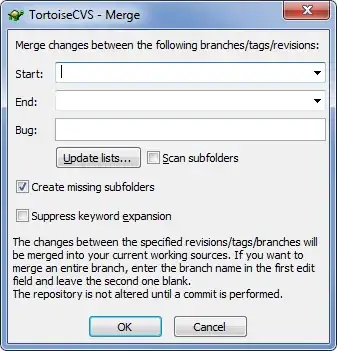
I have two branches DEVELOPPEMENT and DEVELOPPEMENT2.
I would like to merge DEVELOPPEMENT and DEVELOPPEMENT2 into a same branch but not in the HEAD yet.
How to do it with the Tortoise HMI? I cannot find any documentation on that.


I don't have Tortise CVS, but the way to go about should be to switch your Working directory from HEAD to either DEVELOPPEMENT or DEVELOPPEMENT2
once switched, perform the merge, you should get the file in the same branch off which you're working. Then do the commit.
Source: c:\Program Files\TortoiseCVS\UserGuide_en.chm
Merging from a Branch When you are satisfied with the changes you have done on a branch, you may want those changes to be available on the head branch of development. Incorporating changes from one branch to another, is known as merging.
To merge from a branch, move your local copy to the branch you want to merge the changes into. See Selecting a Branch to Work On or Going Back to the Head Branch. Select the top level folder of the project. You can also select the exact folders and files that are part of the desired branch if you know this information. Right-click the on the selection, and choose CVS → Merge....
Merge Dialog You will then be presented with the Merge Dialog. Here you can enter the branch name in the Branch to merge from field you wish to merge. Click the OK button, and TortoiseCVS will now merged the branch specified into your local copy. Your changes will not be made on the server repository, until you commit your changes.
