118

I want to write multi-lines in one MS Excel cell.

But whenever I press the Enter key, the cell editing ends and the cursor moves to next cell. How can I avoid this?

fretje
  • 10,692
  • 5
  • 40
  • 63
Wahid Bitar
  • 1,895
  • 7
  • 20
  • 22

5 Answers5

136

What you want to do is to wrap the text in the current cell. You can do this manually by pressing Alt + Enter every time you want a new line

Or, you can set this as the default behaviour by pressing the Wrap Text in the Home tab on the Ribbon. Now, whenever you hit enter, it will automatically wrap the text onto a new line rather than a new cell.

enter image description here

Gaff
  • 18,569
  • 15
  • 57
  • 68
Josh Hunt
  • 21,185
  • 20
  • 84
  • 123
  • Not quite the same as the OP's question, but you can also wrap existing text by selecting the cells, and selectiing "Format Cells..." and then clicking the "Wrap Text" checkbox. – jpaugh Feb 28 '17 at 20:34
  • For those of you who are software developers and confused by all the talk about "wrap the text" and "why would 'word wrapping' need to be enabled"... in Excel... if you want to have a more than one line of text... then "word wrapping" MUST be enabled. You can test this "feature" by inserting a new line via `alt` + `enter` then disabling "word wrapping" and see your new line character somehow disappears. – Trevor Boyd Smith Jun 21 '18 at 11:34
  • For those familiar with `libreoffice`, inserting new lines is done via `ctrl` + `enter` and does not require enabling "word wrapping" for a cell. – Trevor Boyd Smith Jun 21 '18 at 11:37
  • 1
    "Now, whenever you hit enter, it will automatically wrap the text onto a new line rather than a new cell." ... does this still work for anyone with the 2019 version of Excel? When I turn on "Wrap Text" for the cells, pressing Enter is still going down to the next row. I'm working on a spreadsheet where I'm always entering multiple lines of text, so would really love this to work. Holding ALT every time is too cumbersome. – LaVache Aug 05 '19 at 10:37
39
  1. Edit a cell and type what you want on the first "row"
  2. Press one of the following, depending on your OS:


    Windows: Alt + Enter

    Mac: Ctrl + Option + Enter

  3. Type what you want on the next "row" in the same cell
  4. Repeat as needed.

Note that inserting carriage returns with the key combinations above produces different behavior than turning on Wrap Text. In the screenshot below, column A has the carriage returns and column B has Wrap Text turned on. Changing the width of a column with carriage returns doesn't remove them. Changing the width of a column with Wrap Text turned on will change where the lines break.
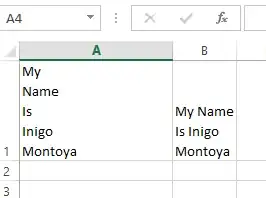
In-cell line breaks in Excel

Jon Crowell
  • 2,286
  • 5
  • 25
  • 34
39

You have to use Alt+Enter to enter a carriage return inside a cell.

soandos
  • 24,206
  • 28
  • 102
  • 134
fretje
  • 10,692
  • 5
  • 40
  • 63
17

Use the combination alt+enter

Wayne
  • 1,145
  • 8
  • 10
7

Alt + Enter never worked for me. I had to go to Format Cells and make sure that the Number tab was set to Text. That allowed me to see exactly as I had input. My issue could have been Mac specific though.

jonsca
  • 4,077
  • 15
  • 35
  • 47
Mr. D
  • 71
  • 1
  • 1