221

I was working with some computer vision source code I found and didn't realize that it creates a cache file that has a VERY LONG name and now I can't delete the 2 of them.

I tried to rename it to a shorter name but I can't do anything to the file, I also tried to restart my computer and see if it would just go away.

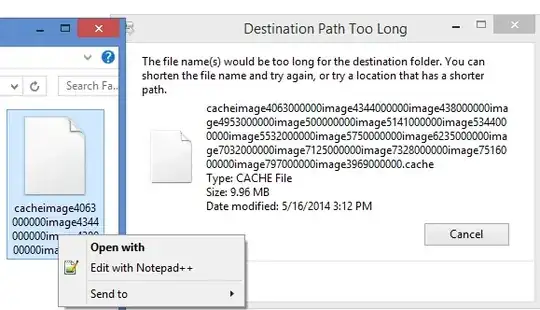
The error message says:

Destination Path Too Long.

The file name(s) would be too long for the destination folder. You can shorten file name and try again, or try a location that has a shorter path.

screenshot

How can I delete the files in this case?

Chris
  • 2,321
  • 3
  • 12
  • 6
  • Would it work from the command line with the `del` command? Something along the lines of `del *.cache` should delete all .cache files in the current directory. – Ryan May 16 '14 at 20:14
  • "Path\to\folder\CACHEI~ The system could not find the file specified" said that twice and there's 2 files in there but didn't do anything – Chris May 16 '14 at 20:17
  • On second thought, you could check one of the other questions that has already been answered. [This one](http://superuser.com/questions/78434/tool-for-deleting-directories-with-path-names-too-long-for-normal-delete) for example. – Ryan May 16 '14 at 20:18
  • 1
    If these two files are the only ones left in the directory, then you may have better luck deleting the entire directory. From the command prompt, try `rd /s directoryname` This will wipe out `directoryname` and all files/subdirectories within it, so use it with caution :) – bitsmack May 16 '14 at 20:22
  • A folder containing files with total path too long cannot be deleted from the GUI, due to the files within that have the too-long path. – Debra May 17 '14 at 06:40
  • 1
    https://www.youtube.com/watch?v=qQTyTprFAOg – bhv Oct 08 '14 at 04:34
  • @bhv : The trick to use __WinRar__ is imo __by far the simplest__ solution to this annoying quirk. – TaW Nov 28 '15 at 21:52
  • https://superuser.com/a/1263183/439537 – Andrew Oct 28 '17 at 00:38
  • I deleted the file by simply adding "\\?\" to the beginning of the long path. – Brain2000 Mar 25 '19 at 00:53

4 Answers4

379

Assuming you are on windows:

What I always do is use subst to create a drive letter association with part of the path.

Then go to the new drive letter and navigate to the files that have long names. You should now be able to rename/delete/etc them. The reason this works is because the path itself is no longer containing >255 chars.

To create a subst folder

  1. Start a command prompt (no admin privileges needed)
  2. Use cd to navigate to the folder you want to go (you can use tab to autocomplete names
  3. type subst j: . to create the driveletter association. (instead of the . you can also type the entire path)
  4. Now in Explorer, you have a new drive letter in This PC. Go to it and do whatever you need to do to the .cache files.
  5. Return to your cmd window and type subst /d j: to remove the drive or alternatively, restart your pc.

EDIT: A trick I learned which can shorten this quite a bit. From the Explorer window where you have trouble, click the address bar so you can type in it, then type cmd and press Enter to start a command prompt at that location, then proceed at step 3. :)

EDIT2: Okay, this trick can be expanded even further. If you are in explorer at the right path, just type in subst j: . in the address bar and press enter. A command window will pop up, execute the command and close again, and there you go, a new drive pops up in explorer.
K7AAY
  • 9,512
  • 4
  • 33
  • 62
LPChip
  • 59,229
  • 10
  • 98
  • 140
  • 30
    robocopy empty_dir base_nested_dir /purge -- Just create an empty directory, and tell robocopy to purge everything in the target directory which isn't in the empty directory http://stackoverflow.com/a/3320317/588759 – rofrol Oct 30 '14 at 08:54
  • 7
    Just tried this and i could not remove the file in question.. I use cygwin with windows, an alternative solution is to remove the file that way: rm -R /path/in/question as long as no other program is using the file you are good to go – John Mar 03 '15 at 17:28
  • 1
    I had an issue where SUBST didn't recognise J: as a parameter (it also didn't see any virtual drives that were available) so the cygwin option mentioned by John worked well. – Tisch Apr 01 '15 at 12:40
  • 2
    @rofrol, you should make your robocopy comment an answer: it is far easier than doing the directory names approach when dealing with lots of child directories (like those created in `node_modules`) – Andy Brown May 18 '15 at 19:50
  • 1
    John's solution worked very well for me, just added the -f (force parameter): rm -R -f /pathToDelete – Christophe Keller Aug 13 '15 at 09:32
  • Creating a junction also works – Renaat De Muynck Aug 30 '17 at 12:24
  • @RenaatDeMuynck true, but that's far more work than navigating a few directories in and typing subst j: . in the titlebar. You need to launch a cmd window as administrator and navigate to the folder yourself otherwise. – LPChip Aug 30 '17 at 14:33
  • Very useful, saved me a lot of trouble. – Saleh Omar Nov 25 '19 at 15:12
  • @SalehOmar glad I could help. :) – LPChip Nov 25 '19 at 15:12
  • Note, pay attention to the . after the drive letter which indicates the current folder. If you skim read the answer above and miss that element (like I did!) you'll get an "Invalid parameter - x:" error. Once I realised my mistake this worked a treat for me on a Windows Server 2016 box. – Keith Langmead Mar 05 '20 at 14:57
  • @KeithLangmead that's why I used formatting and placed the entire command in a nice box. But step 3 has a note that should've made it clear the `.` was mandatory. – LPChip Mar 05 '20 at 15:03
  • 1
    @LPChip Yep, write an idiot proof explanation and the world provides a better idiot... I freely admit to being that idiot in this instance! :) Your explanation is spot on, my ability to read at that point... less so. Amazingly saw posts from others elsewhere for the same command, who'd made the exact same mistake so figured I'd mention my mistake. – Keith Langmead Mar 06 '20 at 17:56
  • Thanks for being an idiot for me, I guess? :D pun intended. :) – LPChip Mar 06 '20 at 22:21
  • I love you for both give me a simple and straightforward solution and get me back decades in time... :-D – Luis Santos Nov 16 '20 at 18:26
71

Your question asks how to delete a file when the filename itself is too long. If the path is too long and not just the filename itself, you can easily just rename the folders to make the path shorter.

But to delete a file whose name is more than 255 characters:

  • Open a command prompt by running "CMD.EXE"
  • Navigate to the folder holding the file
  • Use the command DIR /X which will display the short names of files.
  • Delete using the short name.

i.e. if the file is named "verylongfilename.fil", the shortname will display as something like "verylo~1.fil" and you can delete using that name.

Please note that although Windows itself can handle paths far longer than 255 characters, most of the GUI -- like Windows Explorer -- is bound by the shorter limit.

Debra
  • 4,268
  • 1
  • 17
  • 24
5

Googled: delete long filename First result

Use Unlocker http://www.filehippo.com/download_unlocker/

Cannot delete folder: It is being used by another person or program Cannot delete file: Access is denied There has been a sharing violation. The source or destination file may be in use. The file is in use by another program or user. Make sure the disk is not full or write-protected and that the file is not currently in use.

Unlocker can help! Simply right-click the folder or file and select Unlocker. If the folder or file is locked, a window listing of lockers will appear. Simply click Unlock All and you are done!

Wutnaut
  • 728
  • 4
  • 16
  • 1
    I did see that but didn't know if unblocker was safe to use so I ignored it, I'll try it out. EDIT: didn't work. it works on other files but unblocker doesn't appear in the drop down – Chris May 16 '14 at 20:20
  • Certainly the simplest way to do it, although it may need a reboot to complete. Nothing wrong with Unlocker at all - been using it for years and it's a very useful utility. In the case of a file or folder whose path is too long it will find no locking handle but should offer the Delete option in the drop down afterwards. – Steve Pettifer Jan 12 '15 at 14:55
  • 1
    Worked flawlessly - funny thing is I have this software installed but didn't occurred to me to use it in this situation. – Daniel Sokolowski Jan 03 '16 at 01:27
  • Didn't work for another folder where I copied a circular junction folder, but what did work was renaming each level folder to one character like `1` all the way and then deleting it. – Daniel Sokolowski Jan 03 '16 at 01:39
  • This was the only answer that worked for me (I'm using windows 10). Thank you very much! – user26832 Jul 12 '16 at 02:49
  • update from me, I tried to open the link, the link is dead (404 not found). you can get it from: https://jalantikus.com/apps/unlocker-windows/ , and click "Download" button – Dika May 01 '18 at 02:00
4

Microsoft has a useful knowledge base article on deleting undeletable files. Cause #4 is of relevance to you.

Your best bet would probably be to map a drive to the folder that file is in (resolution #3), then enter in through that drive and delete it.

Compro01
  • 226
  • 1
  • 4
  • 1
    I never realized before that I could "map network drive" to a location on my own hard drive. That's what I did in Windows Explorer. After navigating to the drive, I could easily delete the folder & contents. Same principle as the console solutions shown above, but this is a quick GUI solution that was easier for me. – RandomHandle Jun 16 '16 at 00:47
  • I love "Resolution 5: Use a tool that can traverse deep paths", how ironic. Windows tools can't do it so you can also install something like cygwin to do it. There are probably other windows consoles that are able to traverse long file paths. – Craig Jan 16 '20 at 15:28