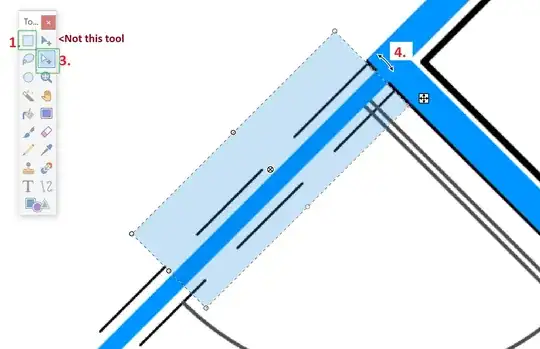
44

I'm trying to get rid of everything after a column in Notepad++. Column mode is not an option. Is it possible?

What I have:

70.97.110.40    159 ms          [n/a]                   21              
70.97.117.177   134 ms          [n/a]                   21              
70.97.120.10    75 ms           [n/a]                   21              
70.97.122.105   87 ms           www.portless.net        21              
70.97.122.106   89 ms           www.popovetsky.org      21              
70.97.122.107   95 ms           www.psmythe.net         21              
70.97.122.104   98 ms           wasabi.prostructure.com 21              
70.97.122.108   89 ms           crm.prostructure.com    21              
70.97.122.109   87 ms           internal.prostructure.com21 

What I want:

70.97.110.40
70.97.117.177
70.97.120.10
70.97.122.105
70.97.122.106
70.97.122.107
70.97.122.104
70.97.122.108
70.97.122.109
Kromster
  • 191
  • 2
  • 14
Bob J
  • 551
  • 1
  • 4
  • 6

11 Answers11

99

Here's a simpler regular expression you can use to achieve the same effect. Replace

 .*

(note the leading space)

with nothing. This will delete everything after and including the first space. This will work as long as your IP addresses are never prefixed with any whitespace (as is the case in your example).

ashastral
  • 1,103
  • 2
  • 9
  • 15
63

If the data in the first column never contains a space, you can use a regular expression find and replace to get what you want.

In regular expression mode, search for:

^([^ ]*).*

And replace with

\1

What this does:

^ indicates that any match should start at the beginning of a line.
([^ ]*) is any expression that does not contain a space. The match is greedy, so this will match everything up to the first space (or the end of the line, whichever comes first).
.* is everything else on the line.

\1 refers to the part of the match inside the parentheses. That is, the entire line is replaced by just the bit from the first column.

Excellll
  • 12,627
  • 11
  • 51
  • 78
  • 5
    Nice to know that notepad++ supports regular expressions in search-replace! – Kamil Aug 19 '14 at 18:37
  • 1
    Regex will do the job for you so long as the data never contains a space. Simpler would be the UNIX 'cut' command but doing UNIX commands under windows is whole 'nother problem. cut is made for this and processes large files quickly, with defined column delimiters or by character-counts. – Karl Aug 19 '14 at 18:39
  • 31
    This can be done far more simply: replace " .*" (note the leading space) with "" (i.e. nothing) to delete everything after and including the first space. – ashastral Aug 19 '14 at 20:52
  • 2
    @Fraxtil Thanks. You should post that as an answer. You'll get an upvote from me. – Excellll Aug 19 '14 at 21:11
  • @Excellll alright, done. – ashastral Aug 19 '14 at 21:19
40

If you are using Windows and if you don't mind trailing spaces (you can find/replace them afterwards), use the Block Select feature:

  1. Press and Hold the Alt key
  2. Using the mouse, select the portion to delete (the entire block of text)
  3. Release the Alt key
  4. Delete that block of text
  5. Repeat as necessary
Robotnik
  • 2,390
  • 3
  • 23
  • 41
Reed Shilts
  • 501
  • 3
  • 6
11

A regular expression is quicker, but you can do some really tricky things with macros if it is a more complicated task.

You could record a macro:

  1. Cursor on line 1
  2. Hit Start recording
  3. Press key home
  4. Hold Ctrl while you press key Right arrow (seven times)
  5. Hold Shift while you press key End
  6. Press key Delete
  7. Press key Down arrow
  8. Hit Stop recording

Then play it back:

  1. Hit "Run a macro multiple times"
  2. Type in the lines of the document minus 1, since the first line is complete.
Peter Mortensen
  • 12,090
  • 23
  • 70
  • 90
pyker
  • 194
  • 4
9

Place cursor after 70.97.110.40.

Place cursor

Press Alt, and drag the cursor to right and down to select the unwanted part.

Select

Press Backspace or Delete.

Delete

Keshava GN
  • 345
  • 4
  • 10
8

Here are a couple of alternative methods to the given answer.

If you data is fixed width, you can also use the following regular expression in the search:

Find what: ^(.{16}).*$

Replace with: \1

It is great if the data you want to keep does contain a space, as someone mentioned. Additionally, again for fixed width data, you can use Column Mode Editing. It's a neat little feature that allows you to edit multiple lines of data in the same column location. See Column Mode Editing.

It makes mention of arrow keys, but you can also use Page Up/Down for a faster method, as well as End and Home keys. The mouse also works. But you could use this for an ad hoc method of deleting data after a certain point, especially if it is only a few lines. It is also good for copying data, but the way it pastes is a bit odd, so you'd want to get used to that first.

Peter Mortensen
  • 12,090
  • 23
  • 70
  • 90
Phillip
  • 269
  • 1
  • 4
  • 1
    Better than selecting it and replacing it with itself would be to use a lookbehind like: (?<=^.{13}).* and replace it with nothing. This will select anything after the first 13 characters. – Chris Murray Aug 21 '14 at 15:37
4
  1. Press ALTwhile using the mouse as a lasso.
  2. Select all you want to remove
  3. Press DELETE
BlueBerry - Vignesh4303
  • 8,129
  • 22
  • 68
  • 99
actXc
  • 41
  • 1
4

Similar to enthdegree:

  1. Place cursor at column 16
  2. Shift + Alt + Page Down
  3. Shift + Alt + End
  4. Delete

If there is a blank line at the end of the file, simply press Up Arrow prior to #3.

It's not perfect, but it's handy.

The Cog
  • 141
  • 3
3

Here is a visual way:

  • Put cursor at end of an IP address.
  • Alt+Shift+Pg Down
  • Alt+Shift+Right
  • Delete

This is not 'column based.' It only works because your IP addresses all line up.

Peter Mortensen
  • 12,090
  • 23
  • 70
  • 90
Christian Chapman
  • 1,407
  • 2
  • 15
  • 21
  • 1
    What do you mean by "This is not 'column based.'"? Alt+Shift+Arrow switches to "column mode". – MrWhite Aug 20 '14 at 15:27
  • It doesn't respect tab-delineation as a column. It breaks them up into spaces so that each line in the selection has the same # of chars beyond the edge of the selections starting point. – Christian Chapman Aug 20 '14 at 15:31
2

In regular expression mode, search for:

\t.*

And replace with

Nothing

0

Delete everything after first column in Notepad++:

  1. Selcect the 2nd column : Alt + Drag
  2. For selecting rest columns: simply press Right Arrow
Ipsita
  • 1