0

I have a value in Column A, which I want to compare with multiple values in column B, and depending on that value, put the answer in column C.

For example, using the table below, it searching in column B for values which are less than or equal to 12 and put the answer in same order in column C.

Column A     Column B            Column C
12           0,12,13,14          Yes, Yes, No, No    
101          101,102,103,104     Yes, No, No, No

How can I do this in Excel?

Dave
  • 25,297
  • 10
  • 57
  • 69
Raw
  • 15
  • 1
  • 4

3 Answers3

1

This does exactly what you want.

Option Explicit

Sub DoTheThing()

Dim row As Integer
row = 1 ' WHAT IS THE STARTING ROW

Do While (Range("A" & row).Value <> "")

    Dim vals() As String
    vals = Split(Range("B" & row).Value, ",")

    Dim lookUpValue As String
    lookUpValue = Range("A" & row).Value

    Dim result As String
    result = ""

    Dim i As Integer

    For i = 0 To UBound(vals)

        If CSng(lookUpValue) >= CSng(vals(i)) Then
            result = result & "Yes, "
        Else
            result = result & "No, "
        End If

    Next i

    result = Trim(result)
    result = Left(result, Len(result) - 1)

    Range("C" & row).Value = result

    row = row + 1
Loop

End Sub

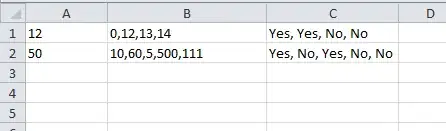
My worksheet looked like

enter image description here

And after I run the VBa

enter image description here

Excel kept formatting the columns as number. It must remain as Text!

Dave
  • 25,297
  • 10
  • 57
  • 69
  • Yes, the column is already set as Text. Dave thanks for the solution but I dont know how to run VBa. May be its quite easy for you or for me to google that but for first time I need a demo and what better than asking to a expert like you. – Raw Aug 22 '14 at 13:48
  • http://superuser.com/questions/801609/how-do-i-add-vba-to-my-ms-office/801610 – Dave Aug 22 '14 at 14:20
  • i dnt have that rep to continue chat.. I will check that link in the above comment posted by you..and will let you know my progress. – Raw Aug 23 '14 at 04:56
  • Its working...thanks @Dave. It solved 1st part of my problem. – Raw Aug 23 '14 at 07:04
  • Actually I have 3 columns: Column A has a value, Column B have a set of values which showing the start point of an array, Column C having a set of values which showing the corresponding end points of that array. We have to check whether the value in Column A is part of any array or not. – Raw Aug 23 '14 at 07:11
  • 1
    @Raw you are wasting peoples time which is rude at the least. Kindly update your question to reflect this info which you should've included up front. – Mike Honey Aug 25 '14 at 04:10
  • @Raw, there is no reason you can't ask a new question. Explain it leads on from this, but you need to look at columns. Please try something first, but add a new question, it's not difficult to resolve it :) – Dave Aug 25 '14 at 10:38
1

The way I would go about it would be to start by breaking up the problem into a bunch of columns, each with a piece of the problem. For example:

     A  B                C  D   E    F   G    H    I   J    K    L   M   N
1   12  0,12,13,14       2  5   8    0   12   13   14  Yes  Yes  No  No  Yes, Yes, No, No
2  101  101,102,103,104  4  8  12  101  102  103  104  Yes  No   No  No  Yes, No, No, No

These are the expressions for C1 through N1:

C1 =FIND(",",B1)               D1 =FIND(",",B1,C1+1)      E1 =FIND(",",B1,D1+1)
F1 =LEFT(B1,C1-1)+0            G1 =MID(B1,C1+1,D1-C1-1)+0
H1 =MID(B1,D1+1,E1-D1-1)+0     I1 =RIGHT(B1,LEN(B1)-E1)+0
J1 =IF(F1<=$A1,"Yes","No")     K1, L1, M1 (copy from J1)
N1 =J1&", "&K1&", "&L1&", "&M1

If case it's not obvious, the "+0" is a handy way to force a text value into a number, so that the comparisons in I, J, K, and L are done as numeric comparisons rather than as text.

For C2 through N2, copy from C1 through N1.

If you don't want to use extra columns, you can join the results from the multi-column version into one giant, complicated expression in a single column. It's easier to do that in several steps. For example, the first step would be to combine the FIND expressions with the string expressions. Here's some code for that:

F =LEFT(B1,FIND(",",B1)-1)+0
G =MID(B1,FIND(",",B1)+1,FIND(",",B1,FIND(",",B1)+1)-FIND(",",B1)-1)+0
H =MID(B1,FIND(",",B1,FIND(",",B1)+1)+1,FIND(",",B1,FIND(",",B1,FIND(",",B1)+1)+1)-FIND(",",B1,FIND(",",B1)+1)-1)+0
I =RIGHT(B1,LEN(B1)-FIND(",",B1,FIND(",",B1,FIND(",",B1)+1)+1))+0

Those are pretty hideous, because the uses of E uses D, which uses C, and those are used several times by G, H, and I. Putting all the intermediate results into hidden columns saves a lot of duplicated expressions.

Things get worse if you want to go beyond four comma-separated number in column B, but the way to add columns should be pretty obvious.

Allowing B to have a variable number of comma-separated numbers is not so obvious. The trick is to add some IF statements, testing for error conditions. That raises one final point, that this doesn't include any error checking other than what's built into Excel. A robust spreadsheet should include at least some error checking.

Steve
  • 667
  • 8
  • 14
  • Thanks Steve but it seems so confusing. And I have upto 130 comma separated values in a single cell. Anyway I move don to next step (thanks to Dave). Now I have two columns with multiple entries of Yes, No. I want to concatenate the corresponding values in the 3rd column. say column A has Yes, Yes, No, No and Column B has Yes, No, No, No. So in column C it should be YesYes, YesNo, NoNo, NoNo. – Raw Aug 23 '14 at 08:59
  • I agree that it's confusing – particularly if you have lots of comma-separate values. It's not as good a solution as using VBA, unless something about your situation makes VBA not an option. For example, if you're using some other software, such as Google Spreadsheet, that doesn't have VBA. – Steve Aug 24 '14 at 06:13
  • Another thought: Why do you need to place the comma-separated values into spreadsheet cells at all? Wouldn't it make more sense to import them as a spreadsheet page, and leave it to the spreadsheet's import features to process the comma separations? Is there a problem with doing it that way, or is this an intellectual exercise rather than a practical problem? – Steve Aug 24 '14 at 09:57
  • its a part of research work where I have to find out whether the first value in Column A falls between the first value of Column B and column C (including both the values) or between the 2nd values of Column B and C, or between the third value of column B and C..or so so.. – Raw Aug 25 '14 at 05:54
0

I would use the Power Query Add-In for this. It has Split and Combine commands that can convert delimited text e.g. 0,12,13,14 into a list and back.

I've built a prototype which you can view or download - its "Power Query demo - compare single value in one cell with multiple values in other cell.xlsx" in my One Drive:

https://onedrive.live.com/redir?resid=4FA287BBC10EC562%21398

Within that file I've included two solutions - one for comparing using "Less than or equal to", and another for comparing using "between" logic.

It takes a few Query steps to get there, and for some steps the generated code needs to be edited. But for 90% of the steps you just click around in the Power Query UI.

Mike Honey
  • 2,512
  • 2
  • 11
  • 12
  • I've edited my answer above to reference a working prototype which I have created for this. – Mike Honey Aug 25 '14 at 23:24
  • well done Mike.. good work done by you but in the Pivot Query Demo "compare single value in one cell with multiple values in other cell", its not working as what I needed to solve my problem. Comparison of value in A is >= with column B but <= with column C. Then t will solve my problem. – Raw Aug 27 '14 at 10:01
  • @Raw note the add-in I used for this is Power Query (not Pivot Query). – Mike Honey Aug 27 '14 at 23:34
  • @Raw you have confused the issue by asking one question then switching the requirements in your comments. There are two pairs of sheets in that file. The two sheets ending "LTEQ" show <= logic. The two sheets ending "between" show between logic. There are two separate Power Query Queries for the two scenarios. Take your pick when you decide what your requirements actually are. – Mike Honey Aug 27 '14 at 23:35
  • Thank you Mike. and sorry for my faults. 2 points I want to say now. 1st in my data the comma separated values in each cell are in ascending order without any repeats. 2nd in your Power Query Demo, the final value in the last sheet's D2 cell should be Yes, Yes, Yes, No, then only it will be correct. – Raw Aug 28 '14 at 12:13
  • @Raw, WRT the last sheet's last row, I think you have misread my input data. The third comparison is 13 <= 12 <= 12, which is not true. Feel free to download the file and edit the input data or add your own rows to it to test it out. – Mike Honey Sep 02 '14 at 07:03