I need help with password retrieval or bypassing the password on a project that was done at work. The author has used MS Excel to do the project, and it's in the client's server. The server that we use has no access to Notepad++.
Asked
Active
Viewed 3.4e+01k times
43


-
Karan thanks. The problem was not with the excel document but I am not able to view the code that was done by another employee. It's on the VB Ide that I can use thru excel – user365483 Sep 06 '14 at 08:18
-
Ok, if the Excel workbook itself is not password protected and only the VBA project inside is, see below. – Karan Sep 07 '14 at 00:23
-
I am not able to install any hex editor and the file is a .xlsm file. Karan I it would be nice if there is a alternative – user365483 Sep 08 '14 at 13:22
-
[here's how](http://stackoverflow.com/questions/19670057/bypass-password-on-an-excel-vba-project-xla) – Oct 23 '14 at 10:15
-
[Is there a way to crack the password on an Excel VBA Project?](https://stackoverflow.com/q/1026483/995714) – phuclv Apr 06 '20 at 07:46
1 Answers
70
For older .XLS files:
Open file in any hex editor
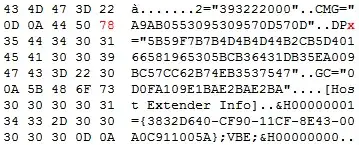
Search for the text "DPB=" (no quotes, you should find it just above "[Host Extender Info]"
Change it to "DPx=", save and close the file
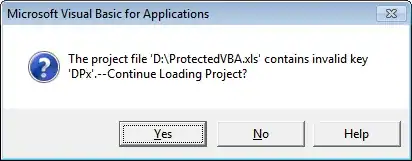
Open the file in Excel and press Yes if the following warning pops up:
Open the VBA editor (Alt+F11) and press OK whenever the following warning pops up:
Right-click the VBA project name, select Properties, go to the Protection tab and delete the existing passwords as well as uncheck the Lock project for viewing checkbox:
Re-check the Lock project for viewing checkbox and add your own memorable password.
OK your way out and now the VBA code is accessible!
For newer .XLSM files:
Change the file's extension to .ZIP
Open the file in any archiver such as WinRAR or 7-Zip and you'll see the following directory structure:

Go into the xl directory and extract vbaProject.bin:
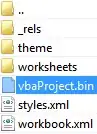
Perform steps #1-3 above (from the For older .XLS files section) with vbaProject.bin
Replace the old vbaProject.bin in the ZIP file with the new hex edited version
Change the file's extension back to .XLSM
Perform steps #4-7 above


-
Does this work for MS office 2013 with the older files? I have an impression Microsoft patched this. – Menelaos Feb 19 '15 at 12:42
-
2When I tried this method in Office 2010 & 2013, it didn't work directly. After following all the steps, I was not able to view the macros, then I tried to export the macro as .bas, I could get the macro out and view it. – Abbas Mar 31 '15 at 14:34
-
This was tested with Office 2010 and that's where the screenshots are from. Also, for those who cannot install a hex editor, there are lots of portable ones available. – Karan Apr 05 '15 at 02:09
-
1
-
I followed all of the steps, but after hitting OK on the warning I get a new prompt where my options are "open and repair" or "cancel." If I hit cancel it closes; if I hit open and repair it delete all macros. I'm using Excel 2011 for Mac. Has anyone else encountered this and is there a workaround? – user658182 May 03 '16 at 19:36
-
This is working great for 2007 .xlsb files too. I had to open the file, got the error message as described in step 4, then I had to close and open the file again (saving) and was then able to view everything correctly. Thanks heaps. The last guy that wrote our macros just HAD to hide everything away!!! – Ads Oct 31 '16 at 01:06
-
Great! Simple and efficient. Worked with MS Office Professional Plus 2010 (32-bit), on an old-fashion file (`.xls`). You have more tricks on SO, and ability to do it programmatically: https://stackoverflow.com/questions/1026483/is-there-a-way-to-crack-the-password-on-an-excel-vba-project – J. Chomel Nov 10 '17 at 07:59