I can not find a settings in TextEdit to disable line wrap. I have found only wrap to page/window.
Asked
Active
Viewed 3.0k times


6 Answers
17
This isn't possible and you can't even dig into the plist file to override this behaviour. But you can get close.
In File → Page Setup create a Custom Page size with absurdly huge margins:
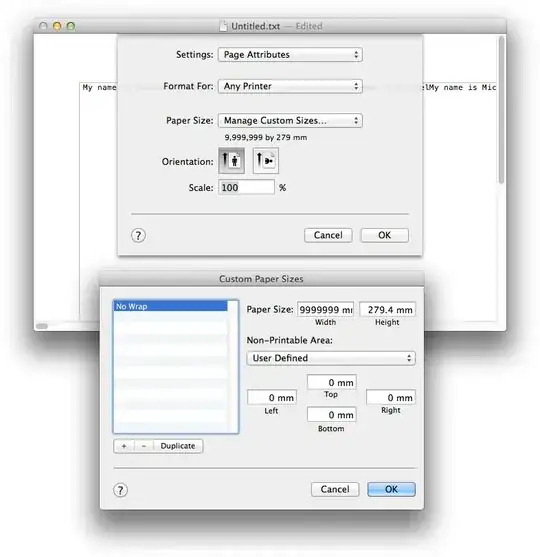
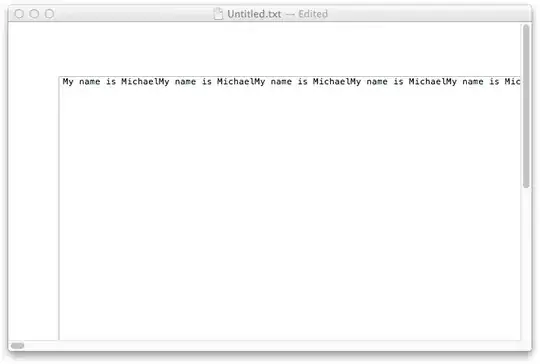
Now select Format → Wrap to Page and TextEdit will now have horizontal scroll bars, but you'll be stuck with an annoying whitespace on the top and left side of the page.

Michael P
- 425
- 3
- 9
-
ugh! i could have sworn there used to be a way to do this. or maybe i'm thinking of some equivalent in another OS... – Michael Dec 07 '17 at 20:33
-
looks like when you revert to the disk copy it "forgets" that you have set it up to wrap to page, so you have to do it again. not terribly helpful when an external process is frequently updating the file! – Michael Dec 07 '17 at 20:50
-
I've switched from Linux to a Mac a few weeks ago and it still annoys me how many obvious things are impossible* on this system. *I know it's not impossible, I can always download a different program. But come on, it's such a basic feature! – michcio1234 Mar 24 '20 at 12:48
5
Another suggestion is to try smultron.
I don't think textedit is designed to be much more than demoware.

Mike Heinz
- 169
- 3
-
1Thanks, I got another suggestion to try smultron, I have already installed it. – Željko Filipin Dec 09 '09 at 16:08
-
2
1
There's actually a weird bug/behavior in TextEdit on Mac which frustrates me to no end! If you zoom in or out in TextEdit, it breaks the word-wrapping feature, dead.
In other words, to get the behavior you want, simply do the following:
- View -> Zoom Out
- View -> Zoom In
- If not on 'Format -> Wrap to page', switch to it first*
- Format -> Wrap to Window *
(* This is because you have to toggle in and out of 'Wrap to Page')
Bam. No more word-wrapping.
Just tested this on both High Sierra and even Mojave. Same thing. Set that up as a macro using Automator and you can execute it from the services menu or even via a keyboard shortcut.
The down-side is there's no way to re-enable it short of selecting everything, then pasting it into a new document, or saving, then re-starting.

Mark A. Donohoe
- 777
- 3
- 10
- 24
-
1
-
1I just tried it and it still works as described on 10.13.6. Again, you have to use View->Zoom Out menu, not the keyboard shortcut. They have it connected differently for some reason. The former zooms the window's view area (allowing the trick) while the latter actually increases the text size. – Mark A. Donohoe Jun 11 '19 at 14:56
-
Of course the real solution is to just switch to VS Code anyway! :) – Mark A. Donohoe Jun 11 '19 at 15:13
-
-
It doesn't work on my High Serria and I believe that it wouldn't work anyway due to the very high number of columns of my text file. – Alexandre Huat Jul 28 '21 at 12:46
1
The following works to make lines wrap to a very large number of characters, similar to the way it is done in Notepad (there text wraps to 1024 characters):
Set text size to 2 (setting size to 1 leads to aliasing issues).
Zoom in until the text size is what you like.
The text wraps to the window when the zoom is at 100%; therefore, when you zoom in, the amount of text on a line does not change.
Ultimately, you can control how much text fits on a line by changing the font and/or the size of the window.
Also, here is a better-explained version of Mark A. Donohoe's answer; however, since it only works in order to yield a disabling of word wrap for a single document, until you close it (and only on some systems), I use my method instead.
1) Zoom out until you believe your whole document width can fit in your window.
2) Shift + ⌘ + W to zoom to paper size, then again to zoom to window.
3) If your whole document width does not fit in your window, go back to step 1.
4) Do View -> Zoom In until you get your desired size.
Note: Do NOT use the keyboard shortcut to zoom in. When you use the keyboard shortcut, the Mac re-wraps the text after zooming in; on the other hand, if you do View -> Zoom In in order to zoom in, it does not. As a result, what you get is a real-sized copy of the text to which the wrap was applied when it was zoomed out.

Alex
- 166
- 13
1
I know that this does not answer your question, but let me suggest you TextWrangler as a free and more featured alternative to TextEdit.
Hope it helps.

Pablo Santa Cruz
- 1,729
- 17
- 22
-
2Thanks Pablo, I am actually looking for less features, not more. :) I will take a look at TextWrangler. – Željko Filipin Dec 09 '09 at 13:24
0
I just discovered a neat trick that seems to workaround the wrapping issues (only good for one document at a time perhaps): select the entire document, then right click in the tabstop pane and create a bunch of left tabs extending out to the width that you desire (or perhaps just one really far out to the right). TextEdit will not auto-wrap text that is within the right-most tab!

Bogatyr
- 169
- 6