Excel converting value 0503E000 to 5.03E+02 in any cell automatically in CSV I tried to convert it to text number and general but after i save it and reopen it again it goes back to 5.03E+02
How do I stop this from happening?
Excel converting value 0503E000 to 5.03E+02 in any cell automatically in CSV I tried to convert it to text number and general but after i save it and reopen it again it goes back to 5.03E+02
How do I stop this from happening?


If you can convert or control the CSV format, you can force a column to parse as text in Excel by wrapping it in double quotes and prepending an equals sign.
Excel will carelessly discard precision in this format:
Value,0503E000,1234123412341234
Or even this format:
Value,"0503E000","1234123412341234"
Converting it to:
Value | 5.03E+02 | 1234123412341230
However, adding the equals sign forces Excel to begrudgingly preserve your data:
Value,="0503E000",="1234123412341234"
…which opens as:
Value | 0503E000 | 1234123412341234

I think the key issue here is that you are using a CSV, which does not have the cell type embedded in it. Excel automatically tries to interpret the cell as having a scientific number which is why you are seeing 5.03E+02 instead of 0503E000.
Try creating an Excel workbook and formatting all of the cells as text, and then pasting in the data. I tried it in Excel 2013 and it worked.

Instead of Opening" the CSV file in Excel, select to Import the file (in Excel 2007-2010 you would navigate to the Data Ribbon / Get External Data / From Text). Not sure about 2013 but there should be something similar. When you do that, the Text Import wizard will open and afford you the opportunity to format the column containing that Value as Text, before Excel (not so helpfully) changes it to a numeric value.

Start the cell with an apostrophe to force text interpretation:
'0502E000
Basically, this tells Excel not to parse the field as a number. Because there is an 'E' in the field, it looks like a number to Excel. The apostrophe won't actually be entered into the cell:
[a1] '0502E000
[b1] =hex2dec(a1)
Cell 'b1' will display 84074496.

Try to load the file (data fetched from DB table) through DATA option in MS excel then simply while loading just select “Do not detect data types” under “Data Type Detection” then load , this will keep the as it as format of data and loads excel, no need for any column conversions.
Paste the data into a google spreadsheet. Select the column ==> Format ==> Number => Custom format => type the number of digits to which you want format to happen (ex: 10 digits = 0000000000)

Found the Best Solution to this Problem! Here is how -
Use the Feature - Get Data from Text/CSV
(can be found under Data Tab> Get Data> From File> From Text/CSV)
Get Data from Text:

Then import the CSV from which you want to load data.

In the pop-up, turn off Auto Data Type Detection.

And the finally click load
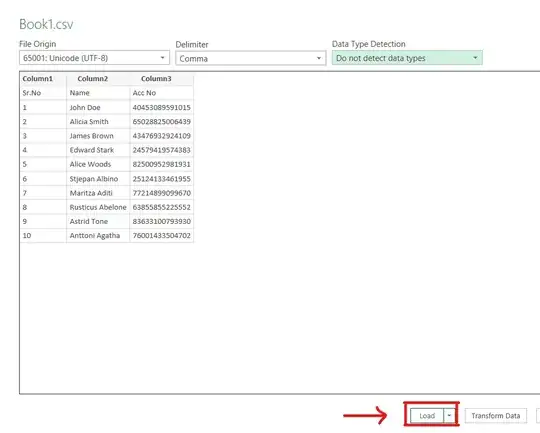
Voila! Your Data is imported to the sheet, without rounding off the numbers!
Successfully Imported Long Number Data without Rounding:

If you get a different pop-up menu (old looking) Steps will be slightly different, and you will need to manually click on column and set data type from General to Text to achieve similar result!


With the default cell formatting, numbers with a zero in front and long numbers will automatically get modified by Excel. For example, if you type 012, it will be changed to 12.
If you format the cells as Text, then any number that you type in the cell will stay as is, and will not be modified by Excel.
However, if you paste a number from another source into a cell that is formatted as Text, and in the source there is any sort of formatting, the formatting of the cell will change from Text to General, and the number manipulation will come back.
The solution that I found was to do a paste special, and paste the number as Text. Then the cell remains with its Text formatting, and the number is not modified at all.

