1

I made an image of Raspbian on SD and trying to connect it now via SSH. The problem that PuTTY returns always “connection timeout.” I’m using Windows 8.1, connected to Internet via Wi-Fi. PC connected to Raspberry Pi (B+) directly through Ethernet cable.

I watched a bunch of tutorials about it, and did everything the same. Wrote static IP address for Raspberry Pi in commandline.txt. I cannot confirm that OS is running (no monitor) but I can see it on startup observing how LED is blinking.

Here’s the output of ipconfig:
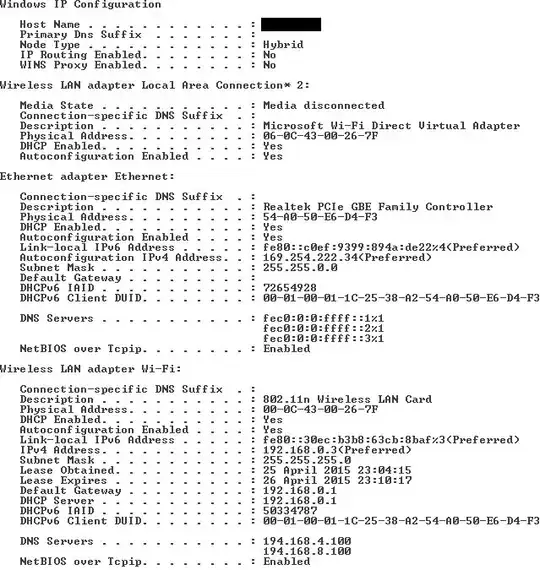
enter image description here

Giacomo1968
  • 53,069
  • 19
  • 162
  • 212
Dmitry
  • 204
  • 3
  • 6
  • Which IP did you give the rPi? Which IP do you want to assign to the wired netowkr card on your PC? (Currently it was 169.something which is windows way of saying that it is not configured). – Hennes Apr 25 '15 at 22:48
  • RPi ip is 169.254.222.35 – Dmitry Apr 25 '15 at 22:52
  • *"I cannot confirm that OS is running"* -- A serial-port console would solve that. See http://superuser.com/questions/440857/how-can-i-access-my-mini-pc-raspberrypi-mk802-mele-a1000-via-apc-via-eth – sawdust Apr 25 '15 at 22:57
  • Regarding OS potentially not fully up: can you ping it ? – Hennes Apr 25 '15 at 23:13
  • 1
    No, ping is not working too https://pp.vk.me/c622518/v622518400/2eea7/ybV4UxG5vlU.jpg But OS should run, because without SD card there is no connection via ethernet in "ipconfig" list. Just have no idea what to do, only to find a DVI-HDMI cable – Dmitry Apr 26 '15 at 09:29

1 Answers1

2

Yes, I finally did it, bloody hell! Well, if someone will encounter with similar problems, here's a solution:

  1. Download DHCP Server for Windows. It is a 100kB download available here.
  2. Go to the IPv4 properties page of the Ethernet adapter and set a fixed IP address, say 192.168.2.1
  3. Run the DHCP Server Wizard (downloaded above)
  4. Select the Ethernet adapter from the list shown
  5. Save the configuration file and start up the DHCP Server
  6. Click the 'Continue as tray app' button in the server control panel.
  7. Boot up the Raspberry Pi
  8. A popup notification shows the IP address assigned by the DHCP server to the Raspberry Pi.
  9. Use a SSH client, like PuTTy, to connect to the IP address shown

Voila ! You are connected to your Raspberry Pi. Source: http://www.instructables.com/id/Direct-Network-Connection-between-Windows-PC-and-R/

Dmitry
  • 204
  • 3
  • 6