1

So I have a C: partition, and windows says that it has 92.5 GB worth of data in it.
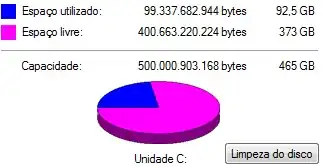
https://i.stack.imgur.com/iNItZ.png

However I've selected every fodler in C: (including hidden folders), and clicked properties to check how much space does it take up, and it is just 57GB.
https://i.stack.imgur.com/Lpm4T.png

Now, is Windows displaying wrong information, or may I doing it wrong.

1 Is the properties of C: where it shows how much of the disk is being used

2 Is the properties of all the files in C:

  • I was certain this had been asked, but can not find a duplicate... – Austin T French May 01 '15 at 18:14
  • Not sure, but maybe this could be caused by the [Shadow Copy](http://en.wikipedia.org/wiki/Shadow_Copy) feature of Windows 7? – Slizzered May 01 '15 at 18:15
  • 1
    Also see: [Why is the folder size (in properties) different from the total file/folder sizes in the folder?](http://superuser.com/questions/567175/why-is-the-folder-size-in-properties-different-from-the-total-file-folder-size?rq=1) – Ƭᴇcʜιᴇ007 May 01 '15 at 18:31
  • @Ƭᴇcʜιᴇ007 there we go! Also, I believe the drive properties dialog queries MFT. – Austin T French May 01 '15 at 19:07

2 Answers2

0

I think the remaining ~35G is occupied by System Restore Have you had this option turned on? (It was ON by default I believe)

Tuan Anh Hoang-Vu
  • 2,024
  • 3
  • 21
  • 31
  • It is on, but shouldn't the copies be in one of those folders, and therefore listed when Windows calculates how much space it takes up? –  May 01 '15 at 18:18
  • Under normal user, you can't even access that directory – Tuan Anh Hoang-Vu May 01 '15 at 18:19
  • I'll try to do it with the account that has admnistrator's privileges –  May 01 '15 at 18:20
  • I've tried it, and the output is exactly the same –  May 01 '15 at 18:23
  • Are you sure you can access all files/directories under `C:\System Volume Information`? – Tuan Anh Hoang-Vu May 01 '15 at 18:24
  • I'll check that one individually –  May 01 '15 at 18:26
  • Even with the administrator's privileges, when I try to access it I get a access denied error. It probably is what's taking up the space. But I'd like to confirm it –  May 01 '15 at 18:28
  • If you really want to check, you can grant your username permission to access all subdirectories inside it. Look for Security Settings (or similar) tab under Directory Properties – Tuan Anh Hoang-Vu May 01 '15 at 18:40
0

If you right-click the C: drive and click properties, Windows is actually showing accurate information.

If you select all files in the C: drive, you actually don't. If you want to see all files in the C: drive, press Windows key + R, type in cmd then cd C: and finally dir /a. You will see all files and directories with their size.

redbeam_
  • 537
  • 5
  • 16