I use a system of folders to track tasks and projects, and my projects are represented by folders whose names start with the "@" character. I'd like a way to populate a list of my projects, that is, to search for all subfolders containing "@" in their name. However, it appears that the search function in Explorer ignores "@" since when I search for it I get no results. Does anyone know how to force Windows to search for the @ character?
Asked
Active
Viewed 6,938 times
4

-
Actually, I unintentionally found a workaround. If I search for "+" (which is another special character I use in folder names coincidentally) it appears to generate a list of all subfolders, where the folders starting with "@" float to the top of the list since it's alphabetically first. It would still be nice to be able to do a proper search though. – DroidFreak36 Jun 19 '15 at 16:14
-
Possible duplicate of http://superuser.com/questions/172522/windows-7-search-for-file-with-a-special-character-in-the-file-name – Matthew Champion Jun 19 '15 at 16:16
-
@MattChampion That's probably related, but that didn't come up when I searched. – DroidFreak36 Jun 20 '15 at 16:42
2 Answers
4
How do I Search for folders containing “@” in their names
You can find all filenames containing @ using ~=@ for the search string.
~= is a special keyword that means contains.
Using keywords to refine a search
If you want to filter on a property that doesn't appear when you click in the search box, you can use special keywords. This typically involves typing a property name followed by a colon, sometimes an operator, and then a value. The keywords aren't case sensitive.
Example search terms
System.FileName:~<"notes"
Files whose names begin with "notes." The ~< means "begins with."
System.FileName:="quarterly report"
Files named "quarterly report." The = means "matches exactly."
System.FileName:~="pro"
Files whose names contain the word "pro" or the characters pro as part of another word (such as "process" or "procedure"). The ~= means "contains."
System.Kind:<>picture
Files that aren't pictures. The <> means "is not."
System.DateModified:05/25/2010
Files that were modified on that date. You can also type "System.DateModified:2010" to find files changed at any time during that year.
System.Author:~!"herb"
Files whose authors don't have "herb" in their name. The ~! means "doesn't contain."
System.Keywords:"sunset"
Files that are tagged with the word sunset.
System.Size:<1mb
Files that are less than 1 MB in size.
System.Size:>1mb
Files that are more than 1 MB in size.
Note:
You can use a question mark (?) as a wildcard for a single character and an asterisk (*) as a wildcard for any number of characters.


DavidPostill
- 153,128
- 77
- 353
- 394
-
Thanks, "name:~=@" works. I wonder why that isn't documented anywhere. In fact, neither is the behavior of the @ and + characters, both of which seem to be special characters for the search function. – DroidFreak36 Jun 20 '15 at 02:43
-
See updated answer for official documentation. It's the `~` and `~=` that are special. The `@` is what you are searching for. Please feel free to [accept my answer](http://superuser.com/help/accepted-answer). – DavidPostill Jun 20 '15 at 08:14
-
Well, "@" and "+" are special characters too in some sense because they have different behavior than ordinary characters (such as "h" or "v"). In particular, "+" seems to have some sort of undocumented special behavior since it matches all folders, including ones that have no "+" in their name, and the ones that do have "+" in their names don't have it highlighted like they do if I search for a normal character. – DroidFreak36 Jun 20 '15 at 16:47
-
@DroidFreak36 From some tests here `@` and `+` by themselves in the search box will match **all** files in the current directory and files in **all** subdirectories (to any depth). – DavidPostill Jun 20 '15 at 17:21
-
0
Shift & right click over top folder holding them all, then pick:
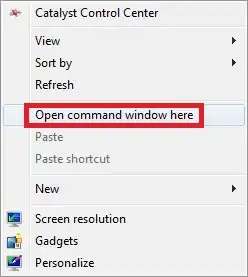
Then type the following line, followed by Enter:
dir /s/b/ad *@*
or
dir /s/b/ad *@* > @list.txt
to save results.

SΛLVΘ
- 1,389
- 1
- 11
- 13