My computer technician has installed TeamViewer on my PC. I just wondered if he could access my PC anytime and may get private information from it. It was just intended for him to access it if I had a fault and he could look without coming down to my home.
Asked
Active
Viewed 8,102 times
16


-
4You've gotten good answers, so let me just add this: If the technician setup unattended access without making that very clear to you, you need to find another technician. It would be a huge breach of trust for any technician to install remote control software that he could access without your knowledge and consent. – Carey Gregory Jun 19 '15 at 18:05
-
3And, for the record, "can he access it without me turning it on?" If your computer is off, hibernating, disconnected from the network, deep sleeping, rebooting, shutting down, or booting up, your computer can't be accessed by anyone at all. – phyrfox Jun 19 '15 at 20:11
-
2@phyrfox Well, technically, there is wake-on-lan but it is unlikely that they went throught the trouble of setting that up. – Chris Jun 19 '15 at 21:21
-
Still, I think it is at the very least **weird** that a repair shop would install TeamViewer on a customer's machine or offer remote assistance in general. – Tobia Tesan Jun 20 '15 at 06:19
-
1@TobiaTesan: it's not that uncommon, if you bought the device from them, bought a support contract, or if you're on an office with support contract with the technician. However, it would be a breach of trust if this come without the owner's explicit permission/consent and without making them fully understand what it means. – Lie Ryan Jun 20 '15 at 11:32
-
1-1 Teamviewer will not make your computer switch from off to on! It is amazing to think it would. Google would tell you if it did. – barlop Jun 20 '15 at 11:46
-
@LieRyan: I *think* op is talking about a mom & pop's repair shop, not an enterprise support contract, but of course it could be. I just find it weird and unusual :) – Tobia Tesan Jun 20 '15 at 11:56
-
1@TobiaTesan: Yes, it is not unusual for mom&pop's repair shop to install remote desktop for support purpose. The less computer literate people are usually also the ones that have a lot of easy-to-solve problems that can be solved remotely (and they're also the ones that are likely to not fully understand what they're agreeing to, even when the tech support tries his best to fully describe what remote support means). – Lie Ryan Jun 20 '15 at 12:01
-
I wonder how they bill that :) – Tobia Tesan Jun 20 '15 at 12:55
-
1@TobiaTesan I do some local computer repair, and I install TeamViewer on the customer's computer at times. (Not unattended access, though, and sometimes just a one-time run.) I charge the same per hour remote-controlling as I would if they dropped off the computer. – BenjiWiebe Jun 20 '15 at 14:33
-
Editing the question to "when it is turned off" changed it completely and made the current answers inapplicable. Probably the edit should be reverted and a new question asked about the turned-off case. – Nate Eldredge Jun 20 '15 at 19:21
-
@NateEldredge: the original question said "without me turning it on". Is there a difference? I rewrote the entire title because I had a very hard time making sense of it. – Tobia Tesan Jun 22 '15 at 07:55
3 Answers
18
Can my technician access my PC when it is turned off?
Not without your permission initially.
In general, it is only possible to access your computer if you share your TeamViewer ID and the associated random password with another person. Without knowing the ID and password, it is not possible to access your computer.
Warning:
It is possible to set up unattended access which gives anyone with the username and password unattended remote access to another computer.
To remove unattended access
- Menu Extras >> Options >> Security >> Personal password (for unattended access) >> (remove both)
- Menu Extras >> Options >> Advanced >> Show advanced options >> Random password after each session >> set to Generate new (instead of the default Keep current)

Nobody can now connect without you giving them the new random password.
If you are not running the TeamViewer client (or service) on your computer remote access is not possible at all.
To completely prevent any access with ID and password, exit TeamViewer in the taskbar.
How can I restrict access for TeamViewer connections to my computer?
In general, it is only possible to access your computer if you share your TeamViewer ID and the associated random password with another person. Without knowing the ID and password, it is not possible to access your computer. Do not share your ID and password with a person you do not trust.
You can also restrict access to your computer in different ways. Depending on how you want to restrict access and to what extent, choose one of the following options:
To completely prevent any access with ID and password, exit TeamViewer in the taskbar.
Any incoming or outgoing connections are no longer possible.
To restrict access to ordained devices, use the Black- or Whitelist in the TeamViewer full version.
Deny incoming connections for specific TeamViewer IDs or only allow connections for defined TeamViewer-IDs.
To restrict features for incoming connections, use the access control for incoming connections.
Choose between Full access, Confirm all, viewing access or deny any incoming remote control connection.
To deny connections from outside your network, only allow incoming LAN connections.
Source TeamViewer FAQ


DavidPostill
- 153,128
- 77
- 353
- 394
-
2I'd say not without _initial_ permission. I have TeamViewer set up on a remote computer that is attached to my account that I can log in to without prompting anyone locally at the machine for permission first. – kazoni Jun 19 '15 at 17:43
-
4
-
3@kazoni Answer updated to cover turning off remote unattended access ;) – DavidPostill Jun 19 '15 at 17:56
-
:P I know I set mine up that way, however someone who isn't as tech savvy may not even realize that there is such an option in the first place. – kazoni Jun 19 '15 at 19:48
-
Unless I am mistaken TeamViewer will also always (!!) leave a sign that a connection has been made (at least in the free version) unless it is shut down. TeamViewer also shows that a connection is established during the connection. Unless there is some kind of hack I am unaware off, there is no way of connecting without the other person being able to tell. – DetlevCM Jun 19 '15 at 20:26
-
@DetlevCm This is one advantage of TeamViewer. VNC doesn't show a notification. – Danny Beckett Jun 20 '15 at 14:58
-
@DannyBeckett at least under Linux VNC runs a separate dedicated session for anybody logged in. (You could check processes though.) RDP will kick you out locally if someone else connects with the same account, but if fast user switching is on it might be possible to have two connected. And the remote desktop tool my university uses also displays a notification - I think all support tools do (to avoid the issue asked about in this thread). However remote access applications (intended for the owner) can run quietly in the background with no indication of their presence whatsoever. – DetlevCM Jun 20 '15 at 15:48
4
It depends on how the person who installed it set it up.
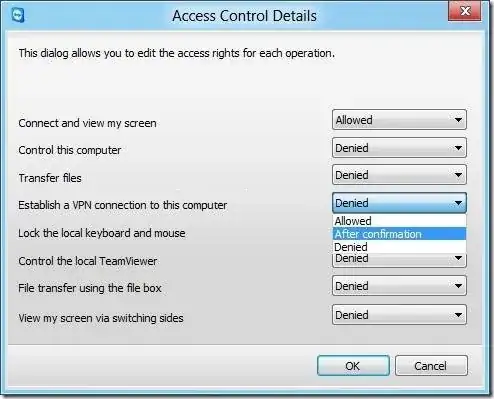
Open TeamViewer and look at how the Access Control setting are configured.
- Click on Extras menu, click Options and then click Advanced.
- In the right-side pane, scroll-down to see Advanced settings for connections to this computer.
- Select Custom Settings from the drop-down box and then click the Configure button to launch Access Control Details dialogue.
Also, TeamViewer site is an excellent resource for information about TeamViewer.
For example: How can I restrict access for TeamViewer connections to my computer?

Ƭᴇcʜιᴇ007
- 111,883
- 19
- 201
- 268
3
If your computer technician has installed TeamViewer he COULD have access to your PC any time that it is on and the TeamViewer service is started.
One of the ways that it could be accessed without your approval is if a unattended password is set. To check this do the following:
- Open TeamViewer
- Click the Extras menu and then choose Options
- Under Security check to see if a 'Personal Password (for unattended access)' is set.
If it is set he could have access to your computer, and without this option he will need the password provided at the start of TeamViewer.
If you would like to disable the start up of TeamViewer at boot, do the following:
- Click Extras and click Options.
- In the General tab there is a checkbox, Start TeamViewer with Windows. Uncheck it if you would like to disable it.
I would recommend disabling both options if you would only like him to have access to it when you start TeamViewer manually.

Peter Mortensen
- 12,090
- 23
- 70
- 90

Daniel Hayes
- 76
- 6