29

I have an excel spreadsheet with some an external link in that I can't get rid of.

I have read up on the internet quite a lot and Microsoft recommend the following:

  • For references in Cells: Using search and replace for [*] to find all references in worksheet cells.
  • For references in names: Opening up the name manager and making sure there are no external references there.
  • For references in Objects (this is really painful): Select each object individually and look in the formula bar.
  • For references in Charts (also painful): Check the formula bar the title and data series for every chart.

This still leaves me with a phantom external reference that I can't find, so I try some more things

  • The "Data - Edit Links" feature in Excel followed by clicking on "Break link" (nothing happens)
  • Used a "FindLink" plugin (didn't work for me, but was friendly to use)
  • Used Microsoft's DeleteLinks plug in (also didn't work and isn't friendly to use)
R3uK
  • 352
  • 2
  • 3
  • 16
cedd
  • 521
  • 1
  • 4
  • 9
  • After reading this I tried FindLink too. It put a status message on the statusbar identifying the sheet it was searching on, and gave me an hourglass, and an hour later, there was still no change. No way to tell whether it hanged or was just very slow. A loop this slow needs a progress indicator. Holding the Escape key down didn't break out of it, suggesting the absence of DoEvents in the loop. Finally I terminated Excel. – Greg Lovern Sep 13 '17 at 16:57
  • 1
    Thanks - what you wrote in the question was really helpful, and the answers given by other too. I noted that the Edit Links box still showed a link after trying everything, but closing and reopening the workbook did the trick - the links were all removed! – dunxd Jun 19 '18 at 16:32

3 Answers3

33

For anyone else that's spent hours combing their file, the problem can also exist if you've copied a data validation range over from another workbook.

To fix it :

Ribbon-->File-->Check for Issues-->Check Compatibility

This will bring up the checker that will tell you if Validation points to an external sheet.

Most importantly, it will tell you which sheet it is on.

Anyway once you know the sheet(s), go to the sheet. Now

Ribbon-->Home-->Down arrow next to Find and Select-->Data Validation.

This will select the cells that have Data Validation applied.

Now

Ribbon-->Data-->Data Validation

and fix the broken reference in the "Source" field, or click "Clear All" if you don't need it.

Chenmunka
  • 3,228
  • 13
  • 29
  • 38
Mochizmo IT
  • 331
  • 1
  • 3
  • 3
  • For those on Macs (I'm on Excel v15.37), the macro on this page (http://dailydoseofexcel.com/archives/2009/05/04/finding-external-links-in-data-validation/) works to find links in Data Validations. You'll probably have to fix all the quotes after you copy and paste. – KJH Aug 27 '17 at 14:40
  • I never would've guessed the broken links were hidden in data validation. Thanks!!! – Sean McCarthy Nov 27 '19 at 00:35
13

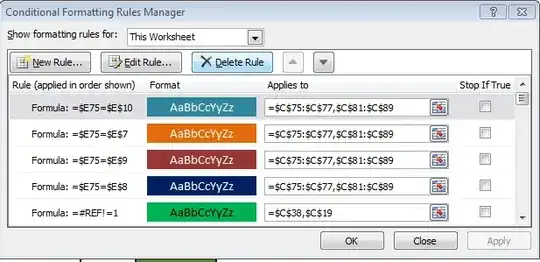
In the end I tracked this down to the conditional formatting rules.

Clicking on "Home - Conditional Formatting - Manage Rules" brings up the following dialog, which is relatively easy to look through and replace the external references.

enter image description here

cedd
  • 521
  • 1
  • 4
  • 9
  • Thank you for this. It got in accidentally and was driving me crazy! – Greg Lyon Jan 30 '17 at 22:09
  • 1
    Another place to check is the "Defined Names" (Formulas -> Name Manager) – lsowen Jan 12 '18 at 18:47
  • 2
    I had a spreadsheet with hundreds of conditional formatting & the rules didn't show it was referencing an external file. I only found them by renaming .XLSX to .ZIP, opening file.zip\xl\worksheets\sheet1.xml, searching for file path & notating the cell location then using the rules manager to find & delete them. You could copy file, then remove all rules, save, close, & re-open to isolate if that sheet/tab is causing your issue. Reference: https://superuser.com/a/957178/160219 https://superuser.com/a/1081277/160219 https://superuser.com/a/1134500/160219 – gregg Sep 12 '18 at 19:29
  • 1
    In my case none of the posted solutions worked for me. I eventually discovered, by the process of elimination, a sheet with a bunch of identical form buttons, all stacked one on top of the other with assignments to external workbooks. This was due to the user copying the sheet from another workbook. A whole afternoon wasted - except for experience! – DaveU Mar 18 '19 at 00:11
4

If the workbook is large is not easy find the format condition with external reference. I write this VBA function for find it. Limited to 80 columns and 500 row for reduce execution time. when function stop you can check the position asking:

 ?foglio.name
 ?cella.row
 ?cella.column

    Public Function CercaLink()
    Dim Cella As Object, i&, Foglio As Object
    For Each Foglio In ActiveWorkbook.Sheets
       ActiveWorkbook.Sheets(Foglio.Name).Select
       For Each Cella In ActiveSheet.Cells
         If Cella.Column < 80 Then
           If Cella.FormatConditions.Count > 0 Then
              For i = 1 To Cella.FormatConditions.Count
                 If InStr(1, Cella.FormatConditions(i).Formula1, ":\") > 0 Then Stop
              Next
           End If
        End If
        If Cella.Row > 500 Then Exit For
     Next
  Next
  End Function
Renato
  • 41
  • 1
  • How about inside the for loop, inside the if condition, instead of Stop, just print: Debug.Print Cella.Address & ": " & Cella.FormatConditions(i).Formula1 – Colm Bhandal Mar 05 '20 at 15:46