0

I have 2 drives in my computer: an SSD and a HDD (Seagate Barracuda Green ST2000DL003). The HDD was assigned the drive letter G. If I go into Explorer and type G: in the address bar, I can see all the files and folders on the disk. But if I open Explorer and go to Computer, it only shows the SSD. How can I make both drives appear in Computer?

I am using 64-bit Windows 10.

Edit: Picture of this.
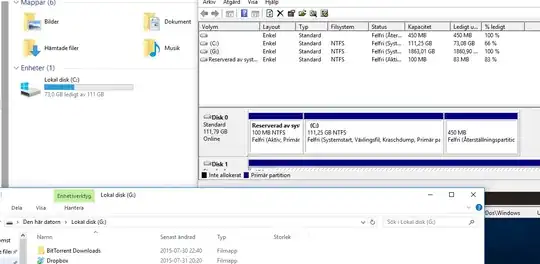
Edit2: So I seem to have found a way to get it to show. There is a partition called "Reserved by system" - which belongs to the SSD. It kind of bothered me seeing it under My Computer so I went into disk manager and removed its drive letter. Giving it a drive letter again seems to have brought back to HDD aswell..

user1021085
  • 129
  • 2
  • 8

2 Answers2

2

Explorer is for some reason configured by default to not show empty drives. To fix this, open Folder Options and switch to the View tab. (Folder Options itself is accessible by pressing the Options button at the far right of the View tab of the ribbon of Explorer if you're on Windows 8. It also appears in the Control Panel when not in Category view.)

Find "Hide empty drives" and uncheck it. Click OK; Explorer will respect the change immediately.

the Folder Options dialog

Ben N
  • 40,045
  • 17
  • 140
  • 181
  • I tried that, it does not seem to help. – user1021085 Jul 31 '15 at 19:04
  • @user1021085 That's unusual. If you type `diskmgmt.msc` in the Run dialog, does the resulting Disk Management window mention your drive? – Ben N Jul 31 '15 at 19:07
  • It does. I can access the HDD though explorer, Disk manager shows the drive, but it doesn't show up in explorer under my computer - only shows my ssd. – user1021085 Jul 31 '15 at 19:08
  • @user1021085 Open the Registry Editor (`regedit` in the Run dialog) and navigate to `HKEY_CURRENT_USER\Software\Microsoft\Windows\CurrentVersion\Policies\Explorer`. Is there a non-zero `NoDrives` entry? Also try the same path under `HKEY_LOCAL_MACHINE`. – Ben N Jul 31 '15 at 19:10
  • On HKEY_CURRENT_USER I find Policies but there is no sub-folder called Explorer. Clicking on Policies shows me "(Standard) - REG_SZ - NoValue". On HKEY_LOCAL_MACHINE I found the Explorer folder and there is no NoDrive entry in it. – user1021085 Jul 31 '15 at 19:16
  • @user1021085 Try opening an elevated command prompt and typing `chkdsk /f g:` to check the drive for errors. If that doesn't help, try changing the drive's letter by right-clicking its entry in Disk Management, choosing "Change Drive Letter and Paths", and pressing the Change button. – Ben N Jul 31 '15 at 19:21
  • Let us [continue this discussion in chat](http://chat.stackexchange.com/rooms/26476/discussion-between-user1021085-and-ben-n). – user1021085 Jul 31 '15 at 19:22
1

I had an SSD(C), SSD's "Reserved By System" partition(D) and my HDD(G). I removed the drive letter from "Reserved By System". Giving it a drive letter again seems to have brought back both "Reserved By System" and my HDD.

user1021085
  • 129
  • 2
  • 8