1

My C-drive is about 100 GB.

I had less than 2GB left. So i cleaned unnecessary things and could free only about 8GB. I was wondering what would be occupying so much memory and started investigating.

Later I found, Program Files, Program Files(x86), Program Data, Python, Installed Drivers, and Users consumes about 21 GB

If I right click Windows Folder and see the properties, it shows 53GB. But when I open the folder and if I do CTRL+A and see the properties, it shows only 31GB. What would have happened to remaining 22GBs?

Edit: All the calculations include hidden files. I have Show hidden files, folders and drives option enabled

Canadian Luke
  • 24,199
  • 39
  • 117
  • 171
Manoj G
  • 111
  • 2
  • possible duplicate of [How can I visualize the file system usage on Windows?](http://superuser.com/questions/8248/how-can-i-visualize-the-file-system-usage-on-windows) – Canadian Luke Aug 19 '15 at 11:02
  • I was going to suggest Treesize: https://www.jam-software.com/treesize_free/ Note, it is mentioned on the possible duplicate page! --- Also, I hope you have done some good defragging. I like this one: http://www.auslogics.com/en/software/disk-defrag/ – aparente001 Aug 19 '15 at 11:52

2 Answers2

0

The most likely cause is that some of the files are not being shown, so when you go into the folder and "select all", you are only getting properties for the visible files, not for the hidden ones.

Try going into Control Panel > Folder Options, and on the View tab, under "Hidden files and folders" select "Show hidden files, folders, and drives", and further down uncheck "Hide protected operating system files (Recommended)". Then do the select-all and properties again.

On my work machine, I show 44.0 GB when all files and folders are visible, versus 29.3 GB on the default settings.

  • It is including Hidden folders. I have `Show hidden files, folders and drives` enabled. – Manoj G Aug 19 '15 at 09:13
  • Make sure to uncheck the "Hide protected operating system files (Recommended)" box. Other possible suspect that take of the free space on the drive are the pagefile C:\pagefile.sys, this is close to the size of your RAM; the hibernation file C:\hiberfil.sys - if you don't use hibernation you can disable it; System Restore points – you can delete older restore point and/or limit the space that they can take from Control Panel. – Techpumpkin_WD Aug 19 '15 at 13:42
0

While selecting all files and showing properties, Windows skips files where your current users doesn't have access to (like System Restore Point data).

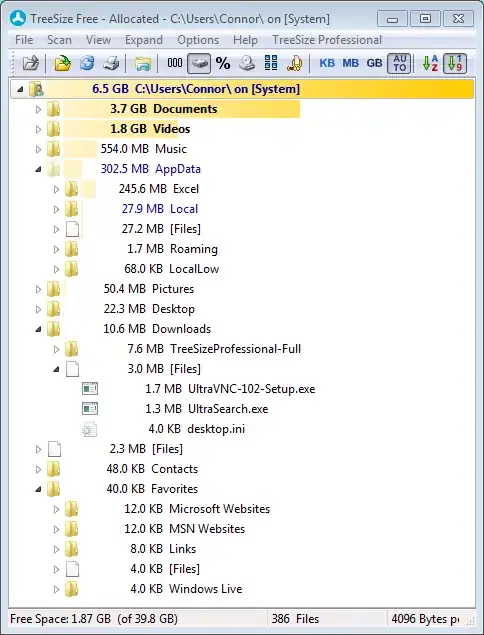
Run TreesizeFree (as admin) (this shows all folders) and look which folders "eat" most space.

TreeSizeFree

magicandre1981
  • 97,301
  • 30
  • 179
  • 245