What's the command line to find out if the OS is running a 32-bit version or 64-bit of Windows?
Asked
Active
Viewed 1.5e+01k times
29

-
In what language?! – Alix Axel Jan 15 '10 at 05:30
-
@AlixAxel, well they said *command-line*, so presumably, if anything, Batch. – Synetech Jun 24 '12 at 15:27
10 Answers
37
You can get this via WMI:
wmic OS get OSArchitecture
Example on my system:
C:\>wmic OS get OSArchitecture
OSArchitecture
32-bit

ZoogieZork
- 495
- 3
- 5
-
I like this answer (gotta go learn me some WMI console :) ), but I gotta give it to "systeminfo" for keystrokes. ;) – Ƭᴇcʜιᴇ007 Jan 15 '10 at 05:45
-
20
Command line:
systeminfo | findstr /I type:
example output:
System type: X86-based PC
X86 indicates a 32-bit system in this example.
(/I parameter indicates case-insensitive search)

Dono
- 98
- 7
-
I gave you a point for keystrokes, and then you made it longer. hehe :) – Ƭᴇcʜιᴇ007 Jan 15 '10 at 06:10
-
-
2But is "X86-based PC" the same as OSArchitecture 32-bit? You can run 32-bit Win XP on an x64 processor. – Michael Caron Mar 27 '12 at 15:52
-
be careful if your OS language is german(or maybe any other than englisch)! I have to change to `systeminfo | findstr /I typ:` as the whole entry is `Systemtyp: x64-based PC` – CeOnSql Mar 31 '16 at 14:14
-
`systeminfo | findstr /C:"System Type"` also retrieves the same information, but I guess longer text so less preferred. – Abhijeet Jan 05 '17 at 10:08
16
I can not attach answer to another post so here.
Piping the result of systeminfo - is taking a quite good amount in time and writes to the console so is not the best solution for command files (batch scripts - anyhow You like to call them B-) ).
Even with the findstr - it does not find this on other language version of windows.
On a central european language win7 os it also returns ..."X86-based"... on the result but something other on then the "type" were looking for. I am not sure that it can vary on other language variants of the os.
Probably the "wmic" method is the most reliable - it asks the os directly.
Other possible quick solution can be to examine a variable (at least working on win7 at me).
echo %PROCESSOR_ARCHITECTURE%
Ok - it is quite long to remember but possible a set | findstr ARCH can be remembered.
Sure - some can modify a system variable so not that reliable than wmic. But can be used quickly.
I hope I could help someone out.

RudyD
- 161
- 1
- 3
-
I wasn't sure the echo command would work on my XP box because I've never seen this environment variable before (perhaps because I've never looked for it), but it does. +1 for a simple solution. – music2myear Oct 20 '11 at 15:58
-
15
There are numerous ways to check the processor architecture under Windows:
The fastest, easiest, and most compatible way to check the processor architecture in at least Windows 2000 and up is to examine the
PROCESSOR_ARCHITECTUREenvironment variable:echo %PROCESSOR_ARCHITECTURE%However, this can give different results, depending on the way in which the command-prompt is opened. To avoid getting “unexpected results” due to WoW64, you can read it directly from the registry (Microsoft made no less than two typos in the key):
reg query "HKLM\SYSTEM\CurrentControlSet\Control\Session Manager\Environment" /v PROCESSOR_ARCHITECTUREMicrosoft also suggests reading the hardware information store from the registry:
reg query "HKLM\Hardware\Description\System\CentralProcessor\0" /v IdentifierYou can also check for the existence of the x86 version of the
Program Filesdirectory (or the environment variable that points to it) since it would only exist on a 64-bit system. Unlike thePROCESSOR_ARCHITECTUREvariable, this is not dependant on the way that the command prompt is run since the directory exists (or not) regardless of how the prompt is opened:::via env-var
if not defined ProgramFiles(x86) echo 32-bit::via file-system
if not exist "%systemdrive%\Program Files (x86)" echo 32-bit
These methods can be combined in a single batch-file (e.g., cpuinfo.bat) and provides a nice, lightning fast way to check the system from a standard Windows NT command-prompt without needing to resort to running other programs or frameworks.
The batch-file below was tested on 32-bit and Intel 64-bit systems (please test on AMD64), giving correct results in <1 second:
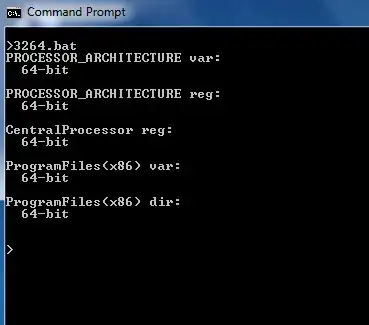
@echo off

echo PROCESSOR_ARCHITECTURE var:
echo %PROCESSOR_ARCHITECTURE% | find /i "x86" > nul
if %errorlevel%==0 (
    echo   32-bit
) else (
    echo   64-bit
)
echo.

echo PROCESSOR_ARCHITECTURE reg:
reg query "HKLM\SYSTEM\CurrentControlSet\Control\Session Manager\Environment" /v PROCESSOR_ARCHITECTURE | find /i "x86" > nul
if %errorlevel%==0 (
    echo   32-bit
) else (
    echo   64-bit
)
echo.

echo CentralProcessor reg:
reg query "HKLM\Hardware\Description\System\CentralProcessor\0" | find /i "x86" > nul
if %errorlevel%==0 (
    echo   32-bit
) else (
    echo   64-bit
)
echo.

echo ProgramFiles(x86) var:
if not defined ProgramFiles(x86) (
    echo   32-bit
) else (
    echo   64-bit
)
echo.

echo ProgramFiles(x86) dir:
if not exist "%systemdrive%\Program Files (x86)" (
    echo   32-bit
) else (
    echo   64-bit
)
echo.

Glorfindel
- 4,089
- 8
- 24
- 37

Synetech
- 68,243
- 36
- 223
- 356
6
I could not find the OSArchitecture property (as per phoebus' answer) so I would suggest using the SystemType property in ComputerSystem instead.
Running the command wmic computersystem get systemtype from a command prompt gives
C:\Windows\system32>wmic computersystem get systemtype

SystemType x64-based PC


4
Regular command line: wmic OS get OSArchitecture (IIRC)
PowerShell: (gwmi win32_computersystem).SystemType

phoebus
- 3,921
- 1
- 18
- 15
1
Go to Start » Run and then type cmd. Now you will be in command prompt. There you can type systeminfo and then press enter. It takes a few seconds to get all your system information. You can find the processor data too.
 Processor(s):              1 Processor(s) Installed.
                           [01]: x86 Family 15 Model 4 Stepping 10 GenuineIntel
- x86 Family means, your processor is 32-bit.
- x64 Family means, your processor is 64-bit.
C:\Documents and Settings\mr85464>systeminfo
OS Name:                   Microsoft Windows XP Professional
OS Version:                5.1.2600 Service Pack 3 Build 2600
OS Manufacturer:           Microsoft Corporation
OS Configuration:          Member Workstation
OS Build Type:             Multiprocessor Free
Product ID:                76487-640-3658033-23932
Original Install Date:     3/16/2012, 2:03:44 PM
System Up Time:            5 Days, 21 Hours, 35 Minutes, 51 Seconds
System Manufacturer:       Dell Inc.
System Model:              OptiPlex 210L
System type:               X86-based PC
Processor(s):              1 Processor(s) Installed.
                           [01]: x86 Family 15 Model 4 Stepping 10 GenuineIntel
~2992 Mhz

slhck
- 223,558
- 70
- 607
- 592

Rami Reddy Mullangi
- 11
- 1
-
2Takes a few seconds indeed! And running it again won’t help because it doesn’t cache the information. Also, the Windows updates cause the part about the architecture to quickly scroll off-screen, so unless you have a large enough buffer, you need to pipe it into `more`. – Synetech Sep 20 '12 at 05:14
1
if you are referring to windows OS, you can use vbscript with WMI
strComputer = "."
Set objWMIService = GetObject("winmgmts{impersonationLevel=impersonate,authenticationLevel=Pkt}!\\" & strComputer & "\root\cimv2")
Set colSettings = objWMIService.ExecQuery("SELECT * FROM Win32_Processor")

For Each objProcessor In colSettings
Wscript.Echo "System Type: " & objProcessor.Architecture
Wscript.Echo "Processor: " & objProcessor.Description
Wscript.Echo "Address Width: "& objProcessor.AddressWidth
Next

user31894
- 2,789
- 18
- 9
1
You can find that Information using "System Information"
Start-> Run -> winmsd.exe
Under "System Summary"/ System Type you can find the OS version
X64 -> 64 Bit
X86 -> 32 Bit
JohnT's answer in GUI ;)

ukanth
- 10,660
- 11
- 43
- 60
0
Simple code I used:
:arch
set p | findstr /i AMD64 > nul
if not errorlevel 1 goto no64
goto eof
:no64
code to execute
:eof

Oliver Salzburg
- 86,445
- 63
- 260
- 306

Dion
- 1