3

I have a print server running windows server 2008 that has about 50 printers on it. In windows XP, I was able to connect to the server using the UNC name and make a shortcut to the "printers and faxes" folder. (For the record, I know that it really isn't a folder, but that's outside the scope of this question.)

I have recently switched to windows 7 and I find that the jump lists are really useful. One of the things I want to do is make it easy to connect to that server's "printers and faxes" folder. I would like to use something like a shortcut that I can open and go immediately to that location. The problem is that windows 7 doesn't have a way to create a shortcut like you could in WinXP. They have a button on the toolbar that says "view remote printers" which sends you to the correct folder.

I'd like to avoid having to type out the server name. I also can't use the "view network" link in windows explorer. Our organization has over 6,000 machines and viewing the network lists all of them.

This is all about saving time by using the minimum number of mouse clicks and key presses in normal operation.

Does anyone have any suggestions?

fixer1234
  • 27,064
  • 61
  • 75
  • 116
Doltknuckle
  • 6,073
  • 4
  • 24
  • 28

3 Answers3

1

This was bugging me for a long time. I came across this:

Start -> \\PrinterServer

Click on View Remote Printers

Drag the printer icon in the address bar to your desktop or other location

I tried to post images, but I can't for spam protection. :(

Sean
  • 26
  • 1
  • This works surprisingly well. The shortcut maps to a com object, in this case: "\\\::{863AA9FD-42DF-457B-8E4D-0DE1B8015C60}" This is exactly what I was looking for. – Doltknuckle Apr 27 '11 at 20:04
1

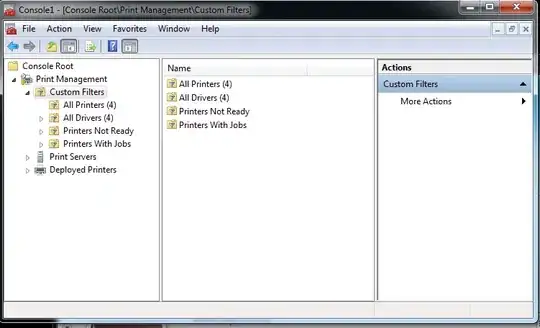
Go to run (Windows Flag+R) and type MMC.

Next click File > Add /Remove Snap-in, go to Print Management and add the machine(s) you want.

alt text

(I need to use a better snapshot tool! I have circled the parts you need to click!)

Now, simply go to File > Save and put it anywhere, then create a shortcut to it. (or just use the .MSC file itself without a shortcut)

You should now have the old Print Management, with the ability to control any print server.

alt text

Edit from comments-

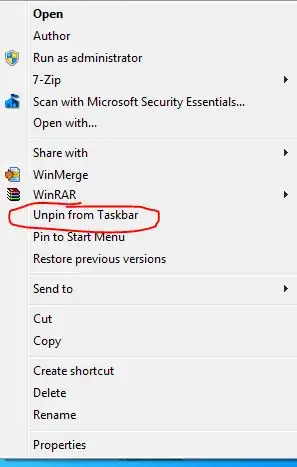
To make a shortcut, simply right click the .MSC file and choose Pin to Taskbar, and it should appear there.

alt text

alt text

Gaff
  • 18,569
  • 15
  • 57
  • 68
William Hilsum
  • 116,650
  • 19
  • 182
  • 266
  • 1
    That's a nice answer. – ta.speot.is Jan 20 '10 at 00:16
  • That is a rather neat trick, but I can't find a way to pin this to the taskbar. I tried the file, a shortcut, and the mmc entry in the start menu. None of them work. While I can just put a shortcut on the desktop as a workaround. It doesn't quite fit what I was looking for. – Doltknuckle Jan 21 '10 at 16:45
  • Sorry I didn't write it - but that's the easy part! Simply save it anywhere and right click then choose "Pin to Taskbar" - It should be there! http://i45.tinypic.com/4t1zzs.jpg – William Hilsum Jan 21 '10 at 18:22
  • Heh, I had the msc file on a networked drive. Apparently, you can't pin items from there. Now the only weird thing is that it always asks me to save the console when I close. Even when I don't make any changes. Must be an mmc thing. – Doltknuckle Jan 22 '10 at 16:24
  • As a workaround, can you create a shortcut locally to that (somewhere temporary) then pin the shortcut?... or just create the msc file locally? – William Hilsum Jan 22 '10 at 17:50
  • 1
    I put the msc on the local machine and everything works great. – Doltknuckle Jan 04 '11 at 22:42
  • You can just go to Administratirve Tools > Print Management. You can pin this to your taskbar as well. – Hondalex Apr 27 '11 at 19:39
0

How about UNC browsing to the 2008 server's host share root, \\server\ , and clicking on View Remote Printers

Then you'll see the shared and unshared printers, and have the ability to access File » Server Properties.

slhck
  • 223,558
  • 70
  • 607
  • 592
  • 1
    If you read the question, I am trying to get a one-two click shortcut that can be pinned to the task bar. This solution does not do what I want. – Doltknuckle Apr 12 '12 at 18:14