1

I have a Microsoft Word document that has slightly over 600 numbered / bulleted lines (i.e., paragraphs).  Something like this:

  1. Once upon a midnight dreary, while I pondered, weak and weary,
  2. Over many a quaint and curious volume of forgotten lore--
  3. While I nodded, nearly napping, suddenly there came a tapping,
  4. As of some one gently rapping--rapping at my chamber door.
  5. "'Tis some visitor," I muttered, "tapping at my chamber door--
  6. Only this and nothing more."

Source: The Raven by Edgar Allan Poe, copied from Project Gutenberg.

... or it could be bulleted; I can switch between those two formats easily enough.

I'd like to reformat it as an essay – not 600 separate lines – removing the numbers or bullets, and attach a footnote (with numbers as superscripts) to each line (as currently formatted).  Something like this:

Once upon a midnight dreary, while I pondered, weak and weary,1 Over many a quaint and curious volume of forgotten lore--2 While I nodded, nearly napping, suddenly there came a tapping,3 As of some one gently rapping--rapping at my chamber door.4 "'Tis some visitor," I muttered, "tapping at my chamber door--5 Only this and nothing more." 6 

________________________
1
2
3
4
5
6

The footnotes should be blank, allowing me to write the footnote text later.  Footnote numbers may be assigned sequentially, without regard to the current numbers on the paragraphs – but you may assume that the paragraphs are correctly numbered sequentially, with no skipped or repeated numbers, or other special instances.

Dov
  • 13
  • 3
  • 1
    Please explain what you want more clearly and give an example. – Scott - Слава Україні Jun 12 '19 at 20:29
  • I wrote a long poem baedd on the 613 commandments of the bible. I wrote it as bulleted or numbered lines to clearly see each new commandment. However I want to change the format more readably as a poem & not broken up by the current bulleted (or numbered) lines but rather keep the numbers just as footnotes within the lines of reading. – Dov Jul 03 '19 at 19:41
  • So instead of each number creating a new line break, I want to somehow change them into superscript numbered footnotes without creating new lines – Dov Jul 03 '19 at 19:44
  • (1) Please [edit] your question to *show* what you’re talking about — two or three lines should be enough. (2) Simply turning 613 one-line paragraphs into one 600ish-line paragraph is easy.  Taking the paragraph numbers and inserting them into the text may be tricky. (3) Is it good enough to use the numbers 1 through 613, or are there special cases like skipped or repeated numbers? (4) You have mentioned “footnotes” twice, and I don’t understand what you mean.  Do you want *actual* footnotes, or do you just want superscript numbers, like¹ this² ? – Scott - Слава Україні Jul 03 '19 at 19:54
  • The site is not letting me change the question for some reason. – Dov Jul 03 '19 at 20:17
  • The numbers are all innorder with no special intances. I want them as actual footnote numbers that can link to some notes explaining each of the commandments - which i have not authored yet. – Dov Jul 03 '19 at 20:19

1 Answers1

0

Insert the following VBA routine.  Then, click at the beginning of the file and run the routine.

Sub Reformat()
    With Selection
        With .Find
            .ClearFormatting
            .MatchWildcards = True
            .Text = "[!^13]^13"
            .Forward = True
            .Wrap = wdFindStop
            .Format = False
            .MatchCase = False
            .MatchWholeWord = False
            .MatchAllWordForms = False
            .MatchSoundsLike = False
        End With
        With .FootnoteOptions
            .Location = wdBottomOfPage
            .NumberingRule = wdRestartContinuous
            .StartingNumber = 1
            .NumberStyle = wdNoteNumberStyleArabic
            .LayoutColumns = 0
        End With
        Do While True
            .Find.Execute
            If Not .Find.Found Then Exit Do
            .MoveLeft Unit:=wdCharacter, Count:=1
            .Range.ListFormat.RemoveNumbers NumberType:=wdNumberParagraph
            .MoveRight Unit:=wdCharacter, Count:=1
            .Footnotes.Add Range:=.Range, Reference:="", Text:=""
            .MoveRight Unit:=wdCharacter, Count:=1
            .TypeText Text:=" "
            .Delete Unit:=wdCharacter, Count:=1
        Loop
    End With
End Sub

See How do I add VBA in MS Office? for general guidance on how to do that.

Parts of the above code were actually generated automatically by Microsoft Word.  I don’t fully understand every line, and I suspect that some of them can just be left out.  Here are a few that I can explain:

  • .MatchWildcards = True and .Text = "[!^13]^13".  These define what to look for in the text.  Wildcard mode gives you more power.  In wildcard mode, ^13 represents a paragraph break.  This is typically generated by pressing Enter and, in Word’s Show Hidden Characters mode, appears as ¶.

    [! character(s) ] matches any character other than one of the ones between the [! and the ].  So [!^13] matches any character other than a paragraph break.  Put them together and [!^13]^13 matches a paragraph mark preceded by an ordinary character — in other words, the end of a non-empty paragraph.

  • .Wrap = wdFindStop.  When you get to the end of the document, stop (don’t continue from the beginning).
  • .StartingNumber = 1.  I guess this means that the first footnote created will be #1, the second one to be created will be #2, and so on.  (The footnote numbers will not be based on the existing paragraph numbers.)
  • Do While True — run an “infinite” loop.
  • .Find.Execute — find the next paragraph mark.
  • If Not .Find.Found Then Exit Do — if we don’t find one, break out of the loop.
  • .MoveLeft Unit:=wdCharacter, Count:=1 — move to the left of the last character of the paragraph.  I expect that this will be a punctuation mark (e.g., ., ! or ?).
  • .Range.ListFormat.RemoveNumbers NumberType:=wdNumberParagraph — format the paragraph to be normal, not numbered or bulleted.  This might really be necessary only for the first paragraph, but there’s no harm in leaving it in the loop and executing it on every iteration.
  • .MoveRight Unit:=wdCharacter, Count:=1 — move to the right of the last character of the paragraph (which might be a punctuation mark).
  • .Footnotes.Add Range:=.Range, Reference:="", Text:="" — insert a footnote with no text.
  • .MoveRight Unit:=wdCharacter, Count:=1 — move to the right of the footnote number.
  • .TypeText Text:=" " — add a space after the footnote number.  (You might want to change this to be two spaces.)
  • .Delete Unit:=wdCharacter, Count:=1 — delete the paragraph mark.

I ran the above on this input:
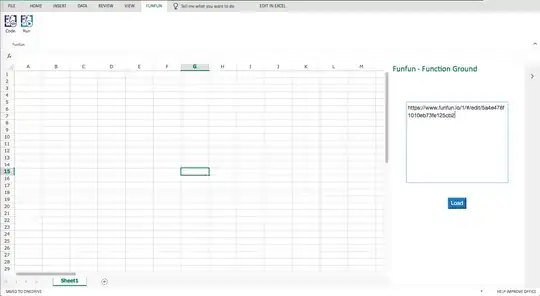
before

and got this result:

after

Note: This takes in excess of one second per paragraph to execute.  For a 600-paragraph document, that’s over ten minutes.  The screen might appear to freeze, and Word may show as “Not responding”, while the macro is running.  So, if you have other Word windows open, you might want to close them, or at least save them.  And then be patient.

  • Wowowow!!! AMAZING! THANK YOU SO MUCH! I can't wait to get to my pc tomorrow & try it! A million thanks! – Dov Jul 04 '19 at 04:05
  • Your explanation was also great, as I am unfamiliar with any techy coding stuff - it's so wonderful! – Dov Jul 04 '19 at 04:06
  • Okay, so I followed the instructions to run the vba and... STRANGELY, it did everything properly but only from line 467 and on????? – Dov Jul 04 '19 at 19:25
  • and even more strangely, even though it only changed the document from 467 and on, instead of the footnote being number 467 it is number 1 and on... – Dov Jul 04 '19 at 19:29
  • actually, the bullets are still there but i can remove that with find and replace. the new footnotes start with number 1 and on even though it only changed from line 467.. so line 467 now has footnote 1 and so on – Dov Jul 04 '19 at 19:41
  • (1) So you’re saying that it made *no changes whatsoever* to the first 466 lines?  That doesn’t make any sense.  Except — were you at the beginning of the document when you ran the macro?  It works only starting from the current location.  If you were at the beginning of the document when you ran the macro, can you post a picture of the first few lines of the document (with all hidden characters shown)?    … (Cont’d) – Scott - Слава Україні Jul 04 '19 at 20:07
  • (Cont’d) …   (2) Yeah, I’m not surprised that the footnote numbers started at 1, ignoring the paragraph numbers.  See my edit to the answer.  That’s why I asked whether it was OK to assign footnote numbers starting at 1, because I thought using the existing paragraph numbers would be trickier. – Scott - Слава Україні Jul 04 '19 at 20:07
  • Ok. i tried again and it started properly from the beginning! but strangely this time it STOPPED at number 340. The original doc must have some mixed formatting that I will now look into and correct before applying the macro. The main thing is that your macro worked!!! Thanks TONS! – Dov Jul 04 '19 at 20:16
  • could be the problem now is that after it starts running, i get a message saying that the program is not responding - seems that word is hanging up on me mid run ... – Dov Jul 04 '19 at 21:01
  • FYI, I just tested it on a document that was exactly 600 paragraphs long.  It seemed to hang after about paragraph 50, and it took *way* longer to finish than I expected (I didn’t time it, but I guess that it was more than ten minutes), but it *did* finish successfully.  Good luck! – Scott - Слава Україні Jul 04 '19 at 21:02
  • So you mean when it 'hangs' it will still continue onbits own & I should leave it for while? – Dov Jul 04 '19 at 21:08
  • Great! I'm running to a c!ass now, so I let it run again & will check on it in the evening whennI get back. Thanks a million for your amazing help! – Dov Jul 04 '19 at 21:18
  • IT WORKED IT WORKED IT WORKED!!!!! You can not imagine how thankful I am! May you be blessed! – Dov Jul 05 '19 at 03:19
  • Thanks for letting me know the good news!! – Scott - Слава Україні Jul 05 '19 at 03:21
  • may I ask for another tip here or should i post anew question? - I want to find each period followed by a footnote and add a carriage return ^l after the footnotes. I tried just replacing each period with a return but then the footnotes always ended up on the NEXT line – Dov Jul 05 '19 at 03:49
  • (A) If you’re willing to do this for *every* period: find `.^?`, replace with `^&^l`.  The `^?` matches a single character, and the footnote number counts as a single character even if it has multiple digits (i.e., if it’s greater than 9).  `^&` replaces whatever was found, so it has the effect of appending a `^l` after a period and one other character-like thing.  (B) This will leave a space after the line break.  Perhaps the simplest thing to do is to clean this up with a second Find & Replace: `^l␣` → `^l` (where `␣` represents a space).  … (Cont’d) – Scott - Слава Україні Jul 05 '19 at 09:57
  • (Cont’d) …  Or you could do the first Find & Replace smarter: in wildcard mode, find `(.?)␣`, replace with `\1^l`.  (C) If you want to find only periods followed by footnotes, that’s probably possible, but I don’t see any obvious way to do it.   You should ask a new question.  (D) If you’re still talking about the same document, it might be easier to go back to the previous version (the one with 613 paragraphs) and change the paragraph breaks to line breaks there. – Scott - Слава Україні Jul 05 '19 at 09:57
  • Wow! I tried your first idea and all is wonderful! Wow I guess this is what heaven feels like! :-) Thanks again for all your amazing help! – Dov Jul 05 '19 at 20:32