Recently a (badly written) piece of software erased my PATH variable. I've been installing software for years and recovering every single entry would be cumbersome. An even more cumbersome solution would be to restore from previous system restore point. Any ideas on how to get the PATH variable alone from the restore point?
Asked
Active
Viewed 6.8k times
35


-
I do not have "History Files" activated, nor "system protection enabled", but I found a very simple solution, just look into a proccess details started before this change, as suggested by @dosaki at https://superuser.com/a/1127136/1743317. You will need to download the Proccess Explorer at https://learn.microsoft.com/en-us/sysinternals/downloads/process-explorer – ruzenhack Oct 30 '22 at 18:13
3 Answers
56
You can mount the old version of the registry.
- Open Regedit
Restoring User PATH:
2. Select HKEY_USERS
3. File->Load Hive
4. Navigate to your user folder, click the little button to the right of "Open" for "Show Previous Versions"
5. Select appropriate revision
6. Select NTUSER.DAT (must have Show Hidden Files enabled)
7. Give it a name (e.g. "Old")
8. Navigate to "Old"\Environment
Restoring System PATH:
2. Select HKEY_LOCAL_MACHINE
3. File->Load Hive
4. Navigate to your C:\Windows\System32\config\RegBack, click the little button to the right of "Open" for "Show Previous Versions": 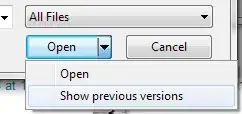
5. Select appropriate revision
6. Select SYSTEM.OLD
7. Give it a name (e.g. "Old")
8. Navigate to HKEY_LOCAL_MACHINE\"Old"\ControlSet001\Control\Session Manager\Environment
9. Open the PATH value and copy it to clipboard, then paste into system environment variables screen.
Note that for System, depending on how long ago this was, you can just go back into HKLM\(old control set version)\Control\Session Manager\Environment without loading an old hive, but this is a generally useful way to apply "Restore Previous Versions" to the registry.
'Show Previous Versions' explained, in detail with screenshots.
Special thanks to Microsoft for removing "Restore Previous Versions" from Windows 8.


Mark Sowul
- 3,042
- 19
- 22
-
-
-
The 'open' button is split, it looks like Open | `\/` - click the little thing on the right. – Mark Sowul Jan 24 '13 at 19:02
-
11Windows 8.1: "click the little button to the right of "Open" for "Show Previous Versions" <-- No such thing based on these directions – rainabba Jan 01 '14 at 06:37
-
1Yes, see at the bottom, "Special thanks to Microsoft for removing [it] from Windows 8" – Mark Sowul Jan 04 '14 at 14:57
-
2
-
1i used windows 7 64 bit and i couldn't see the show previous versions either.(fyi, the open button was not split since there are not previous version available)..any other solution.. – Lucky Feb 17 '15 at 08:25
-
-
To show the NTUSER.DAT, this settings must be unchecked in Windows Folder option: `Hide protected operating system files` – ceilfors Apr 05 '16 at 12:54
-
1I just did this but didn't need to load an older version (thankfully, because don't have one). I went to HKEY_LOCAL_MACHINE\ControlSet001\Control\Session Manager\Environment and it was still there. Maybe it's because I still have a command line open? – Rob Gray May 19 '16 at 00:51
-
1The system stores previous versions of SYSTEM\CurrentControlSet at a higher level, by backing up to ControlSet001, 2, 3, etc. So if you want to examine CurrentControlSet's recent history, you don't necessarily need to reload the whole registry. – Mark Sowul May 19 '16 at 13:28
-
@endolith same here. OP, I can see my single previous version of Regback, but when I open it and look for SYSTEM.OLD, i dont see one, further there is no option to rename the SYSTEM file that I do see. what do i do? – Ungeheuer Oct 18 '16 at 02:56
-
@endolith I don't know why i don't see a SYSTEM.OLD either, I am using Windows 7 64 bit but this worked for me. Double click SYSTEM and you will be prompted to give it a name, type in Old. Follow directions from there. – Pace Jun 27 '17 at 21:06
-
1FYI, when you are done, select the "old" folder and choose "File -> Unload Hive" to kick it back out. – Pace Jun 27 '17 at 21:07
-
I do not have "History Files" activated, nor "system protection enabled", but I found a very simple solution, just look into a proccess details started before this change, as suggested by @dosaki at https://superuser.com/a/1127136/1743317. You will need to download the Proccess Explorer at https://learn.microsoft.com/en-us/sysinternals/downloads/process-explorer – ruzenhack Oct 30 '22 at 18:12
4
Thanks indeed to Microsoft for eliminating "Restore Previous Versions". However, if you have system protection enabled on your system drive (usually C:) you can STILL get to the old versions back. Just because they took away the UI doesn't mean they took away the underlying backups.
First off, download Shadow Explorer. Then bow at their feet for writing it. http://www.shadowexplorer.com/
After installing it, you can navigate to the files referenced in the accepted answer by Mark Sowul. Note that you select the date/version you want to browser with the pulldown in shadow explorer:
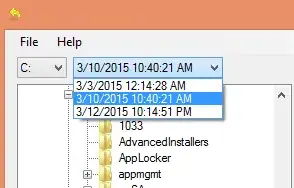
- To restore earlier env vars for the user account, go to c:\users[your username]\NTUSER.DAT
- To restore earlier env vars for the system, go to C:\Windows\System32\config\RegBack\SYSTEM
- Once you select the date/version you want and the file, right click the file and choose export
- Export to a temporary folder
- Then follow the instructions above for "Load Hive" above, but choose this temporary file you have just exported.

stevemidgley
- 688
- 3
- 8
- 19
-
3
-
1RegBack is not available anymore: https://docs.microsoft.com/en-us/troubleshoot/windows-client/deployment/system-registry-no-backed-up-regback-folder – jan-glx Mar 08 '21 at 14:10
-
@jan-glx - that's too bad, but I'm not sure it matters in this case. The big idea is that you use Shadow Explorer to restore old versions of the current registry. Once you've restored them, this answer should still work, even though MS eliminated RegBack, but input welcome if you think this is not true. – stevemidgley Jun 03 '21 at 15:43
-
@stevemidgley maybe I misinterpreted but for me that folder was empty found Above article and concluded that this answer no longer works – jan-glx Jun 04 '21 at 17:21
-
Solution for Windows 11 and without RegBack: https://superuser.com/a/1189593/1651192 – Antict Apr 12 '22 at 12:50
1
Well, this would be kinda hackish, but you could restore back to get the path and restore forward again to your current state.

R Hughes
- 181
- 1
- 6